
New Solution
Create a New Solution
A new solution with all the basic elements can be created via Startup Panel item or menu "File" > "New Solution" or Toolbar item.
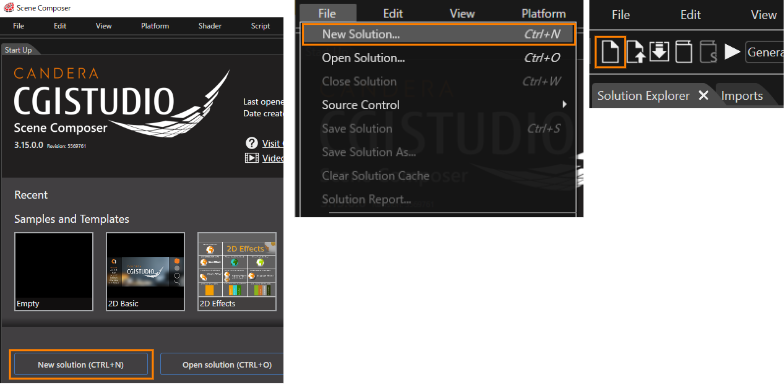
In the "New Solution" dialog that appears after selecting one of the above, you can set basic information for your solution using two items: "Create new solution" and "Solution Settings."
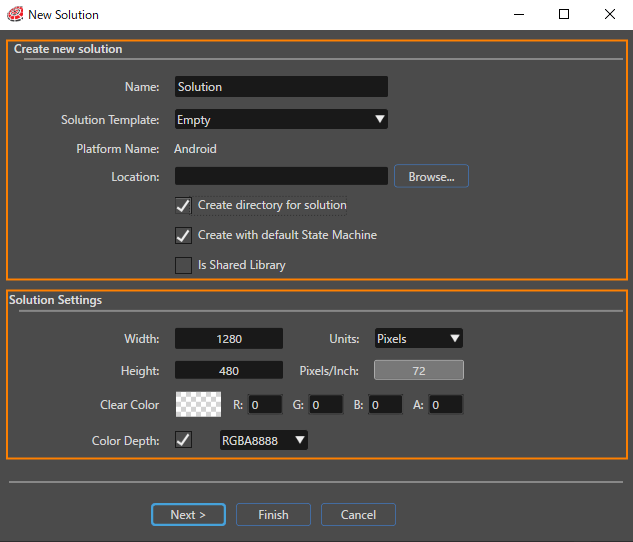
Create new solution
| Name | Solution name |
| Solution Template |
Solution template to use for the solution (There are several for different purposes, such as Empty, 2D Basic, and 3D Basic.) |
| Platform Name |
Target platform |
| Location |
Save the location of solution (Use the [Browse...] button to select the location to save the new solution.) |
| Create directory for solution |
Create a folder to save the new solution. |
| Create with default State Machine |
Include a GlobalStateMachine in the new solution. (This item can only be set if "Empty" is selected in the Solution Template.) |
| Is Shared Library |
Set it as a Shareable Component Library (SCL). |
Solution Settings
| Width/Height | Display/RenderTarget/2D Camera size |
| Units | Width/Height unit |
| Pixels/Inch | Resolution |
| Clear Color | Set the Clear Color. |
| Color Depth |
True: The Color Depth set in this option will be applied to the Render Target. False: The Color Depth of the selected Solution Template will be applied to the Render Target. |
Once you have completed configuring the solution, click the [ Finish ] button to create the new solution.
To configure more solution details at solution creation time, use the New Solution Wizard by clicking "Next >". About details, please refer to New Solution Wizard.