
Scene Templates
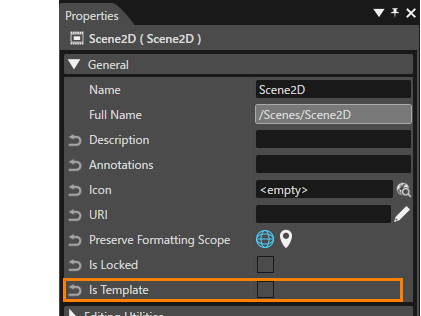
A scene created by the user can be set as a template by checking its IsTemplate property. This property is located in the [ General ] category in the Properties panel.
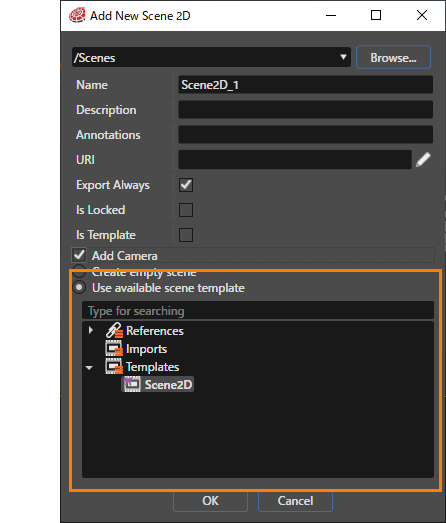
The dialogue used to create new scenes allows the user to select an existing template or import. If there are many scenes - 2D or 3D - created as templates, any of them can be selected and used as a template.
Scenes with the property item Is Template set are indicated by an orange frame on the icon. This makes it easy to identify them as scene templates.
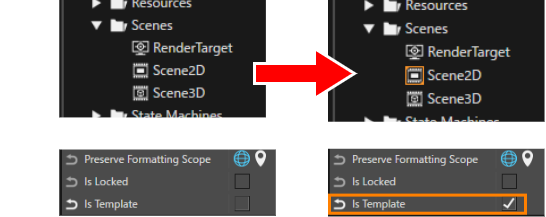
In addition to scenes, the icons of controls and other elements that can be used as templates are marked with an orange frame as shown above.
Imported Scene
- A scene created when importing (FBX, GLTF, Smart Importer) is an imported scene.
- An imported scene cannot be edited, only renaming is possible.
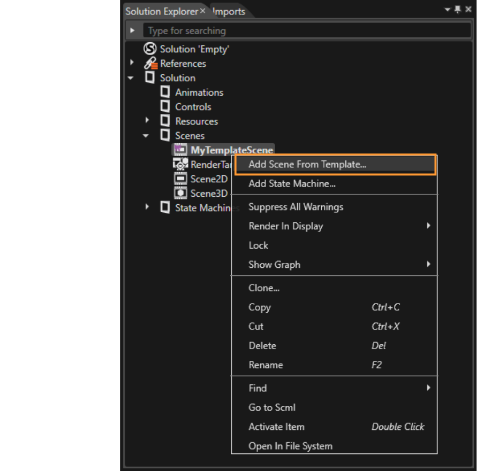
- The user can create a scene based on an imported scene (using the imported scene as template). This can be done by right-clicking on the imported scene in the Solution Explorer panel and choosing Add Scene From Template.
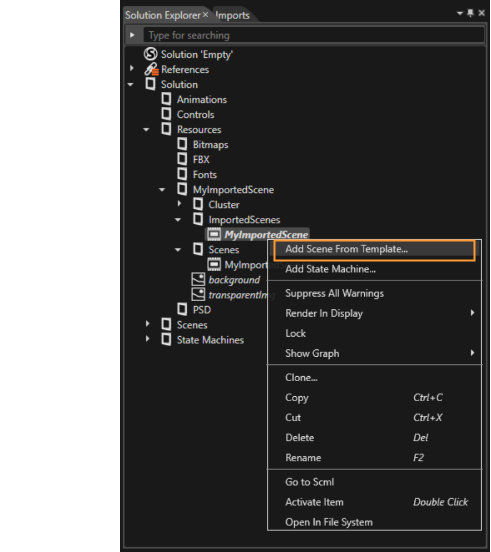
- If the Imported Scene is overwritten (updated) by the SmartImporter, it will also be reflected in scenes created based on the ImportedScene.
Template Scene
- A template scene is a scene that can be treated as a template by setting the scene's IsTemplate property to True.
- The user can create a scene based on a template scene. This can be done by right-clicking on the template scene in the Solution Explorer panel and choosing Add Scene From Template.
- Changes to the template scene will not be reflected in scenes created based on it.