
Text Size Report
The Text Size Report is a tool that can be used to ensure that the texts and their translations fit their desired sizes. The Text Size Report renders scenes in different cultures and reports any sizing issues the text might have inside of the Text Size Report panel.
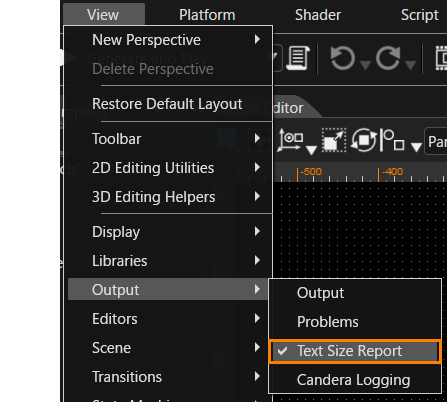
The Text Size Report panel is displayed by selecting [ View > Output > Text Size Reportesults ] from the menu bar.
Text Size Report Panel UI
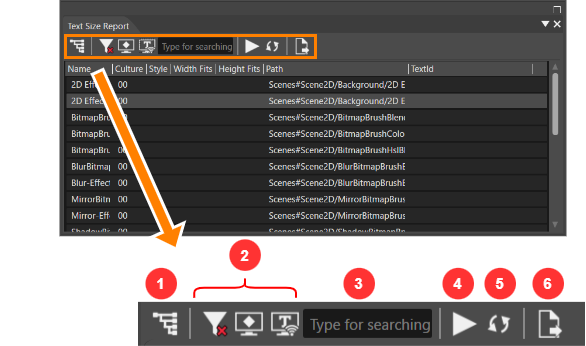
| 1 | Switch |
Switches the panel display style between list view (default) and tree view. |
| 2 |
Filter
|
Two filters are used to narrow down the items in the list.
|
| 3 | Search field |
Searches for items in the list via the name and path. |
| 4 | Execute |
Executes Text Size Report For more information, see Executing Text Size Report. |
| 5 | Refresh |
Refreshes the information in the panel. It is used to update the information when editing operations are performed on a scene, for example, when a node is added. |
| 6 | Export |
Export the configured Text Size Reportdata in csv file format. |
View style
By pressing [ Switch ] icon, you can switch between list view and tree view.
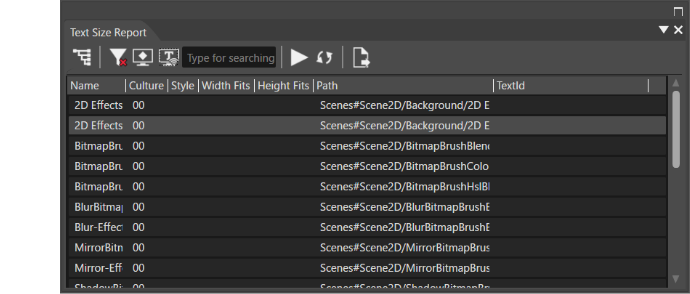
List View
By default the panel is in list view mode and it lists all of the combinations of cultures and texts within the solution.
Tree View
In case of large solutions with many scenes and cultures the tree view is recommended. The tree view items are adhering to the following hierarchy: Culture > Scene > Scene Hierarchy.
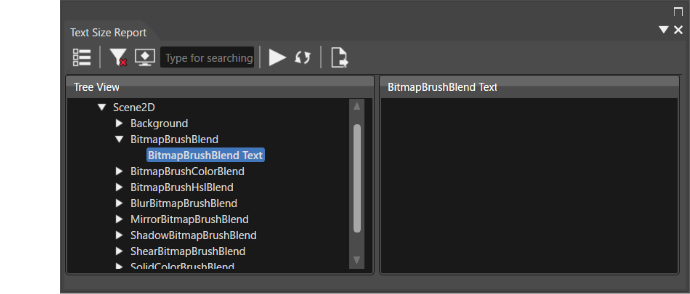
In both view style, should any additional text nodes be rendered without being present in the scene, they will be added to the list view along the other nodes and in case of the tree view they will be added to the unpaired nodes.
Executing Text Size Report
The Text Size Reportcan be executed either by clicking the run icon in the Text Size Report panel or using Report > Text Size Reportin the menu bar. The following dialog will appear:
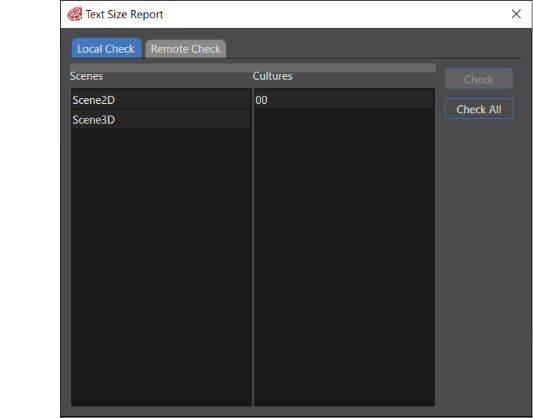
The target scenes and cultures should be selected for the Text Size Report Subsequently the inspection can be executed using the [ Check ] button. To select multiple scenes and execute them all at once, press the [ Check All ] button. During inspection, [ check ] button will be replaced with [ Stop ] button, this can be used to interrupt the Text Size Report The collected data will persist even if the Text Size Reportis not fully complete.
Remote
A remote text size check can be used in order to check the text nodes on a running system. In this mode the rendered text nodes will send a tcp message to the scene composer which will save the results. When dealing with duplicate results the text size report will prefer to hightlight the results that have failed the check at some point (not every result is displayed due to high count of entries).
Setup
In order to use the Remote TSR the Player application needs to start the TSR Server and the scene composer needs to start the TSR Client. The order of these steps is not relevant. Both Player and Scene composer need to be on devices with Internet or same LAN connection. The device needs to have the port 13060 free.
To automatically start the application with a TSR server on, build the application with the CANDERA_TEXT_SIZE_REPORT_ENABLED Cmake Flag set to true. Alternatively if a custom server startup is necessary, a call to DefaultTextStatisticsHost::GetOrCreateHost() from the TextEngine project can be used to start the TSR server inside of the application.
To start the TSR Client in Scene Composer, click the "Execute" icon (see Panel UI) in the Text Size Report panel. Select the [ Remote Check ] tab at the top of the Text Size Report dialog that appears, enter the IP of the device on which the Player is running, and click the [ Connect ] button. When interacting with the Player the results should appear in the panel.
Covered Use Cases
The Text Size Report covers the following usecases:
- Static Texts
- Culture dependent text
- Text nodes with inherited and provided sizes
- Text nodes with truncation, wordwrap
The Text Size Report won't work on:
- Text Nodes with disabled rendering
- Text Nodes outside of the render area
- Text Nodes with cached layout enabled.
- Clipped Text Nodes (Height check only works on word wrapping. Should the first line already be too small it will not check it. )
- Occluded Text Nodes
- Dynamic use cases like changing text or size properties at runtime
- Behavior functionality which rely on Courier features are not properly evaluated in Scene Composer