
Solution Information
This feature allows you to set an easily recognizable name, description, and thumbnail image for each solution. This makes it possible to instantly grasp the content of a solution on the Scene Composer Startup Panel, preventing mix-ups and editing mistakes. Even when managing multiple projects in parallel, you can immediately identify the purpose of each solution, making it a powerful management tool that helps streamline your daily editing work and project progress.
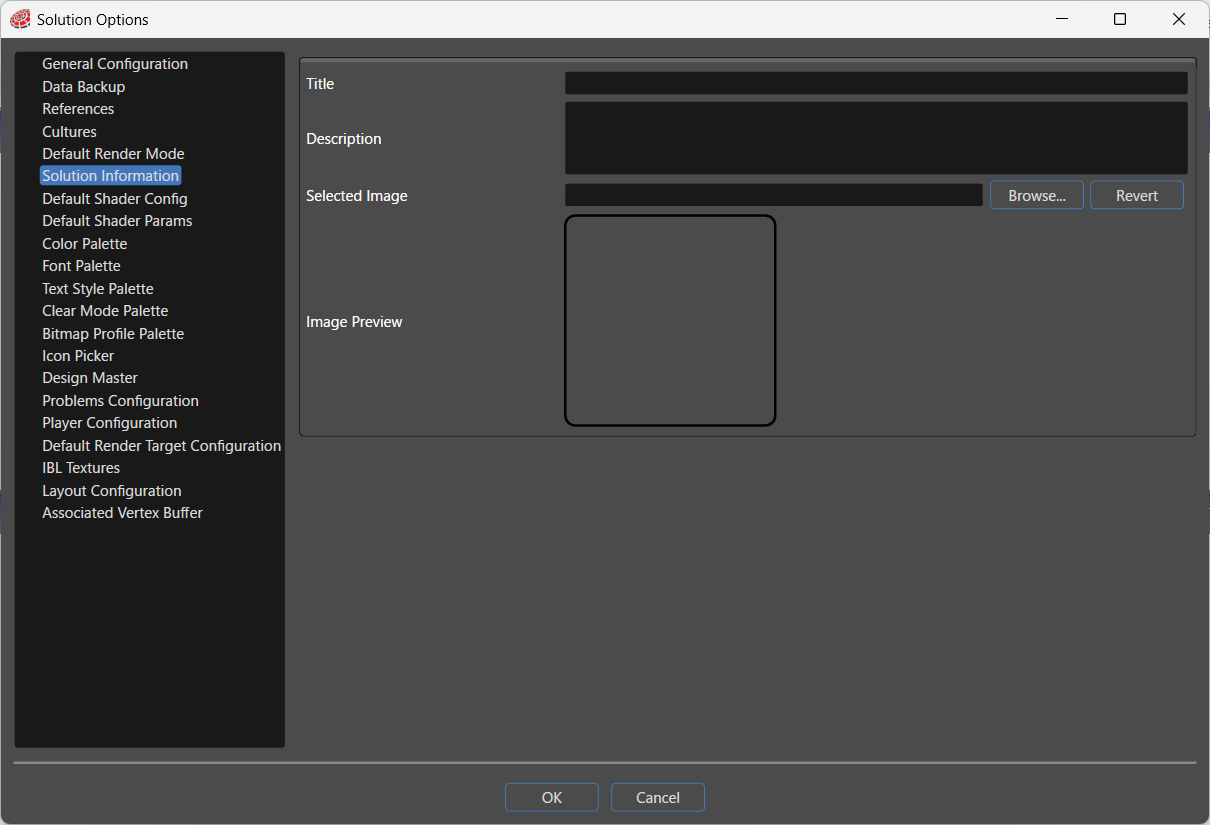
| Title |
Sets the name of the solution. You can assign any name that differs from the file name, allowing you to identify the solution with a clear and meaningful name for project management. The name is displayed in the tooltip on the Scene Composer Startup Panel. |
| Description |
Allows you to set a description for the solution. By noting the purpose of the solution, testing objectives, or key points in its editing history, this description serves as a useful reference when managing multiple solutions. The description is displayed in the tooltip on the Scene Composer Startup Panel. |
| Selected Image |
Allows you to set a reference image that makes it easier to visually identify the solution. This image is displayed as a thumbnail on the Scene Composer Startup Panel.
Default behavior: When you perform [Save] for the solution, a screenshot of the current state is captured automatically and used as the thumbnail. Therefore, after performing Reset, be sure to perform [Save] for the solution. |
| Image Preview | When an image is selected using “Selected Image,” a preview of the image will be displayed here. |