
Source Control Support
Source Control Support
Source Control Commands
Types of Resolve Conflicts
Source Control Support: Subversion
SceneComposer's built-in source control support uses the Subversion (SVN) Toolchain.
By default, Source Control Support is disabled. Source Control Support can be enabled through the menu "File" - "Preferences...".
Details on Source Control Preferences can be found in chapter Configure Source Control.
Custom source control support can be implemented by means of a specific source control plugin.
See also:
- Source Control Plugin SDK Interface
File > Source Control
All Subversion operations are available via the menu File > Source Control
- Import solution to source control
- Checkout solution from source control
- Update
- Revert
- Lock/Unlock
- Commit
- Cleanup
- Resolve Conflicts
Import to Source Control
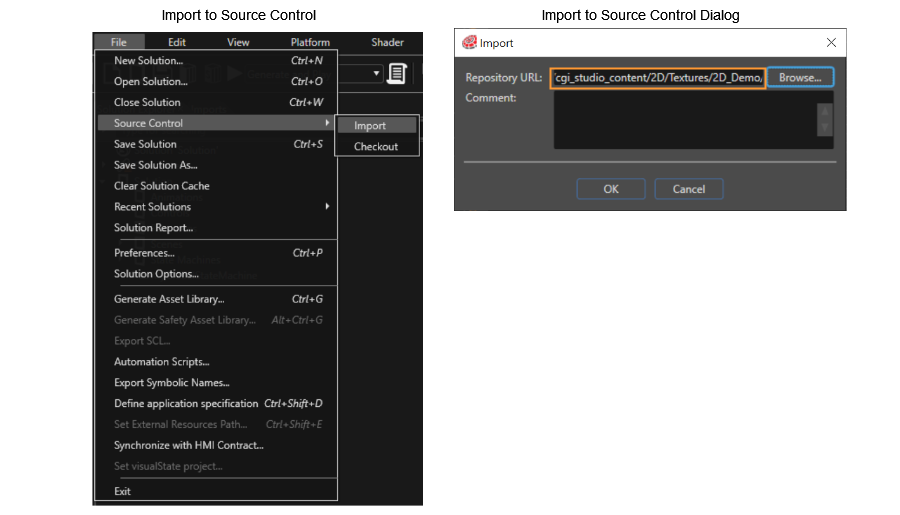
If an entity is not in repository, it can be added by choosing the menu option "File" > "Source Control" > "Import".
You will be prompted for the repository URL and an optional comment in order to add the solution to the specified repository.
You have to enter at least part of the Repository URL into the input field manually. The "Browse..." button opens a repository browser window, which helps you to find your desired location in the repository.
Checkout solution from source control
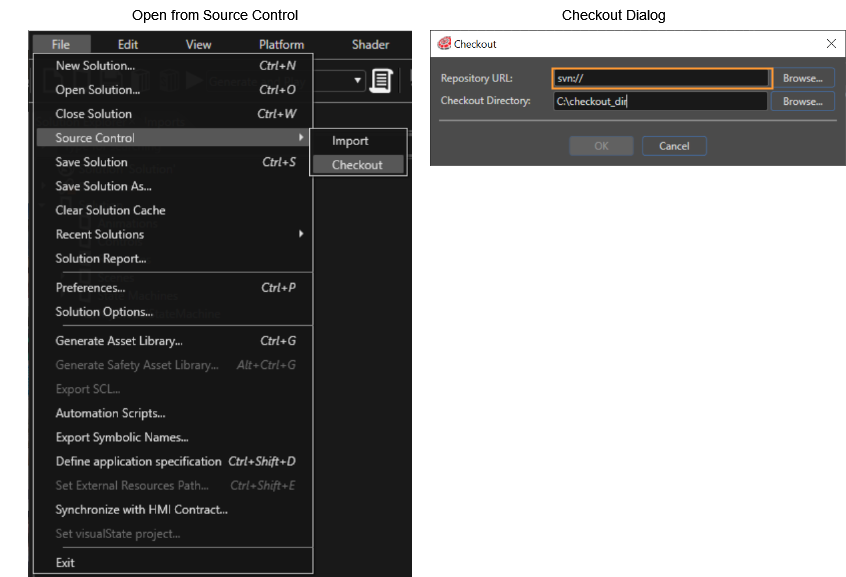
A solution that has already been saved in a repository, can be opened from the Source Control by selecting the "Checkout" menu option from "File" > "Source Control".
In the checkout dialog you can fill in the information about the Repository URL and choose the location.
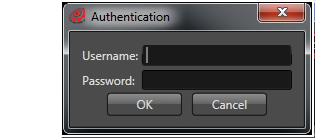
The first time you will be asked to authenticate. Following dialog will appear and the username and password for the repository will be requested.
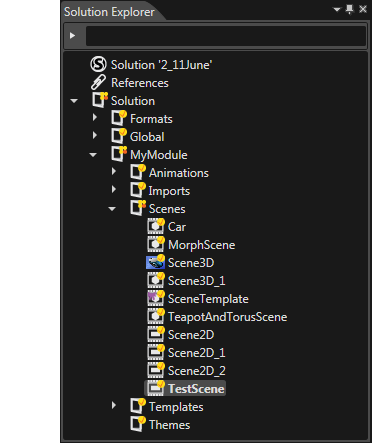
The content of the solution loaded from source control is displayed as any other solution in the Solution Explorer. All the items will have specific icons indicating their source control status.
Update
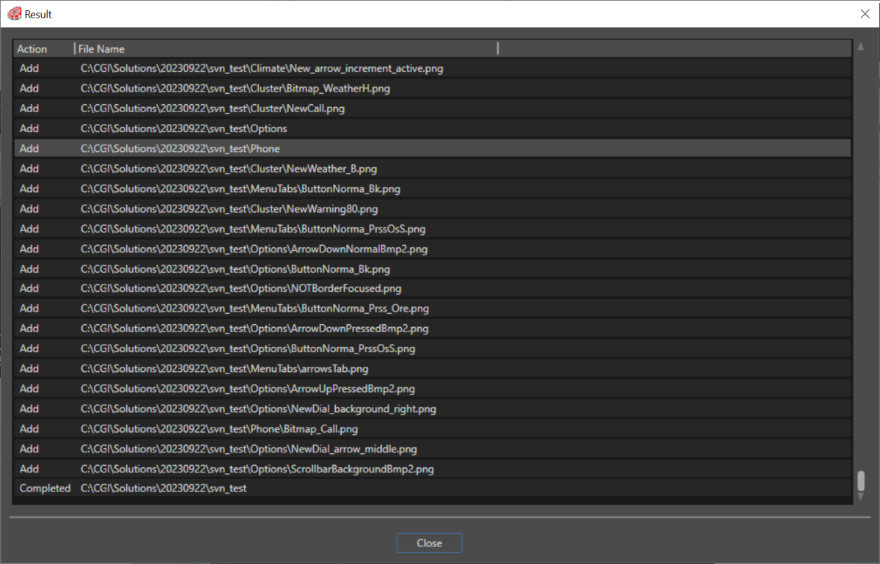
In order to get the latest version of the solution from the repository, right click on the solution from the Solution Explorer panel and choose the option "Update" from the context menu. An update dialog displaying all the changes obtained from the repository appears.
Revert Entity to Source Control
Undo all changes you made in a solution since the last update by selecting the solution from Solution Explorer panel, right-click and select "Source Control" > "Revert" from the context menu.
Lock/Unlock
Be the only person allowed to commit changes on the entire solution; right-click on the item in the "Solution explorer" panel and select the "Lock" option from the context menu. In the same manner the object/solution can be unlocked by choosing the "Unlock" option.
Commit Changes
Upload the changes made on the solution to the repository; right-click on the solution in the "Solution explorer" panel and select the "Commit" option from the context menu. A dialog displaying all the changes to commit appears.
Clean Up
If a subversion command cannot complete successfully, perhaps due to server problems, your working copy can be left in an inconsistent state. In that case you need to do a cleanup operation by choosing the context menu option "Clean Up" on solution.
Resolve Conflicts
Sometimes, when updating/committing the files from the repository one can get a conflict. There are two main types of conflicts:
- File conflicts : occurs when two (or more) users have changed the same lines of a file
- Tree conflicts : occurs when a user has renamed/deleted/moved a file/folder which another user has either renamed/deleted or moved meanwhile.
In order to understand the further information about the conflicts' resolving, it is necessary to explain some Source Control specific terms:
- HEAD revision : represents the latest revision of a file or folder in the repository
- BASE revision : represents the current revision of a file or folder in the user's working copy. This is the revision, the file or folder it was in, when the last checkout, update or commit was performed. The BASE revision is normally not equal to the HEAD revision.
Types of Resolve Conflicts
Sometimes, when updating/committing the files from the repository one can get a conflict. There are two main types of conflicts:
- File conflicts : occurs when two (or more) users have changed the same lines of a file
- Tree conflicts : occurs when a user has renamed/deleted/moved a file/folder which another user has either renamed/deleted or moved meanwhile.
In order to understand the further information about the conflicts' resolving, it is necessary to explain some Source Control specific terms:
- HEAD revision : represents the latest revision of a file or folder in the repository
- BASE revision : represents the current revision of a file or folder in user's working copy. This is the revision, the file or folder which it was in, when the last checkout, update or commit was performed. The BASE revision is normally not equal to the HEAD revision.
File Conflicts
A file conflict occurs when more users have changed the same lines of a file. It is the user's responsibility to choose how the conflict should be resolved because there are more possible alternatives. Whenever a file conflict occurs, the Source Control places three new files in the directory:
- FileName.extention.mine : this is the file as it existed in the working copy before the update. This file has the latest changes in it and nothing else. It doesn't contain any conflict markers.
- FileName.extention.rOldVersionNumber : this is the file that the user checked out before the latest edits. It shows the BASE revision before the latest update of the working copy.
- FileName.extention.rNewVersionNumber : this is the file that the Source Control has just received from the server when the user updated the working copy. It corresponds to the HEAD revision of the repository.
Whenever a conflict is reported, you should open the file in question, and search for lines starting with the string <<<<<<<. The conflicting area is marked like this:
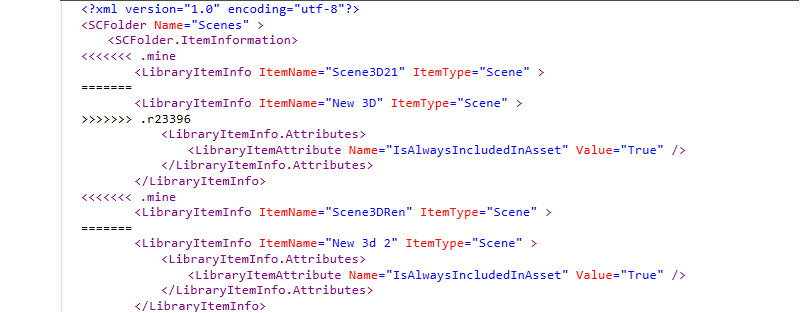
In order to resolve a conflict, the user has more than one option to choose from.
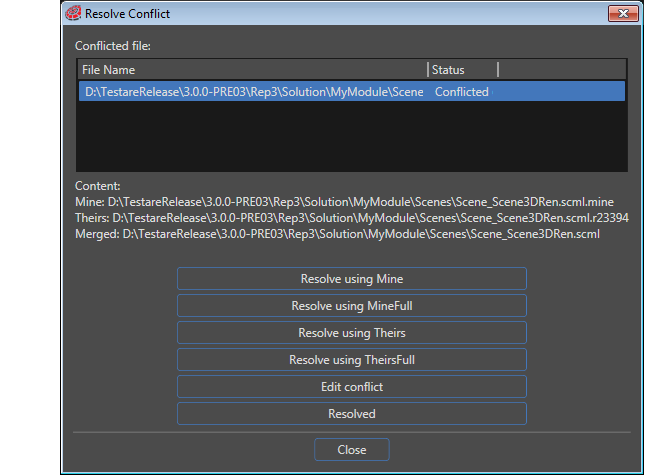
The following alternatives are offered in the "Resolve conflict" dialog that opens from the contextual menu "Source control" > "Resolve conflict" option:
- Resolve using Mine : resolve the current conflict by choosing the local version (FileName.extention.mine) on all conflicts, for the rest it uses the auto-merged. The conflict is "Marked as resolved" by default after choosing this option.
- Resolve using MineFull : resolve the current conflict by choosing the entire local file (FileName.extention.mine). The conflict is "Marked as resolved" by default after choosing this option.
- Resolve using Theirs : resolve the current conflict by choosing "their" file which is the incoming file (FileName.extention.rNewVersionNumber) on all conflicts, for the rest it uses the auto-merged. The conflict is "Marked as resolved" by default after choosing this option.
- Resolve using TheirsFull : resolve the current conflict by choosing the incoming file(FileName.extention.rNewVersionNumber). The conflict is "Marked as resolved" by default after choosing this option.
- Edit conflict : opens an editor where the user can edit the new revision file(FileName.extention.rNewVersionNumber), the file .mine (FileName.extention.mine) and upon these changes the merged file will be changed dynamically. After this, the user will save the changes and will be able to mark the conflict as resolved by pressing the "Mark as resolved" button. Please note that the "Mark as resolved" command does not really resolve the conflict. It just removes the FileName.extention.mine and FileName.extension.r* files, to allow the user to commit the changes.
- Resolved : the user decides only to mark the conflict as resolved leaving the file as it resulted after the latest update, without making other changes on file. This way the user will be able to commit the file.
Tree Conflicts
As it was previously mentioned, a tree conflict occurs when a user has renamed/deleted/moved a file/folder which another user has either renamed/deleted or moved in the meantime.
There are many different situations that can result in a tree conflict, and all of them require different steps to resolve the conflict. For the moment, SceneComposer subversion feature only offers the option "Resolve" for tree conflicts.
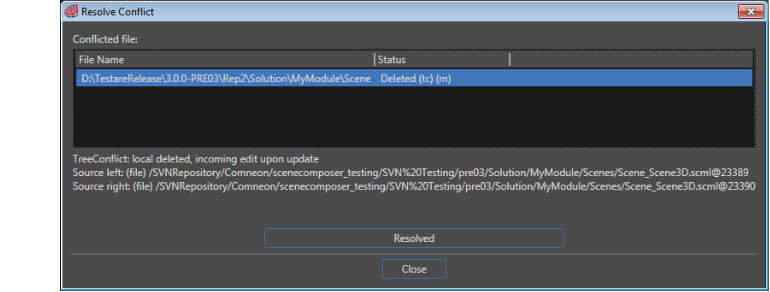
The Resolve command does not really resolve the conflict. It just removes the FileName.extention.mine and FileName.extention.r* files, to allow the user to commit his changes. The user will manually resolve the tree conflict or use an external tool.
From the Solution explorer panel, select an item and choose "Source Control" > "Resolved conflict" context menu option.
In the new opened dialog the user will be able to see all existing conflicts and their types (file conflict or tree conflict).
After the user marks the conflict as resolved he can decide whether he will cancel or commit his local changes.