Wireframe Scene Design
Wireframe Scene Design
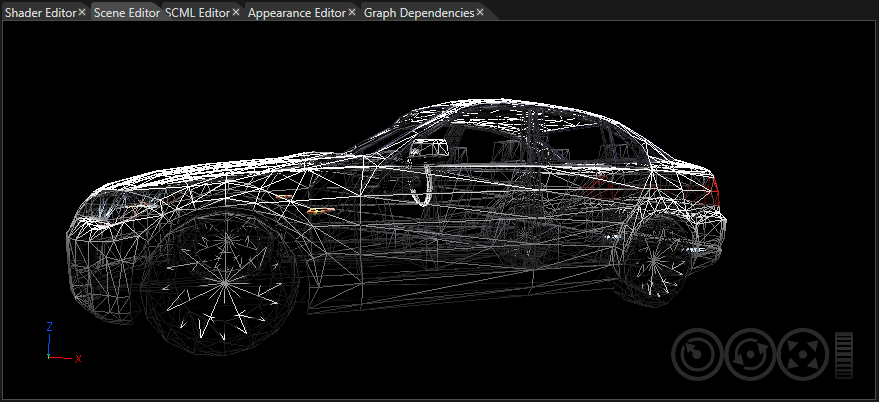
It can be really difficult to find a specific object in a complex scene with many objects(objects hidden by other, bigger objects). A good solution in SceneComposer is the usage of the wireframe nodes preview type. Wireframe rendering applies for meshes (mesh, planar shadow, morphing mesh) and billboards, regardless of their provenience (created by the user, imported, or created by a widget).
There are four different modes available for an entire solution created in SceneComposer: Normal, User Defined, Wireframe and Alpha Blending. Those are from the combo button near the isolated editing button, in the Toolbar.
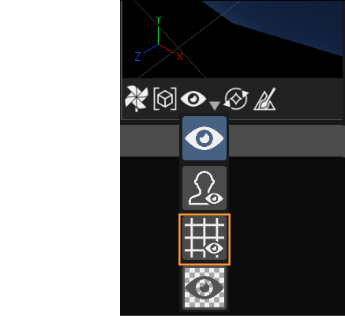
When the Normal type is selected all the nodes are visible in a usual, non-wire framed, manner. When the User Defined option is selected, at first, all nodes are rendered like in normal mode. But, with the user defined render mode, you can select single nodes and change their "Node Preview Type" property to "Wireframe". These nodes will then always be rendered in wireframe when User Defined rendering is selected, whereas everything else will be rendered normally.
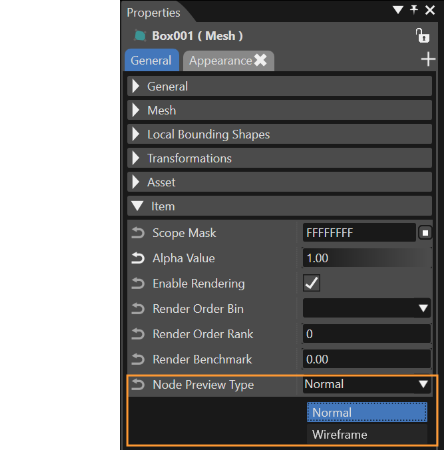
This possibility is available for every selected node, for an entire scene or for the whole solution. Use the User Defined option when the wireframe of only one node should be displayed. In this way, if the Wireframe type of the chosen node is selected, the geometrical structure of the selected object will become visible.
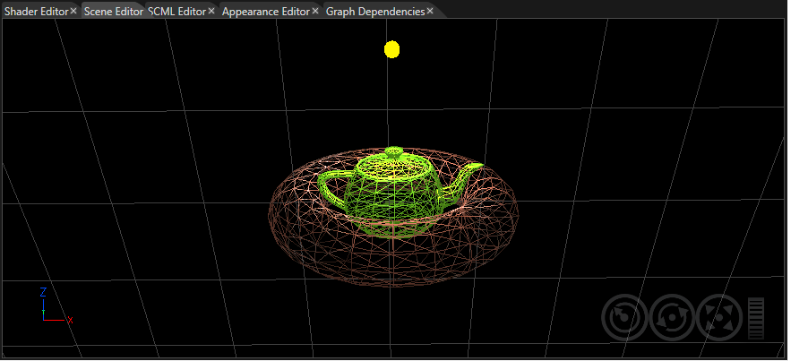
When the Wireframe option in the Toolbar is selected, all the nodes from all the scenes in an opened/newly created solution are displayed as wireframes. Now any new object added to the scene will also be displayed as a wireframe.