
Reusable Solution Libraries
Shareable Component Library (SCL) Usage
The main goal of a shareable component library (SCL) solution is to make all the resources from a particular SCS solution available to be used in other solutions. A SCL is an archived file containing SCML/binary files and some meta information. SceneComposer provides the possibility to reuse any part from a solution that is exported as a SCL.
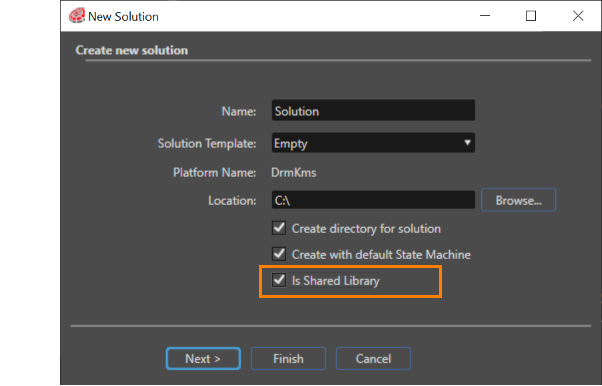
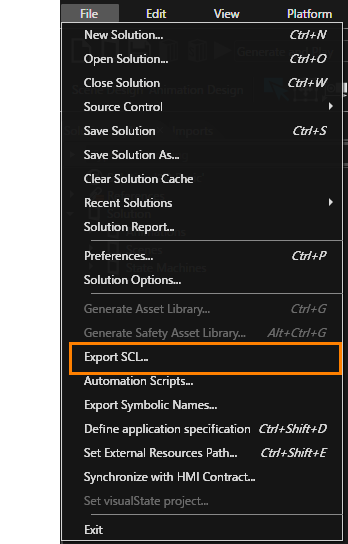
It is possible to set a new created solution as a shareable component library (SCL) by using the "Is Shared Library" checkbox from the "Create new solution" dialog. After the creation of the new solution, the "Export SCL" option will be available under the "File" menu and it will be possible to export the solution as a shareable component library (SCL).
To export a solution already created as a shareable component library (SCL), first, choose the SCL "Library Type" from "File" > "Solution Options" > "General Configuration".
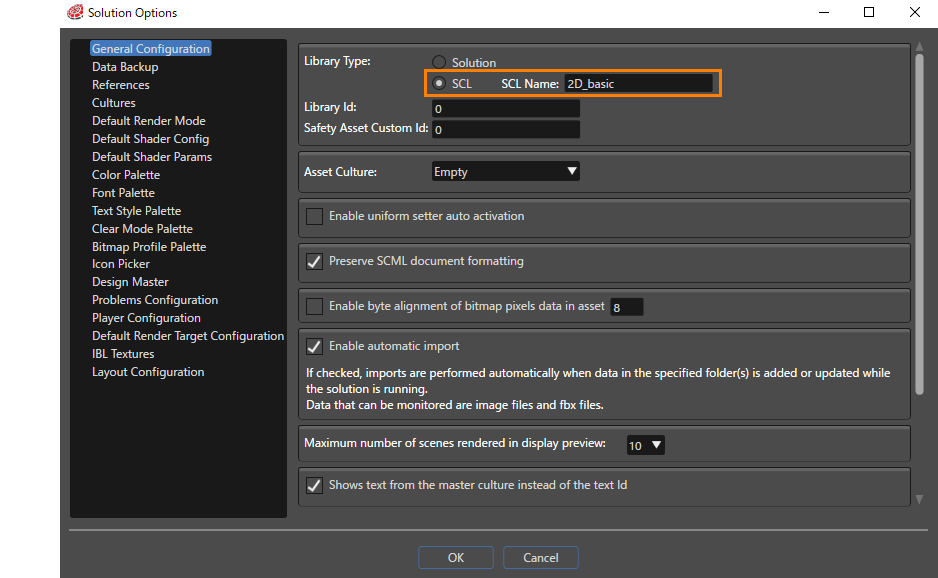
The SCL name can be the same with the SCL solution or it can be modified. Second, after the solution has been saved, the "Export SCL" option will become available under the "File" menu. On this way, the solution can be exported as a shareable component library (SCL) in any place selected by the user.
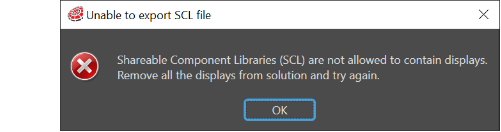
If an older imported/converted solution already contains a .scl file with displays, the error will be showed in Problems panel. In this way, the user will be noticed and will be allowed to correct this situation.
After the export of the solution as a SCL solution, the content can be used in another solution after it is imported via "Solution Explorer" panel where a "References" node is available. When right click on the "References" node, the "Add Reference" from the context menu allows the user to select the SCL solution.
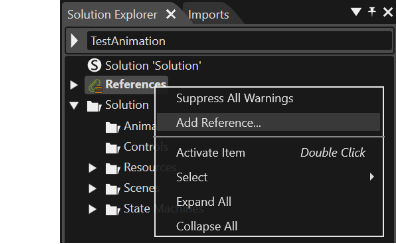
After selecting an SCL solution, a dialog will appear prompting you to choose a save path format.
However, if the path of the selected SCL solution is located within the Solution folder or the Scene Composer folder, it will automatically be saved as a relative path. In this case, the dialog explained in the below will not be shown.
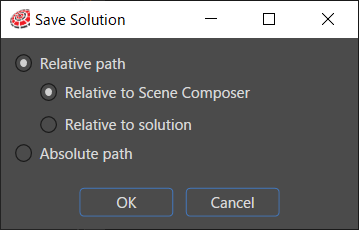
In this dialog, you can select either a relative path or an absolute path. If you choose to use a relative path, you can further specify the reference base from the following two options:
-
Relative to Scene Composer
-
Relative to solution
If the selected SCL solution exists on the same drive, the relative path option will be available, as shown in the figure above.
If the selected SCL solution exists on the same drive, the relative path option will be available as shown in the figure above.
However, if the selected SCL solution is located on a different drive, it cannot be converted to a relative path. In such cases, the dialog will display only the "Absolute Path" option.
After this step, all the available nodes will become visible under the "References" node in the next panels: "Solution Explorer", "Imports", "Toolbox", "Render Targets" and "Templates".
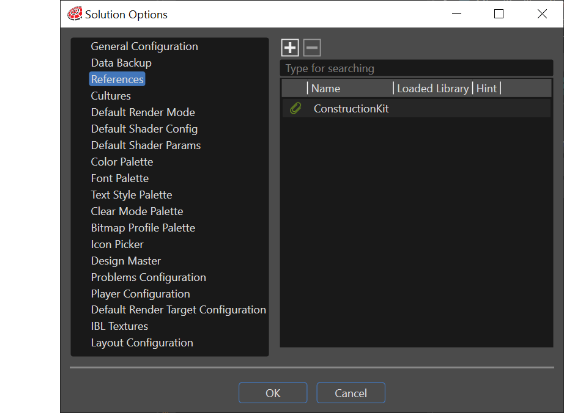
Another way to import the content of a SCL solution is through the "Solution Options" panel. Here is a specific section - "References" - where all the imported references are visible and other references can be added.
When an external application needs to access some SCL objects, it is mandatory to know which is the SCL name.
SCL name is like a namespace and it is used to access the SCL items from outside (//$NAME$/Controls/MyControl) and also for the Candera name ($NAME$##Controls#MyControl).
Control of SCL Items Visibility
It is possible to control the visibility of the SCL items at the destination by using a flag for scenes, animations, etc. This flag is available in the "Properties" panel. It has three different options:
- Inherited (the element, if it is a leaf, will inherit the property of the parent)
- Public (the element will be available as a reusable/shareable resource)
- Private (the element will not be available as a reusable/shareable resource)
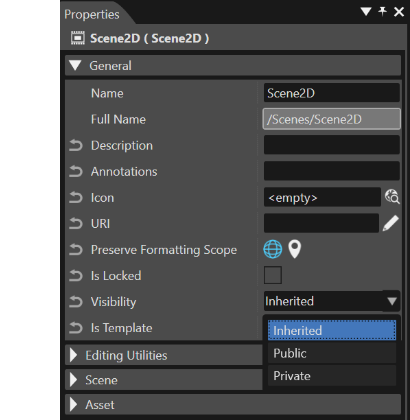
All the available elements can be used in a new SCS or SCL solution. The leaves will inherit the desired type of visibility of any node just if the flag is set after the selection of the node in Solution Explorer panel. If this operation is done by selecting the node in any other panel, the item visibility will not be inherited by its leaves.
-
The referenced content of a SCL solution is available only as read only. No modification can be operated on it. If a modification is needed the user has to operate it on the referenced solution. After the modification has been done, the solution has to be saved and exported, again, as a SCL solution.