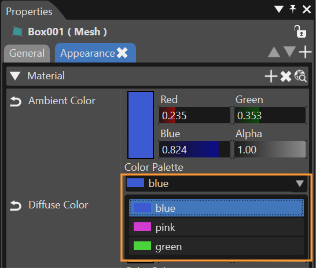
Color Palette
Color and Font as Template
Each TextNode (the text brush) has to be configured for using:
- a specific Color
- a specific Font
It is possible to define some color templates or font templates by using "Color Palette..." or "Font Palette..." that can be found in Solution Options menu ("File" > "Solution Options").
Color Palette
By using the Color Palette many color templates can be saved and kept for future projects. The color templates can be used later to create other solutions and scenes without defining again the properties of a new color.
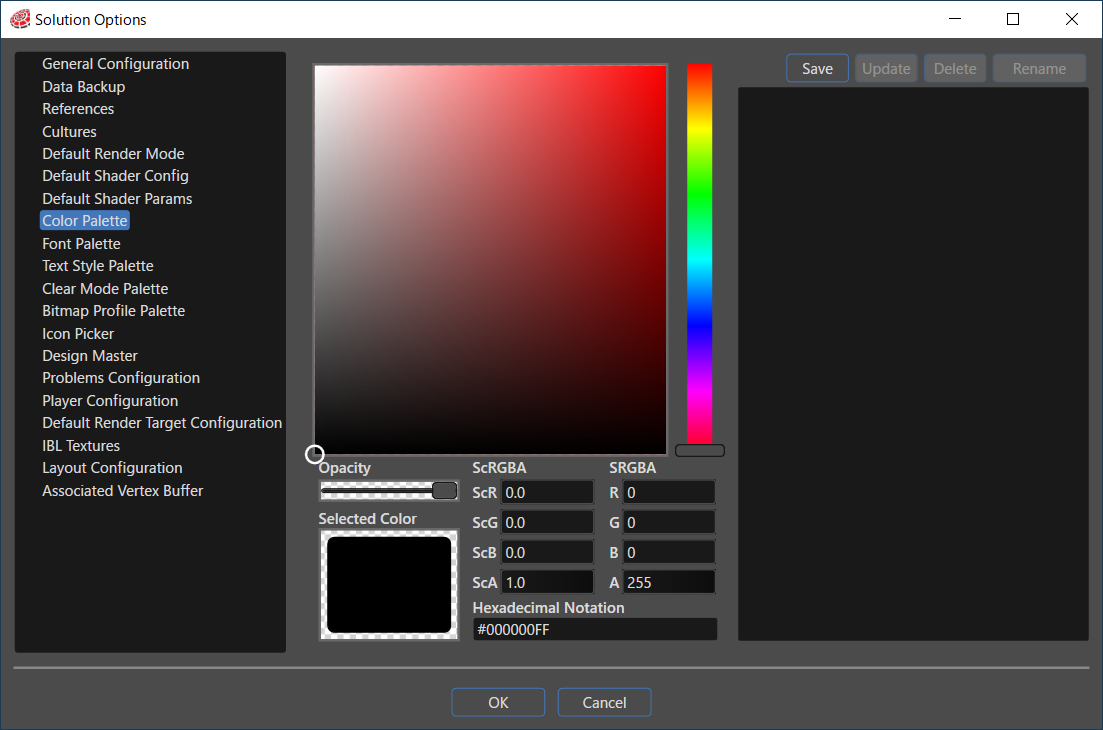
Color Preview
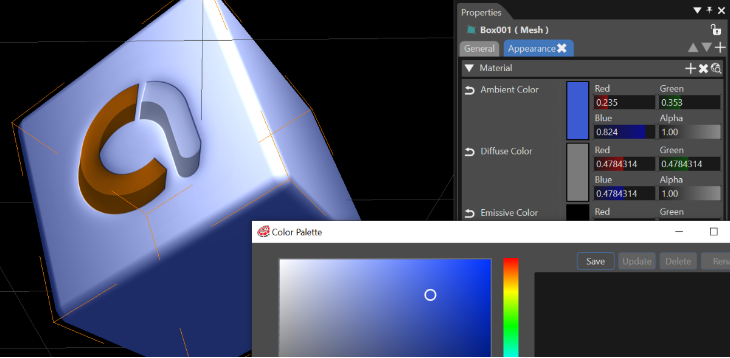
Selecting a color from the Properties panel will apply the selected color to the elements as preview before closing the editor.
- The element of the object should be selected on the Scene Tree.
- All its material colors properties can be set by using the Color palette. The Color palette opens when any type of color - Ambient/Diffuse/Emissive/Specular - is selected in the Properties panel.
- Any modification of the color will be previewed before closing the editor.
If there are some color templates previously created, they can be used on any object by selecting them from the Color Palette combo box in the Material's section on Properties.