
Problems Browser
Problems Browser
A dedicated problems browser is available, which can be activated through "View" > "Output" > "Problems"
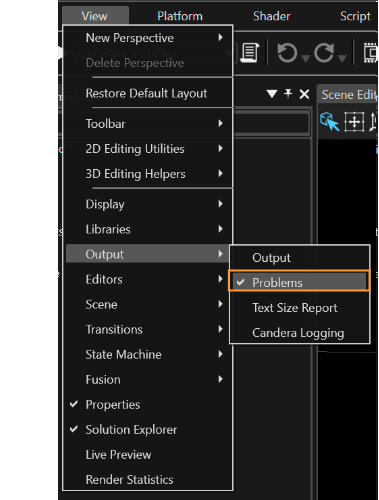
A problem is a message related to one item in the solution.
In addition to the message itself the problem also has a numeric Id, a severity category (Info, Warning or Error) and a source service (Scml Parser, Shader compiler, etc). By right clicking on the header, it is possible to hide any of its sections or, by using the drag and drop option it is possible to change their order.
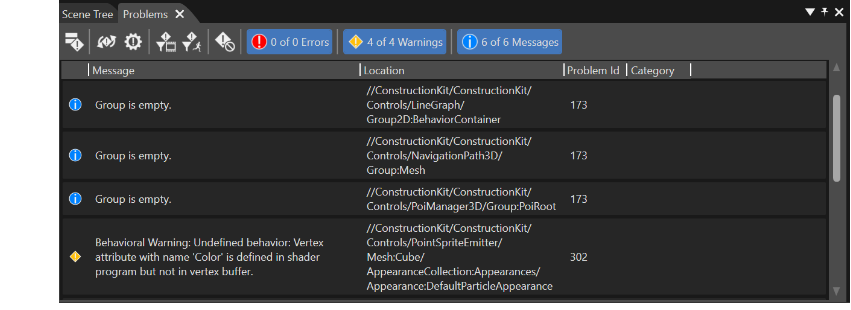
The problems browser lists three different categories of problems:
- SCML Errors
- Shader Compiler Errors and Messages
- Missing Dependencies
It is possible to explicitly select information related to one of these categories in the "Category" checkbox. With the buttons placed in the top of the Problems browser, the displayed problems can be filtered according to their origins:
- "Show Only the Suppressed Problems": Display just those problems which were suppressed by the user.
- "Filter Problems by Selected Scene": Display problems only related to the selected scene.
- "Filter Problems by Selected Animation": Display problems only related to the selected animation.
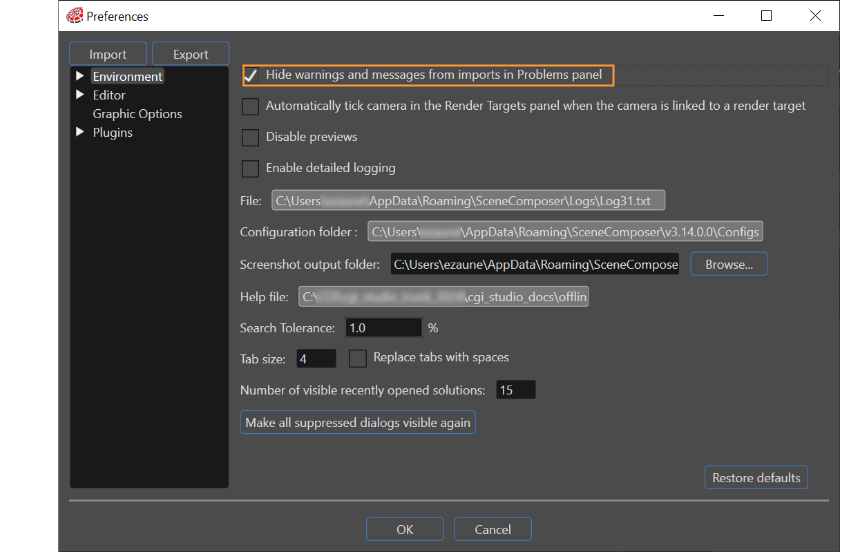
To get focused on problems related to SceneComposer solution configuration, it is possible to suppress warnings or messages solely related to imported content. The first option is ticking the checkbox "Hide warnings and messages from imports in Problems panel" in the "Environment" section of the "Preferences".
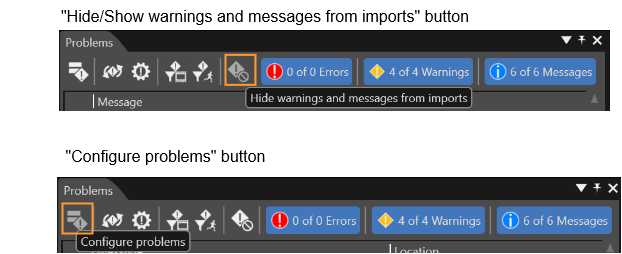
The same persistent setting can be toggled directly in the Problems panel by using the button "Hide/Show warnings and messages from imports":
Another possibility to hide warnings is by using the context menu. This operation can be done in both "Solution Explorer" and "Imports" panels. If in the "Solution Explorer" panel the context menu is opened by right clicking on any existing solution or to any of its children, a "Suppress all Warnings" is available. When this is option is selected all the warnings will be hidden.
If one object is selected there will be hidden all the problems related with that object. If the same operation is done for a folder, there will be hidden all the problems related with any children which pertains to that folder.
The forth way to hide warnings is from the problems configuration dialogue - by ticking the "Suppress" checkbox - which is available from the problem browser via "Configure problems" button.
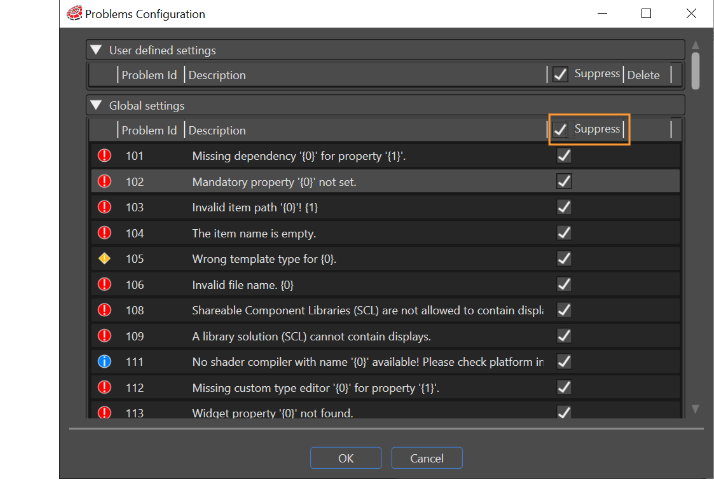
The option to hide warnings is available just for "Warnings" and "Info", not for "Errors".
This setting can also be made in Solution Options > Problems Configuration.
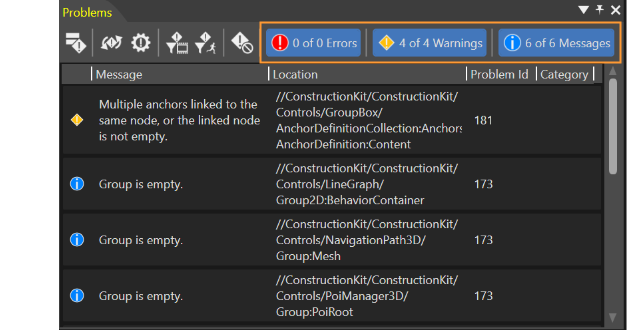
- Errors
- Warnings
- Messages
It is possible to combine the results of these three types of filtering to obtain the desired output.
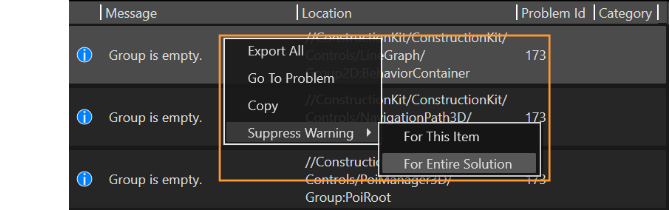
When right clicking on any selected problem, a context menu gets opened. The context menu shows three different options.
- Export All : a .csv file with al the problems will be exported in a place specified by the user.
- Resolve : Offers an additional context menu to resolve the problem.
- Go to Problem : the user will be able to reach immediately the place where is located the problem which has to be solved.
- Copy : the message of the problem will be copied on the clipboard.
- Suppress Warning : You can choose if the problem should be suppressed for this item or for the entire solution.
Types of Errors
SCML Errors
When faulty SCML modifications are being committed in the SCML Editor, SCML errors are displayed in the Problems view:
Go to Error
When one of the displayed errors is double-clicked, the scene where the error pertains will be loaded and the object will become highlighted on the Scene Tree.
Custom Formats Error
Currently the custom bitmap formats are not supported by Candera 3D (only Candera 2D supports them).
A validation was added to prevent the usage of custom formats in 3D scenes. An error will be displayed in the problem browser panel for every 3D texture which uses a bitmap (or a bitmap theme entry) with custom bitmap format. The validation is applied to the data which is put into the asset (for example an imported bitmap may have the format RGBA but using a bitmap converter the format may be changed to a custom format, this will result in an error).
The asset will not be generated if it would contain any 3D scene which use bitmaps with custom formats.
Shader Compiler Errors
When faulty shader program modifications are being committed in the Shader Editor, shader compiler errors are displayed in the Problems view:

After successful shader compilation, a regarding message is displayed:
Mip-Mapping Warning
A warning should be displayed if mip-mapping is activated on a texture that has non-power-of-two dimensions.
Missing Dependencies
All the missing dependencies are listed on the Problem Browser, too.