
Searching
Search for Objects in a Solution
This chapter describes how to use the "Search" panel for advanced searching for objects in a solution.
Specify Search Criteria
Make the Search tab visible in Scene panel. This can be done through the menu "View" - "Search". The select box "Search of Type" allows limiting the search to a specific type of object.
Objects of the following types can be distinguished (listed in alphabetical order):
|
Any object Any node 2D Camera 2D Node 3D Camera |
3D Node Animation Appearance Behavior Bitmap |
Control Control Node 2D Control Node 3D Effect Folder |
Light Material Mesh Render Node Render Target |
Scene Script Component Texture Vertex Buffer Widget |
In the list below the search type and the search button, specific search criteria can be defined related to a specific property of the selected object type. In the example below, a search for all Bitmaps is defined, where the name contains "Gauge".
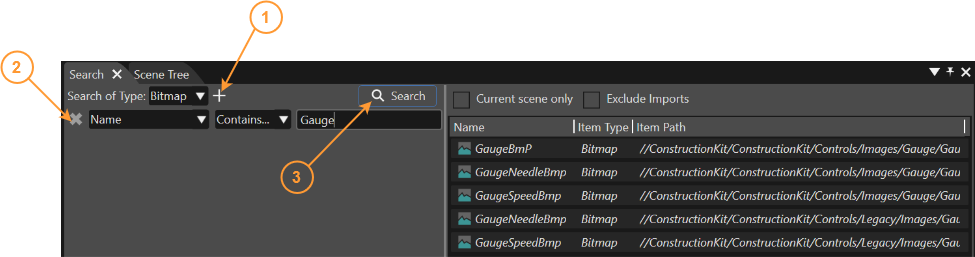
- Adds additional search criteria. The search function will consider an "AND" operation between several search criteria.
- Deletes an existing search criterion.
- Triggers search action. Pressing the Enter key has the same effect.
It is possible to search nodes referred by a widget having property types "Node" and to search widgets which use a node or its descendant as widget properties. For convenience purpose this functionality is also offered as a context menu on widgets and nodes in the Solution Explorer.

Any referencing widget can be found by using the context menu via Scene Tree.
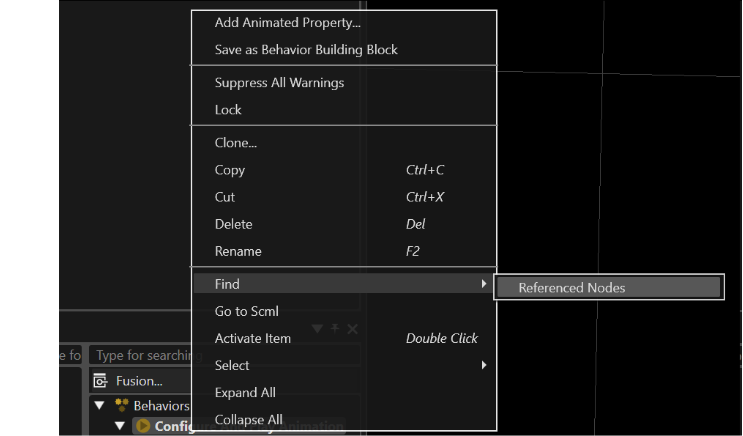
If a node is referenced by a widget, the node can be found by using the context menu via Widgets panel.
Search Results
Search results are listed at the right area of the Search panel. Double-click on an object from the result list and it will be highlighted in the Scene tree. If the searched value cannot be converted to the property type selected, a warning message is displayed.
Multiple Selection and Editing
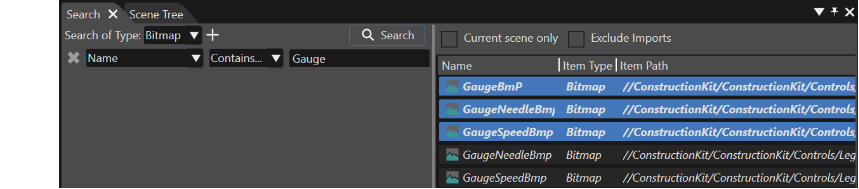
In the result list, multiple objects can be selected. The Properties panel will display all the common properties of the selected items:
- The value column is filled only for properties with the same value for all selected items.
- For the rest of the properties the value column will stay empty.
It is possible to change the value of a property for all the selected items at once, by editing the property value in the Properties panel.
Text Search
"Text Search" is a feature that provides the possibility to search a desired text inside a whole solution or just in a single scene.
Make the Search tab visible in Libraries panel via the menu "View" > "Text Search".
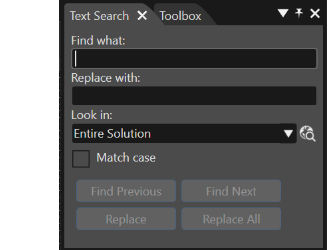
From a logical point of view, the first field that should be set is "Look in". You can select a single scene or the entire solution.
As soon as the "Find what" field is completed, the "Find Next" button becomes active. When the desired word is found, all the other buttons become active. In this way it is possible to find a previous text, or to go forward and find the next one. Replace any of the texts which are found in a solution by:
- using the "Replace" button this action is done for a single entry.
- using "Replace All" button this action is done for all the places where the desired word is found.
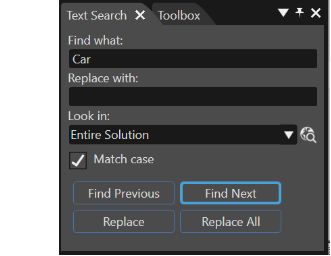
Case sensitive searching:
If the "Match case" check box is checked, only words that match the case of the word or phrase that you typed in the "Find what" field are found. For example, if you search for "Car" (with a capital "C"), the result includes "Car" but not "car".
All the search events are displayed in the SCML Editor.
Type Ahead Search
In SceneComposer every search field offers the possibility to progressively search for and filter through text. When the text is typed, one or more possible matches for the text are found instantly and immediately presented to the user. This feedback allows stopping short of typing the entire word or phrase they were looking for. You may also choose a closely related option from the presented list.
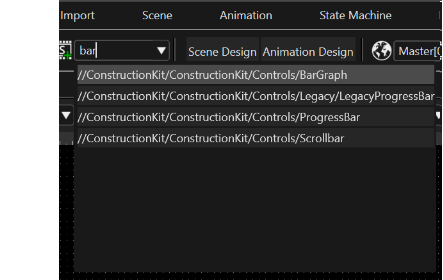
To increase the flexibility and efficiency of searching it is possible to use different wildcards - characters that can be used as a substitute for any of a class of characters.
- The "Star wildcard" is the most frequently employed and the most useful wildcard, which is the same as an asterisk (*). The star wildcard can represent zero characters, all single characters or any string. For instance, we can use "c*rs" to find "cars" string.
- The "Question Mark" wildcard (?) is used to represent exactly one character, which can be any single character. Thus, two question marks in succession would represent any two characters in succession, and three question marks in succession would represent any string consisting of three characters. For example, it is possible to use five question marks in a row (?????) to find all the scenes that have names which contain five characters.
- The "Slash" (/) character can be used to follow a given path.