
2D Alpha Mask Effect
Description
This chapter briefly describes how to use the 2D alpha mask effect.
-
Ensure that this effect is supported by the device platform in use.
Configure a 2D Alpha Mask Effect
Alpha Mask Effect
The alpha mask effect creates the appearance of partial or full transparency of an image by using the information from the alpha channel of a mask.
This appearance can be applied to a node by using one of the following effects:
Configuration
Following properties can be configured:
Image
Represents the image attached to the effect.
Mask
It's the image used as mask. Only the alpha channel of the mask is used.
Mask Node
It's the node used to control the transformation of the mask (position, rotation and scaling). If set to 0 the transformation of the current node is used.
Effect Example
The image below presents an alpha mask effect example. The mask node is rotated 45 degrees, the pivot offset is set to (-50;-50) and scaled to (1.5;1.5).
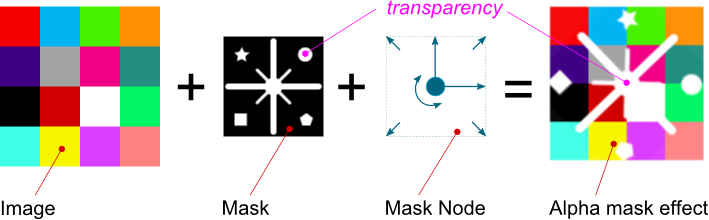
Refer to SceneComposer User Manual about how to configure an alpha mask effect in a 2D scene.
Modify 2D Alpha Mask Effect Properties
Set Effect Properties
//create effect
bitmap_maskBlend = GlBitmapBrushMaskBlend::Create();

//set image property
bitmap_maskBlend->GetBitmapBrush().Image().Set(m_image.GetPointerToSharedInstance());

//set mask property
SharedPointer<BitmapImage2D> maskBitImage = BitmapImage2D::Create();
maskBitImage->SetBitmap(mask_bitmap);
maskBitImage->Upload();
GlMaskEffect& maskEffect = bitmap_maskBlend->GetMaskEffect();
maskEffect.Mask() = maskBitImage.GetPointerToSharedInstance();

//set mask node
RenderNode* maskNode = RenderNode::Create();
maskNode->SetPosition(400.f, 30.f);
maskNode->SetScale(0.2f, 0.2f);
maskNode->SetPosition(m_bitmapNode5->GetPosition() + Vector2(8, 8));
maskEffect.MaskNode() = maskNode;

bitmap_maskBlend->Update();

//attach effect to the node
node = RenderNode::Create();
node->AddEffect(bitmap_maskBlend.GetPointerToSharedInstance());