
2D Effects
Description
Candera2D renders content exclusively by pieces of code which are named effects. Effects represent semantic functionality which considers hardware and driver capabilities.
-
The set of effects supported depends on the feature set of the underlying graphic device unit. This tutorial is based on the reference platform iMX6. Refer to the CanderaPlatformDevice API documentation to learn about the set of 2D effects supported on the platform used.
Example Solution
- 2DEffects Sample Solution in SceneComposer.
2D Effect Types
Effects can be distinguished in three types of operations:
- Candera::BrushEffect2D provides means of generating graphical content out of user-defined data. An example would be an effect which generates a rectangle of solid color based on red, green and blue values. Brush effects generate pixel data as output.
- Candera::InPlaceEffect2D requires input data provided. Input data is always given in form of pixel data and is supposed to be provided by either a Brush Effect or another InPlace Effect. These kinds of effects can utilize any additional parameters to transform the pixel data to output data. The output is again pixel data.
- Candera::BlendEffect2D is very similar to InPlaceEffect2D. To be specific, every InPlace effect resembles a specialization of blend effect, namely that they blend with a fixed functionality. What makes Blend Effects special is only their purpose of being the effect which also takes the render target into account as an input. This allows blend effects to transform the input and the render target to any kind of combination of both. Output is again pixel data.
The effect types can be linked together so that they resemble an Effect Chain. An effect chain consists of one brush effect, zero to n InPlace effects and one blend effect.
- The Brush Effect references already existing pixel data, so it defines the source data of the node (bitmap, solid color, text).
- InPlace Effects define pixel manipulation functions like mask, color transformation, etc.
- The Blend Effect is attached at the end of the chain so that the pixel data generated by the Brush Effect is processed together with the render target's pixel data to a combination.
Combined Effects
A Combined Effect is a single effect which represents a whole sequence of other effects in an effect chain. For example, if you want to render bitmap data with an alpha function, there usually is a combined effect which represents the Brush Effect and the Blend Effect in one single object.
- Combined Effect for Brush and Blend Effect: Candera::BitmapBrushBlend.
This single object can take the advantage to perform operation in a single step as the external interfaces (pixel data) can be replaced internally by setting options in the native rendering API.
Refer to Candera::CombinedEffect2D about which CombinedEffects are supported by Candera.
Combined Effects Examples
An example of various effects and how they are configured can be seen in 2DEffects Sample Solution in SceneComposer.
Bitmap Effects
In order to render an image, a BitmapNode with one of the following effects must be set in a 2D scene:
For the above effects, the following properties can be set to obtain different rendering results:
- Color - values for red, green, blue and alpha must be set
- Color Blend Factor for source and destination
- Color Blend Operation
- Alpha Blend Factor for source and destination
- Alpha Blend Operation
An example of Bitmap effects with different properties is shown below:
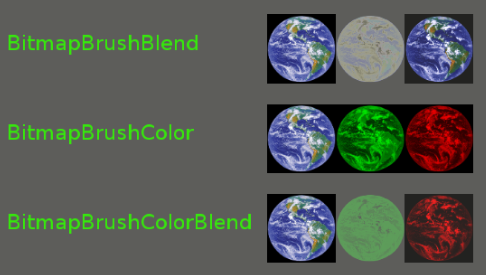
Candera::BitmapBrushColorBlend is a combined effect between Candera::BitmapBrushBlend and Candera::BitmapBrushColor. The properties of this effect sum up the properties of the other two. The values for the properties for Candera::BitmapBrushColorBlend used in the example, for left most, centre and right most images, are:

Text with Bitmap Effects
In order to render text, a Text Node with one the following effect must be set in a 2D Scene.
- Candera::BitmapBrushBlend
- Candera::BitmapBrushColor
- Candera::BitmapBrushColorBlend
- Candera ::GlLinearGradientBitmapBrushBlend
Text node is a Render node that render text using the attached Bitmap Brush effect.
- Text and Style properties can be set using the Text node properties, as they are inherited from the Render node. To apply Style properties, the font of the text must be set.
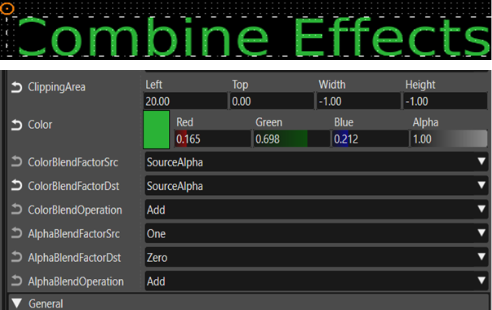
- For Candera::BitmapBrushColorBlend, the properties Text Color, Color Blend Factors and Operations, Alpha Blend Factors and Operations, and the Text Clipping Area can be set to achieve different rendering effects.
- An example of Candera::BitmapBrushColorBlend and related properties is shown below.
Brush Effects
The following effects can be used with a RenderNode in a 2D scene:
Fill Color must be set for the above effects.
For Candera::SolidColorBrushBlend, the properties Color Blend Factor and Operation and Alpha Blend Factor and Operation can also be set to obtain different rendering results.
An example of Candera::SolidColorBrushBlend and related properties is shown below:


Mask Effects
As the name suggests, Mask effects allows masking different areas of a given image by applying a mask image with transparent areas.
The following effects can be used with a BitmapNode:
For the above effects, the following properties must be set:
- Image – the image on which the mask will be applied
- Mask – the mask image with transparent areas
- Mask Node – node used to control the position of the mask. If set to 0, the position of the current node is used. For iMX6, the mask takes into account the scale, the rotation and the pivot of the node.
An example of mask effects is presented below:
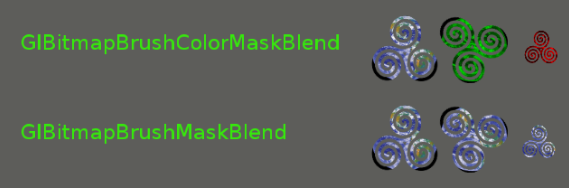
Left most image has no Mask Node set, therefore the BitmapNode associated with the effect is used. The image from the center has Mask Node set to a RenderNode with Rotation property = -50. Thus, the mask also appears rotated. Right most image has Mask Node set to a RenderNode with different values for Scale property (x= 0,5 ; y = 0,5). Thus, the mask also appears smaller.
The properties Color Blend Factor and Operation and Alpha Blend Factor and Operation can also be set to obtain different rendering results.
Manipulating an Effect on a Render Node
To illustrate effect manipulation operations, the NodeManipulationWidget_2D part of the Tutorial Widgets in combination with the NodeManipulationSolution_2D provided in the content folder of cgi_studio_player can be used.
The type Candera::RenderNode defines a node that shall be rendered. Each render node requires an effect chain, which implements the visual representation of the node.
The following properties manipulate a Candera::SolidColorBrushBlend effect on a render node (this is a already combined effect with brush, inplace and blend):
- RenderNodeToManipulate: Select a RenderNode to manipulate its effect. Because of casts in the widgets code only select a render node with Candera::SolidColorBrushBlend, otherwise the casts will fail! (See Manipulating an effect)
- Set the widgets SolidColor, FillArea, Blend values to change the properties of the effect dynamically.
Manipulating an Effect
First the selected render node (which comes with type Candera::Node2D by the CDAProperty) is casted to a Candera::RenderNode.
    // Cast Node2D to RenderNode
    m_renderNode = Dynamic_Cast<RenderNode*>(node);
    // End Cast Node2D to RenderNode
Next the first effect of the selected render node of type Candera::Effect2D is casted to Candera::SolidColorBrushBlend to get access to specialised properties.
-
This simple example is based on a RenderNode with SolidColorBrushBlend effect, so if the example solution is changed, please take care to use only SolidColorBrushBlend on the node to manipulate.
    // Get and cast first effect of render node
    Effect2D* effect2D = node->GetEffect(0);
    SolidColorBrushBlend* effect = Dynamic_Cast<SolidColorBrushBlend*> (effect2D);
    // End Get and cast first effect of render node
Now properties of the effect can be set.
        // Set solid color
        SolidColorBrush& brush = effect->GetSolidColorBrush();
        brush.Color() = m_color;
        // End Set solid color
        // Set fill area
        brush.Size() = m_rect;
        // End Set fill area
The effect should be updated each time a property is changed. A good place for updating the effect might be the widget Update method.
        // Update effect
        static_cast<void>(effect->Update());
        // End Update effect
Arbitrary properties on arbitrary effects can be manipulated the same way.
How to Integrate a Custom Combined Effect into SceneComposer
Integrate a custom effect to Candera and SceneComposer
- Create and implement your own effect.
- Integrate the effect into the effect library of the device.
For DEVICE that would mean to modify cgi_studio_candera/src/CanderaPlatform/Device/DEVICE/2D/DEVICEEffectLibrary.cpp, so that the new effect implementation is included and the Effect2DLibrary MetaInfo is extended by the new effect. (DEVICE stands for your specific device)
- Integrate the new device library in SceneComposer. Therefore set CMake source to <cgi-studio-root>/cmake/Candera/Player and build a SCHost.dll. The library CanderaDevice<device>.lib is linked to the SCHost.dll, which than has the new effect included.
- Start SceneComposer with the new SCHost.dll. The new effect is listed in the toolbox for a 2D scene.
How to create a combination of two effects
There are several effects which can be combined to a new effect. How to combine two effects to a new one is shown in Candera::GlBitmapBrushColorMaskBlend implementation.
For the new effect Candera::GlBitmapBrushColorMaskBlend you need a combination of Candera::BitmapBrushColorBlend and Candera::GlBitmapBrushMaskBlend. Create and implement the new effect analogous to Candera::GlBitmapBrushMaskBlend. Now apply following changes:
- The new effect contains both, MaskEffect and ColorEffect as member (wrapper, see in .h file).
- The implementation of the method Render() is a combination of Candera::BitmapBrushColorBlend::Render() and Candera::GlBitmapBrushMaskBlend::Render(). This method has to handle all four effects in the following order:
- blend effect,
- color effect,
- mask effect and
- brush effect.
- Upload(), Unload(), and Update() have to handle all four effects.
- Apply changes to the Effect Meta Info. The new effect needs all four effects (BitmapBrush, ColorEffect, MaskEffect, BlendEffect).