
Fonts and Styles
Description
This section contains information about how to use fonts and styles.
Accessing Fonts
SceneComposer: Import Fonts
For using fonts, first of all the fonts which shall be used need to be imported into the SceneComposer solution.
-
The font will only be available in the finally generated asset, if:
- it is either used in any scene (as part of a style which is used in a widget style property for example)
- or the "Always include in asset" flag is enabled in the font resource.
See also:
- How to Import Resources in SceneComposer User Manual
Initializing FontEngine
Next, the application needs to create a Candera::TextRendering::FontEngine instance and initialize it for using the Candera::AssetFontStore. AssetFontStore will access the font part of the loaded asset and provide it to the TextEngine.
    static AssetFontStore s_fontStore;

    result = result &
&
Candera::TextRendering::FontEngine::Instance().Init(&
s_fontStore);
Using a Font
The easiest way to use a font is to setup the font as part of a Candera::TextRendering::Style and use the style as a widget property within SceneComposer. This allows to specify the FontFamily and the FontSize via SceneComposer GUI. FontSize has to be specified in pixel size (see Font Metrics and Text Sizes). In case the application needs to switch the font dynamically, at runtime, setup the font and create a style:
    Font font;

    font.Setup("openSans", 20);

    m_style = SharedStyle::Create();

    m_style->
SetDefaultFont(font);
Access to AssetFontStore
Include FontFaceName and FontFaceSize Property in the header file of the widget.
// Add Property
            CdaProperty(FontFaceName, const Candera::Char*, GetFontName, SetFontName)
                CdaDescription("Font Face Name for the text (used only if \"Use Text Font Property\" is disabled).")
                CdaCategory("Accessing Fonts from FontEngine")
            CdaPropertyEnd()

            CdaProperty(FontFaceSize, Candera::UInt16, GetFontSize, SetFontSize)
                CdaDescription("Font Face Size for the text (used only if \"Use Text Font Property\" is disabled).")
                CdaCategory("Accessing Fonts from FontEngine")
            CdaPropertyEnd()
// end add Property
Also, do not forget to initialize member variables in the constructor, otherw; e SceneComposer will not be able to work with the widget.
SimpleTextWidget::SimpleTextWidget() :
    m_text(0),
    m_style(SharedStyle::Create()),
    m_color(),
    m_shader(0),
    m_fontName(0),
    m_fontSize(12),
    m_bb(0),
    m_bitmap(0),
    m_bitmapPixels(0),
    m_defautScaleVector(1.0,1.0,1.0),
    m_useTextFont(true),
    m_;
UpdateRequired(true),
    mTextStartPos(0, 0)
{
}
Setup the font as described below.
        static Font f;
        if (f.Setup(m_fontName, static_cast<Candera::Int16>(m_fontSize))) {
            m_font = f;
        }
And update the style used for rendering:
m_style->SetDefaultFont(m_font);
AssetFontStore Load Strategies
AssetFontStore supports two font load strategies:
- PreloadStrategy: entire fonts are loaded into memory once and font data; accessed from there by Text Engine.
- OnRequestLoadStrategy: small font portions are streamed directly from the asset repository when Freetype (or indirectly Harfbuzz) needs them.
Use SetDefaultFontLoadStrategy to select one of these load strategies.
Use SetDefaultFontLoadStrategyExceptionL; t to exclude a l; t of fonts from the selected font load strategy.
Example:
    // Load fonts with OnRequestLoadStrategy
    selector.SetDefaultFontLoadStrategy(Candera::AssetFontStore::LoadStrategySelector::OnRequestLoadStrategy);
    // "Bitstream Vera Sans" font shall be loaded with PreloadStrategy:
    const Char* g_fontName[2] = { "ConstructionKit##ConstructionKit#Resources#Fonts#Bitstream Vera Sans", 0 };
    selector.SetDefaultFontLoadStrategyExceptionL;
t(g_fontName);
    fontStore.SetLoadStrategySelector(&selector);
-
Courier applications can use Courier::ViewHandler::SetFontStoreProviderCallback to provide specific settings for the Candera::AssetFontStore in use.
Text Style: A Composition of Fonts
Text Style: Introduction
A Style can be seen as a composition of fonts.
Basically for a range of glyphs a proper font can be specified (also called style entry). Beside the style entries a style also cons; ts of a default font and a base style.
- The style entries are parsed from the first to the last style entry until a code point range that contains the input code point; found.
- All glyphs which do not match to one of the specified style entry range are rendered with the default font.
- The same parsing order; applied to code points which match to a range of a style entry, but the font does not contain a glyph for th; code point
- Each style can use another style as base style, which allows an arbitrary complex composition of fonts.
The TextRenderingSolution provided in the content folder of cgi_studio_player gives an example how text features can be applied in SceneComposer.
- See also:
-
- Text Style Palette in SceneComposer User Manual
- Candera::TextRendering::Style in Candera API
Text Style: Example
Example
Use TextRenderingSolution provided in the content folder of cgi_studio_player to see how text features can be applied in SceneComposer.
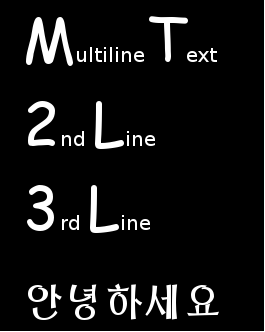
Select Scene2D_StyleExample of the solution, which gives just a brief overview of text features and how they look like. It cons;
ts of
- a Candera::TextNode2D.
- Fonts for the text node are defined in a style Mystyle.
Lets consider the configured style MyStyle set in the TextNode2D's style property:
- The Default Font property is set with predefined DefaultFont (Vera size 20)
- No Base Style, therefore for this field Empty, is defined
Expanding the Children panel shows the defined style entries. The example style consists of three style entries.
- Entry 0 defines the font BigLetter (Comic size 60) for all glyphs in the code point range from 65 to 90. These upper and lower bounds represent the glyph range 'A' (65) - 'Z' (90) in decimal representation. In the example therefore all upper case letters are rendered with font BigLetter.
- Entry 1 defines font BigLetter for numbers '0'(48) - '9'(57).
- Entry 2 defines font Korean (UnBom size 40) for Korean glyphs. Code points for asian glyphs are in range 44032 - 55215 (in decimal representation). So using styles, glyphs from different cultures can be rendered without changing the font/style settings.
In case of this example all lower case letters do not have a proper style entry and the default font is taken to render.
-
If the code ranges of different style entries overlap, the style entry with the higher number has priority (e.g. font in entry 2 has higher priority than font in entry 1).
Bitmap Font Engine
Overview
A bitmap font is essentially an image file which consists of several characters images and a header that depicts the size and location of each character inside the image. Each bitmap font might contain several fonts - mainly one font face with multiple sizes. One advantage of utilizing bitmap fonts is that the rendering to the screen requires very little resources and since each character is represented as a sub-texture, they can be reused without requiring additional memory on the GPU.
CMake configuration
In order to be able to use the bitmap font engine the Candera CMake project should be configured as follows:
- CANDERA_FONTENGINE should be set to "Bitmap Font"
- CANDERA_BITMAPFONT_FACE_SIZE_COUNT_MAX represents the number of font sizes supported. Default value is set to 6.
- CANDERA_BITMAPFONT_GLYPH_CACHE_SIZE represents the size of the buffer to cache glyph bitmaps. By default the value is set to 24*24*100.
-
CANDERA_TEXTSHAPER should be set to "NoShaping" or "ComplexScriptLib" because Harbuzz Text Shaper cannot be used with BitmapFont.
Font Setup
This font engine uses a proprietary format to describe glyph bitmaps and glyph meta info. In order to use a bitmap font, provide an implementation for Candera::TextRendering::FontStore.
Bitmap fonts require memory mapped assets. So, when the faces are loaded in be sure the storageType is set correctly:
TextRendering::FontResourceDescriptor descriptor.storageType = TextRendering::FontResourceDescriptor::MemoryResource;
Generating Bitmap Fonts
The following steps need to be considered:
1. Install Bitmap Font Generator from http://www.angelcode.com/products/bmfont
2. Open the application. From the Options menu:
- Choose Font Settings. Set as needed the settings for "Font", "Add font file", "Size" etc.
- Configure the Export Options. Set "Font descriptor" to "XML" and Textures to "png - Portable Network Graphics"
3. From the right panel of the main window select the needed subsets of glyphs.
4. Export the font by choosing "Save bitmap font as ..." from the Options menu.
Please see Import Fonts for details about the importing of bitmap fonts in SceneComposer.
-
A bitmap font should be used at its native pixel size. However, they are scalable because of the use of bitmaps, but only scaling down is recommended. In case of up scaling, the visual quality will be reduced. Including separate font sizes for bitmap fonts is possible in order to achieve the best looking results.