
Shader Usage in Candera
Description
This chapter demonstrates how customized shader programs can be used with Candera. Subject of this chapter depicts how to use the Candera classes to set custom shaders for each node, and how to apply shader parameters. Further, it shows how to realize different classes of effects, namely single pass-, local multi pass- and global multi pass effects.
Shader Related Class Usage
This section is about on how the already introduced Candera::Appearance class and its members can be used to realize customized shader effects.
Loading shader programs
First step to realize shader programs is to actually write them. See the GLSL chapter for details on that. For a developer it is recommended to develop using SceneComposer, where the effects can be seen immediately in the Scene Editor window.
This tutorial further focuses on programming with Candera, but the concepts are supported as well in collaboration with SceneComposer. Beside of SceneComposer's shader editor, shader authoring tools like AMD's RenderMonkey can also be used. Benefits from using either SceneComposer or shader authoring tools are syntax highlighting, seeing compiler and linker errors and having a preview scene where the effect can be examined. One unique advantage of using SceneComposer is the support for device dependent shader compilers.
After having finished your shader program you need to load it in your application based on Candera. Use your favorite file I/O libraries among the available ones. It depends on the platform if the underlying OpenGL ES implementation needs the shader source or pre-compiled shader objects. On host you typically load the source of your shader program directly, it will be compiled and linked at runtime by the OpenGL driver invoked by Candera's Upload mechanisms. On targets you might need to provide pre-compiled shader objects, where pre-compiling is done using dedicated shader compile tools. Please refer to the device manufacturers manual.
Using Candera::Shader
Candera::Shader is the class that abstracts from OpenGL ES shader interfaces and manages the shaders handle after creation. For a small description see the tutorial on the Appearance class. See below how to use the class.
First you need to create an instance of the Candera::Shader class using its Create() method.
static MemoryManagement::SharedPointer<Shader> Create();
Next step is to provide the loaded shader sources or objects to the class using the according setters:
bool SetVertexShader(const void* vertexShader, DisposerFn disposerFn);
bool SetFragmentShader(const void* fragmentShader, DisposerFn disposerFn);
-
The shaders are passed as void* to ensure that platform dependent representations of the shader program can be passed. The parameter DisposerFn hands over lifetime responsibility of shader passed: If it's set to 0 you'll have to take care of the provided void* by yourself.
Finally, the shader needs to be associated to a node's appearance in order to leave the remaining steps (like Uploading and further Activating) to Candera. Upload takes care of compiling, linking, and retrieving the shaders handle. Vertex attribute binding is done in the appearances activation method, automatically.
The following code snippet demonstrates how a Billboard node with a custom shader can be created.
void Initialize() {
    Char* vertexShader = "";
    Char* fragmentShader = "";
    // Do File I/O here, filling vertexShader and fragmentShader with the read data.

    Scene* scene = Scene::Create();
    //Do camera setup here, add it to scene graph.

    SharedPointer<Shader> shader = Shader::Create();
    shader->SetVertexShader(vertexShader, 0); //vertexShader needs to be disposed manually.
    shader->SetFragmentShader(fragmentShader, 0); //fragmentShader needs to be disposed manually.

    Billboard* billboard = Billboard::Create(2.0f, 2.0f);
    billboard->SetAppearance(Appearance::Create());
    billboard->GetAppearance()->SetShader(shader); //Here the previously instantiated and configured shader is added.
    //Set and configure remaining appearance members.

    scene->AddChild(billboard);

    scene->UploadAll(); //All nodes, all their Appearance objects and therefore all set shader objects get uploaded.

}

void Render() {
    Renderer::RenderAllCameras(); //Here the scene graph gets traversed, for every node the shaders get activated, and the vertex buffers attribute get bound
                                  //to the shaders attributes.
}
Auto Uniforms
Candera::ShaderParamSetter and derived classes are used to set uniform parameters of shaders, they abstract from OpenGL ES's glUniform_ interfaces. They are part of a node's appearance, how to use them is already described in the Appearance Tutorial.
As described the derived class Candera::GenericShaderParamSetter offers to automatically compute and set shader parameters from the configured scene graph. The following table shows which uniforms are reserved for this purpose, what Candera classes they affect and what their semantics are.
- Note:
- The values of reserved variables cannot be edited in SceneComposer, here the Candera::GenericShaderParamSetter has to be used.
The table is structured as follows:
- Column Uniform Variable is the name of the reserved variable.
- Column Data Type describes its data type.
- Column GenericShaderParamSetter Flag describes which properties have to be enabled in Candera::GenericShaderParamSetter in order to compute and set the variable.
- Column Affected Classes describes which classes are used to compute the parameters.
- The last parameter Semantic describes for what purpose this parameter is needed.
-
If no instance of the affected classes exist, the corresponding shader parameters will not be set, even if they are enabled in Candera::GenericShaderParamSetter.
| Uniform Variable | Data Type | GenericShaderParamSetter Flag | Affected Classes | Semantic |
|---|---|---|---|---|
| u_MMatrix3 | Matrix3 | ModelMatrix3Enabled | Candera::Node | Computes the ModelMatrix3 from the Node's transformation data, used to transform 3-component vectors from model to world space. |
| u_MVMatrix3 | Matrix3 | ModelViewMatrix3Enabled | Candera::Node, Candera::Camera | Computes the ModelViewMatrix3 from the Node's transformation data and the currently rendered Camera's ViewMatrix. Used to transform 3-component vectors from model to view space. |
| u_NormalMMatrix3 | Matrix3 | NormalModelMatrix3Enabled | Candera::Node | Computes the NormalModelMatrix3 from the Node's transformation data, used to transform 3-component directional vectors (especially normals) from model to world space. |
| u_NormalMMatrix4 | Matrix4 | NormalModelMatrix4Enabled | Candera::Node | Computes the NormalModelMatrix4 (4×4 normal-transform matrix) from the node’s transform and passes it to the shader. |
| u_NormalMVMatrix3 | Matrix3 | NormalModelViewMatrix3Enabled | Candera::Node, Candera::Camera | Computes the NormalModelViewMatrix3 from the Node's transformation data and the currently rendered Camera's ViewMatrix. Used to transform 3-component directional vectors (especially normals) from model to view space. |
| u_MMatrix | Matrix4 | ModelMatrix4Enabled | Candera::Node | Computes the ModelMatrix from the Node's transformation data, used to transform 4-component vectors from model to world space. |
| u_MVMatrix | Matrix4 | ModelViewMatrix4Enabled | Candera::Node, Candera::Camera | Computes the ModelViewMatrix4 from the Node's transformation data and the currently rendered Camera's ViewMatrix. Used to transform 4-component vectors from model to view space. |
| u_PMatrix | Matrix4 | ProjectionMatrix4Enabled | Candera::Camera | Passes the ProjectionMatrix4 from the active camera to the shader. |
| u_VPMatrix | Matrix4 | ViewProjectionMatrix4Enabled | Candera::Camera | Passes the active camera’s the ViewProjectionMatrix4 (View × Projection) to the shader. |
| u_MVPMatrix | Matrix4 | ModelViewProjectionMatrix4Enabled | Candera::Node, Candera::Camera | Computes the ModelViewProjectionMatrix4 from the Node's transformation data and the currently rendered Camera's ViewProjectionMatrix. Used to transform 4-component vectors from model to homogeneous screen space. |
| u_CamDirection | Vector3 | CameraLookAtVectorEnabled, LightActivationEnabled | Candera::Camera, Candera::Light | Passes the currently rendered Camera's look-at vector in world space to the shader. Transforms it to object space if LightsCoordinateSpace is set to Object. Can be done explicitly, or inside lighting calculations. |
| u_CamPosition | Vector3 | CameraPositionEnabled | Candera::Camera | Passes the currently rendered Camera's position in world space to the shader. |
| u_Size | Float | - | Candera::PointSprite | Passes the size of a Candera::PointSprite node to the shader. This is always done, if node is type of Candera::PointSprite. |
| u_Material.ambient | Vector4 | MaterialActivationEnabled | Candera::Material | Passes the ambient color component of the node's material (member of Appearance, see the section on material.) |
| u_Material.diffuse | Vector4 | MaterialActivationEnabled | Candera::Material | Passes the diffuse color component of the node's material (member of Appearance, see the section on material.) |
| u_Material.emissive | Vector4 | MaterialActivationEnabled | Candera::Material | Passes the emissive color component of the node's material (member of Appearance, see the section on material.) |
| u_Material.specular | Vector4 | MaterialActivationEnabled | Candera::Material | Passes the specular color component of the node's material (member of Appearance, see the section on material.) |
| u_Material.shininess | Float | MaterialActivationEnabled | Candera::Material | Passes the shininess of the node's material (member of Appearance, see the section on material.) |
| u_Texture[i] | Integer | TextureActivationEnabled | Candera::Texture, Candera::BitmapTextureImage, Candera::ProxyTextureImage | Passes the activated textures handle to the shader if the textures Candera::TextureImage is of type Candera::BitmapTextureImage or Candera::ProxyTextureImage(with TextureTargetType Texture2D). i can be from 1 to 7 or nothing (e.g u_Texture, u_Texture1,..). |
| u_CubeMapTexture[i] | Integer | TextureActivationEnabled | Candera::Texture, Candera::CubeMapTextureImage, Candera::ProxyTextureImage | Passes the activated textures handle to the shader if the textures Candera::TextureImage is of type Candera::CubeMapTextureImage or Candera::ProxyTextureImage(with TextureTargetType TextureCubeMap). i can be from 1 to 7 or nothing (e.g u_CubeMapTexture, u_CubeMapTexture1,..). |
| u_Light[i].type | Integer | LightActivationEnabled | Candera::Light | Passes an integer defining the type of light i to the shader, i can range from 0 to 7. |
| u_Light[i].ambient | Vector4 | LightActivationEnabled | Candera::Light | Passes the ambient color component of light i to the shader, i can range from 0 to 7. |
| u_Light[i].diffuse | Vector4 | LightActivationEnabled | Candera::Light | Passes the diffuse color component of light i to the shader, i can range from 0 to 7. |
| u_Light[i].intensity | float | LightActivationEnabled | Candera::Light | Passes the intensity factor applied to the diffuse color of light i to the shader, i can range from 0 to 7. Ignored if the light type is Ambient. |
| u_Light[i].specular | Vector4 | LightActivationEnabled | Candera::Light | Passes the specular color component of light i to the shader, i can range from 0 to 7. |
| u_Light[i].position | Vector4 | LightActivationEnabled | Candera::Light | Passes the position of a point or spotlight i to the shader, i can range from 0 to 7. |
| u_Light[i].direction | Vector3 | LightActivationEnabled | Candera::Light | Passes the direction vector of a directional or spotlight i to the shader, i can range from 0 to 7. |
| u_Light[i].halfplane | Vector3 | LightActivationEnabled | Candera::Light | Passes the halfplane vector of a directional, point or spotlight i to the shader, i can range from 0 to 7. |
| u_Light[i].attenuation | Vector4 | LightActivationEnabled | Candera::Light | Passes the attenuation weights of a point or spotlight i to the shader, i can range from 0 to 7. |
| u_Light[i].spotCosCutoff | Float | LightActivationEnabled | Candera::Light | Passes the cut off angle of a spotlight i to the shader, i can range from 0 to 7. |
| u_Light[i].spotExponent | Float | LightActivationEnabled | Candera::Light | Passes the spot exponent of a directional, point or spotlight i to the shader, i can range from 0 to 7. |
| u_Light[i].range | Float | LightActivationEnabled | Candera::Light | Passes the range of a point or spotlight i to the shader, i can range from 0 to 7. |
| u_Light[i].enabled | Bool | LightActivationEnabled | Candera::Light | Passes whether light i is enabled or not to the shader, i can range from 0 to 7. |
| u_Light[i].cameraLookAtVector | Vector3 | LightActivationEnabled | Candera::Light, Candera::Camera | Computes the look-at vector of the active Camera, and passes it to the shader. Depending on the Light::CoordinateSpace the look-at vector is either in world space or in the object space of the light. |
| u_MorphWeight | Float Array | - | Candera::MorphingMesh | Passes the weights of a Candera::MorphingMesh to the shader. This is always done, if node is type of Candera::MorphingMesh. |
| u_CanvasPivot | Vector2 | CanvasActivationEnabled | Candera::CanvasRenderable | Passes the position of the pivot of a Candera::CanvasRenderable to the shader. |
| u_CanvasSize | Vector2 | CanvasActivationEnabled | Candera::CanvasRenderable | Passes the actual size of a Candera::CanvasRenderable to the shader. |
| ub_Material | Uniform Buffer Object | MaterialActivationEnabled | Candera::Material | Passes all of the material parameters from above in a uniform buffer object to the shader. |
| ub_Lights | Uniform Buffer Object | LightActivationEnabled | Candera::Light, Candera::Camera | Passes all of the light parameters from above in a uniform buffer object to the shader. |
| u_JointMatrices | Matrix4 | SkinningMeshActivationEnable | Candera::SkinningMesh | Passes the Inverse Bind Matrix of a Joint to the shader. |
Attribute Names
Candera uses pre-defined attribute names to bind a vertex buffers attributes. When writing shader programs the following attribute names shall be used:
| Attribute Name | Semantic |
|---|---|
| PositionAttribute[i] | Use this attribute for passing vertex positions (local space). i ranges from 1 to 7 or is nothing (e.g. PositionAttribute, PositionAttribute1,...). |
| PositionTransformedAttribute[i] | Use this attribute for passing transformed vertex positions. i ranges from 1 to 7 or is nothing (e.g. PositionTransformedAttribute, PositionTransformedAttribute1,...). |
| NormalAttribute[i] | Use this attribute for passing the vertices normals. i ranges from 1 to 7 or is nothing (e.g. NormalAttribute, NormalAttribute1,...). |
| TextureCoordinateAttribute[i] | Use this attribute for passing the vertices texture coordinates. i ranges from 1 to 7 or is nothing (e.g. TextureCoordinateAttribute, TextureCoordinateAttribute1,...). |
| ColorAttribute[i] | Use this attribute for passing the vertices colors. i ranges from 1 to 7 or is nothing (e.g. ColorAttribute, ColorAttribute1,...). |
| BlendWeightAttribute[i] | Use this attribute for passing the vertices blend weight attributes. i ranges from 1 to 7 or is nothing (e.g. BlendWeightAttribute, BlendWeightAttribute1,...). |
| BlendIndexAttribute[i] | Use this attribute for passing the vertices blend index attributes. i ranges from 1 to 7 or is nothing (e.g. BlendIndexAttribute, BlendIndexAttribute1,...). |
| PointSizeAttribute[i] | Use this attribute for passing the vertices point sizes. i ranges from 1 to 7 or is nothing (e.g. PositionAttribute, PositionAttribute1,...). |
| TangentAttribute[i] | Use this attribute for passing the vertices tangents. i ranges from 1 to 7 or is nothing (e.g. TangentAttribute, TangentAttribute1,...). |
| BiNormalAttribute[i] | Use this attribute for passing the vertices binormals. i ranges from 1 to 7 or is nothing (e.g. BiNormalAttribute, BiNormalAttribute1,...). |
| TesselationFactorAttribute[i] | Use this attribute for passing the vertices tesselation factors. i ranges from 1 to 7 or is nothing (e.g. TesselationFactorAttribute, TesselationFactorAttribute1,...). |
| FogAttribute[i] | Use this attribute for passing the vertices fog attributes. i ranges from 1 to 7 or is nothing (e.g. FogAttribute, FogAttribute1,...). |
| DepthAttribute[i] | Use this attribute for passing the vertices depth attributes. i ranges from 1 to 7 or is nothing (e.g. DepthAttribute, DepthAttribute1,...). |
| SampleAttribute[i] | Use this attribute for passing the vertices sample attributes. i ranges from 1 to 7 or is nothing (e.g. SampleAttribute, SampleAttribute1,...). |
| CustomAttribute[i] | Use this attribute for passing your custom data per vertex. i ranges from 1 to 7 or is nothing (e.g. CustomAttribute, CustomAttribute1,...). |
Single Pass Effects
Single pass effects can be achieved in one camera pass only. They are simply realized with a single Candera::Appearance attached to a Candera::Node.
Examples for single pass effects can be found in the Special Render Techniques chapter.
Local Multi Pass Effects
Local multi pass effects describe effects with local impact only, thus, they belong to one certain node. They can be realized using Candera::MultiPassAppearance. These appearances are processed in a sequence; for each appearance the node is rendered once and the results are blended together using the different RenderMode settings.
Examples for local multi pass effects can be found in the Special Render Techniques chapter.
Global Multi Pass Effects
Global multi pass (also known as screen-based effects) typically operate on render targets, often they are also referred to as post-processing effects. To realize post-processing effects first images have to be rendered into an offscreen render target. How this is done is presented in Render Targets Tutorial.
The resulting image can further be processed in any desired way.
Examples for global multi pass effects can be found in chapter Special Render Techniques.
Creating Full Screen Effects
You can of course process the resulting texture on any mesh or object you like, but often post processing effects are applied to full screen images. For that purpose a dedicated scene with only a camera and a billboard can be used. The trick is to give the Billboard a size of 1.0 unit in both dimensions.
Billboard* fullScreenBB = Billboard::Create(1.0F, 1.0F);
This causes the billboard to have a vertex buffer with coordinates that match the corners of the window/screen in Canderas viewport space. To draw the billboard full screen you just need to use a vertex shader that doesn't transform the vertex coordinates, use ReferenceShaders\Core\RefViewportSpace.vertp for this purpose. The fragment shader then does the actual post processing. As texture for the billboard you need to use the image provided by the offscreen render target.
RefViewportSpace.vertp takes two float uniforms (u_offsetLeft, u_offsetTop) as inputs, which determine the top left corner of the billboard to render. These values are defined as being in normalized viewport space, where values range from 0.0 to 1.0, where 0.0 is interpreted as the left border respectively top border of the viewport, and 1.0 as the right, respectively bottom border.
The vertex position attribute of a vertex buffer used with this vertex shader is not transformed using a model-view-projection matrix, but simply translated into OpenGL's clip coordinate space with the specified offset applied.
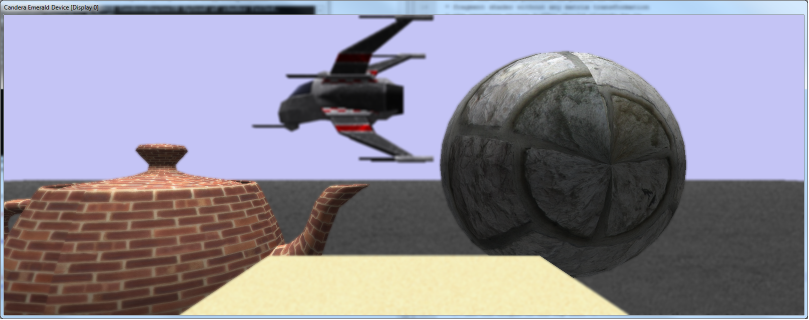
The following examples demonstrate how to use the RefViewportSpace.vert shader in conjunction with the depth-of-field global multi pass effect.
Specify a full screen rectangle:
//Do Shader File I/O here and initialize m_dofCombineShader shader object.
Float m_viewportLeft = 1.0F;
Float m_vieportTop = 1.0F;
m_dofCombineSps = GenericShaderParamSetter::Create();
m_dofCombineSps->SetModelViewProjectionMatrix4Enabled(false);
m_dofCombineSps->SetUniform("u_offsetLeft", Shader::Float, &m_viewportLeft);
m_dofCombineSps->SetUniform("u_offsetTop", Shader::Float, &m_viewportTop);
m_fullScreenQuadDof = Billboard::Create(1.0f,1.0f);
m_fullScreenQuadDof->GetAppearance()->SetShader(m_dofCombineShader);
m_fullScreenQuadDof->GetAppearance()->SetShaderParamSetter(m_dofCombineSps);
This results in the following image:
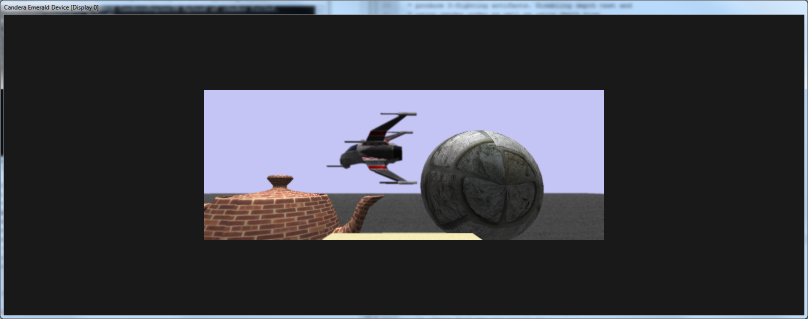
Specify a centered rectangle with half viewport resolution:
//Do Shader File I/O here and initialize m_dofCombineShader shader object.
Float m_viewportLeft = 0.25F;
Float m_vieportTop = 0.25F;
m_dofCombineSps = GenericShaderParamSetter::Create();
m_dofCombineSps->SetModelViewProjectionMatrix4Enabled(false);
m_dofCombineSps->SetUniform("u_offsetLeft", Shader::Float, &m_viewportLeft);
m_dofCombineSps->SetUniform("u_offsetTop", Shader::Float, &m_viewportTop);
m_fullScreenQuadDof = Billboard::Create(0.5f,0.5f);
m_fullScreenQuadDof->GetAppearance()->SetShader(m_dofCombineShader);
m_fullScreenQuadDof->GetAppearance()->SetShaderParamSetter(m_dofCombineSps);
This results in the following image:
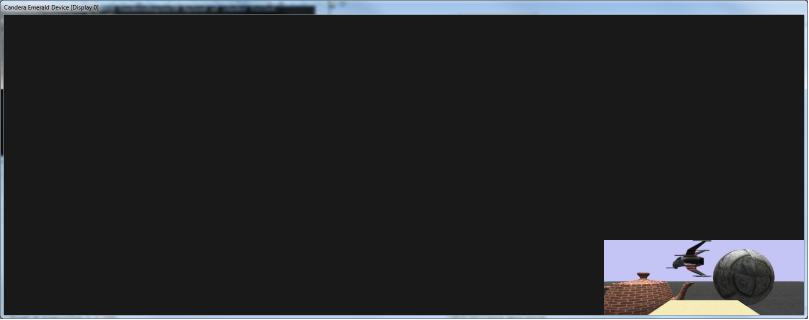
Specify a rectangle in bottom right corner with quarter viewport resolution:
//Do Shader File I/O here and initialize m_dofCombineShader shader object.
Float m_viewportLeft = 0.75F;
Float m_vieportTop = 0.75F;
m_dofCombineSps = GenericShaderParamSetter::Create();
m_dofCombineSps->SetModelViewProjectionMatrix4Enabled(false);
m_dofCombineSps->SetUniform("u_offsetLeft", Shader::Float, &m_viewportLeft);
m_dofCombineSps->SetUniform("u_offsetTop", Shader::Float, &m_viewportTop);
m_fullScreenQuadDof = Billboard::Create(0.25f,0.25f);
m_fullScreenQuadDof->GetAppearance()->SetShader(m_dofCombineShader);
m_fullScreenQuadDof->GetAppearance()->SetShaderParamSetter(m_dofCombineSps);
This results in the following image:
-
Overlapping Billboards (in screen space) would produce depth-fighting artifacts. Disabling depth test and using render order as well as using depth bias can be used to avoid them.
m_fullScreenQuadDof->GetAppearance()->SetRenderMode(RenderMode::Create());
m_fullScreenQuadDof->GetAppearance()->GetRenderMode()->SetDepthBias(0.1F);
For details on how to use render order please refer to Tutorial 3.