Effects
Effects describe the appearance of a RenderNode in a 2D scene. The number of effects may differ on each platform. A functional overview of each effect is provided in the table below (you can navigate to the detailed pages by using the links in the titles).
|
|
Effect name |
Description |
|
1 |
BitmapBrushBlend |
Renders a bitmap image as source content and blends it with the destination (store) buffer. |
| 2 | BitmapBrushColorBlend | Renders a bitmap, modulates its color (e.g., RGBA factors) and blends the result with the destination buffer. |
| 3 | BitmapBrushHslBlend | Renders a bitmap with hue/saturation/lightness adjustments and blends it with the destination buffer. |
| 4 | BlurBitmapBrushBlend | Produces a blurred bitmap image (post filter) and blends it into the destination buffer. |
| 5 | GlBitmapBrushColorMaskBlend | Renders a bitmap using a color-based alpha mask and blends it with the destination buffer. |
| 6 | GlBitmapBrushMaskBlend | Renders a bitmap with an alpha mask (mask texture) and blends it with the destination buffer. |
| 7 | GlDropShadowBitmapBrushBlend | Draws a drop shadow for the input bitmap and blends both shadow and image with the destination buffer. |
| 8 | GlDropShadowBitmapBrushColorBlend | Draws a drop shadow and applies color modulation to the bitmap output before blending to destination. |
| 9 | GlFlipBitmapBrushBlend | Flips the bitmap horizontally and/or vertically and blends it with the destination buffer. |
| 10 | GlFlipBitmapBrushColorBlend | Flips the bitmap, applies color modulation, and blends the result with the destination buffer. |
| 11 | GlLinearGradientBitmapBrushBlend | Applies a linear gradient over bitmap/text content and blends it to the destination buffer. |
| 12 | GlLinearGradientBrushBlend | Generates a linear-gradient brush as source pixels and blends it with the destination buffer. |
| 13 | GlMultiTextureBrushBlend | Blends two bitmap inputs (multi-texture combine) and then blends the result to the destination buffer. |
| 14 | GlOutlineBitmapBrushColorBlend | Creates an outline from the image alpha (notably for bitmap-cached text), modulates color, and blends to destination. |
| 15 | GlRadialGradientBrushBlend | Generates a radial-gradient brush as source pixels and blends it with the destination buffer. |
| 16 | GlSolidColorBrushMaskBlend | Fills with a solid color through an alpha mask and blends it with the destination buffer. |
| 17 | MVGArcBrush | Renders a vector arc shape (MVG) as a brush output (source pixels). |
| 18 | MVGEllipseBrush | Renders a vector ellipse/circle (MVG) as a brush output. |
| 19 | MVGPathBrush | Renders a vector path (MVG) as a brush output. |
| 20 | MVGRectBrush | Renders a vector rectangle/rounded-rect (MVG) as a brush output. |
| 21 | MirrorBitmapBrushBlend | Renders a bitmap together with its mirror reflection and blends the combined output to destination. |
| 22 | ShadowBitmapBrushBlend | Produces a shadow or glow around the bitmap and blends the effect and image with destination. |
| 23 | ShearBitmapBrushBlend | Shears (skews) the image by X/Y shear angles and blends it with the destination buffer. |
| 24 | SolidColorBrushBlend | Generates a solid-color rectangle as source pixels and blends it with the destination buffer. |
| 25 | SolidColorBrushColorBlend | Generates a solid-color rectangle, applies color modulation, then blends to the destination buffer. |
| 26 | SolidColorBrushHslBlend | Generates a solid-color rectangle with HSL correction and blends it with the destination buffer. |
Combined Effects
The effects provided in SceneComposer are combined effects. They can be dragged from the toolbox and dropped onto a RenderNode.
Background information
Combined effects are a combination of two or three basic effect types that are combined to an effect chain.
The following three basic effect types are used to form this effect chain
- Brush Effect: Acts as the input effect; it defines the source data for the node (e.g. SolidColorBrush, BitmapBrush)
- In-place Effect: Multiple different in-place effects can be concatenated (e.g. ConstantAlphaEffect, MaskEffect)
- Blend Effect: e.g. AlphaBlendEffect
A correctly configured effect chain consists of the following
- a Brush effect at first
- followed by an optional In-place effect
- finished by a final Blend effect
For usability reasons, Scene Composer only provides combined effects in the Toolbox by default.
Use Combined Effects
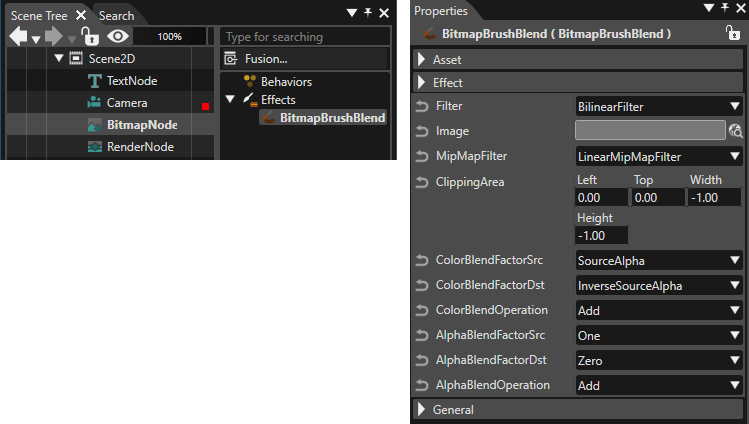
Several node types are already preconfigured with a specific combined effect. E.g when a BitmapNode is added to the scene graph, it is automatically linked to a BitmapBrushBlend combined effect
For user-defined nodes, use the following 2D node type:
- RenderNode: Drag a combined effect from the Toolbox and drop it over the desired RenderNode in the Scene Tree panel.
Follow these steps to view and edit the effect:
- Select the node in the left side of the Scene Tree panel.
- The linked effect will appear on the right side.
- Select the effect to display its properties in the Properties panel, where you can edit them.