
Locking/Unlocking the Properties Panel
Some behaviors like e.g. the ForwardValue behavior have a property TargetNode. The appropriate TargetNode can be assigned by pressing the respective icon button, which will open the "Choose Item" dialog as shown in a Behavior example.
There is an alternative - possibly more comfortable - way to configure the TargetNode via drag & drop.
Like various DCC tools and Game Development Platforms, Scene Composer employs a locking and unlocking method for the Properties panel to significantly enhance the workflow efficiency for designers.
This method the user to lock the properties panel on the top right side of the property panel and move SCItems via drag and drop into the property fields. The value that is being copied into the fields is the path (if the field requires it) or the name of the item.
How to use the Locking/Unlocking method
- Select the target node from the scene tree, and then select the behavior displayed in the extra scene tree.
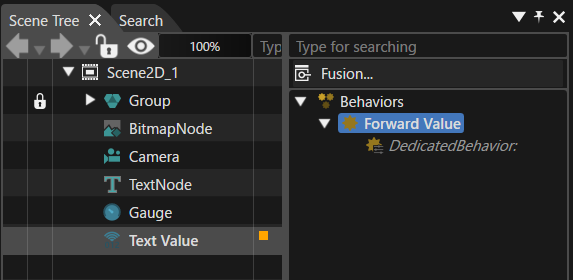
- Click the Lock button in the upper right of the properties panel for the selected behavior to lock the properties panel.
- While locked, the properties of the object selected when locking will be displayed and maintained.
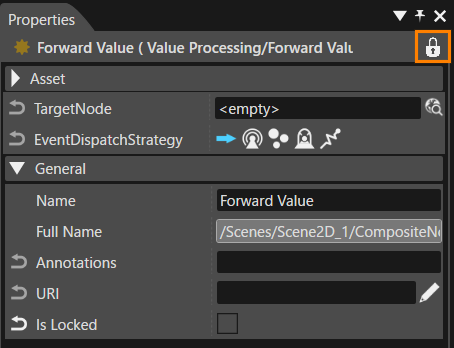
- While locked, the properties of the object selected when locking will be displayed and maintained.
- In the scene tree, select the node you want to set as the TargetNode, and drag and drop it onto the [TargetNode] in the Properties window, where it will be displayed in step 2.
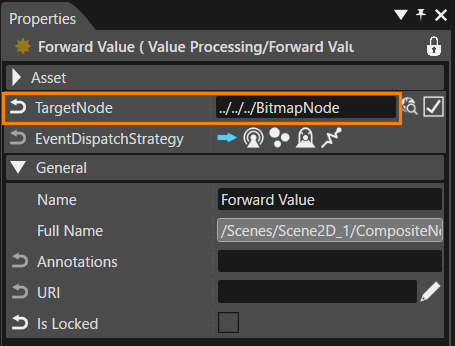
- Click the Lock button in the top right of the Properties panel again to unlock the Properties panel.
Limitation: Drag&drop to Properties panel doesn't work for external (windows) files.