
Scene Tree UI
This section explains the User Interface of the Scene Tree panel.
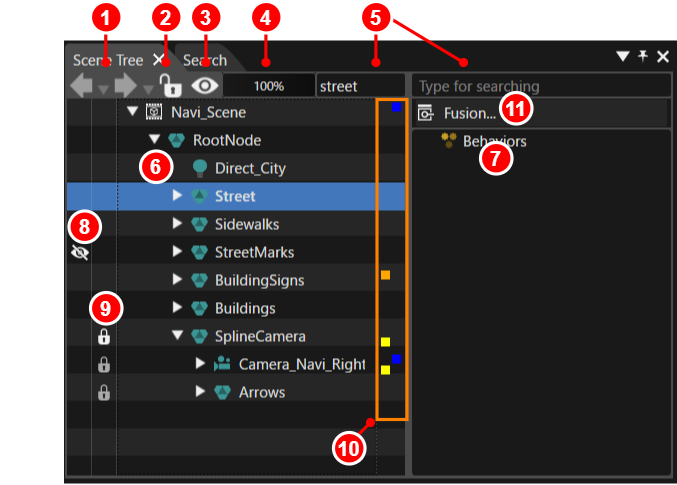
| No. | Name | Description |
| 1 | Navigation button |
This button is enabled when multiple scenes are displayed. The button has a back (left arrow) and forward (right arrow) function. |
| 2 | Lock button |
This button is enabled when a node is selected in the scene tree. Pressing the button locks the selected node. For details, please refer to here. When a lock is set, the lock icon is displayed. The child node icons will be displayed in grey. |
| 3 | Rendering button |
This button is enabled when a node is selected in the scene tree. This button is used to set whether or not the node will be rendered at design-time and run-time. If rendering is disabled, child nodes will also not be rendered. If rendering is disabled, the rendering disabled icon will be displayed. |
| 4 | Transparency |
This function is enabled when a node is selected in the scene tree. This sets the local alpha transparency (Alpha Value) of the selected node. The effective alpha value is combined with the material alpha value of the node. |
| 5 | Search field | Searches for items in the scene tree and extra scene tree. Nodes containing the input keywords are highlighted. |
| 6 | Scene tree | The nodes that make up the scene displayed in the Scene Editor panel are displayed in a tree. |
| 7 | Extra scene tree | The behaviour set for the selected node is displayed here. |
| 8 | Rendering disabled icon |
If rendering is disabled using Rendering button, the rendering disabled icon will be displayed. |
| 9 | Lock icon | If the node is locked using Lock button, a lock icon will be displayed. If the locked node has child nodes, these will also be displayed with a lock icon (greyed out). |
| 10 | Annotation |
The status of each node is displayed using four-colour icons.
|
| 11 | Fusion | Displays the Fusion panel for the node currently selected in the scene tree. |