
Panel
The Scene Composer user interface is composed of parts called panels. This page describes each panel, for which corresponding explanations can be found below.
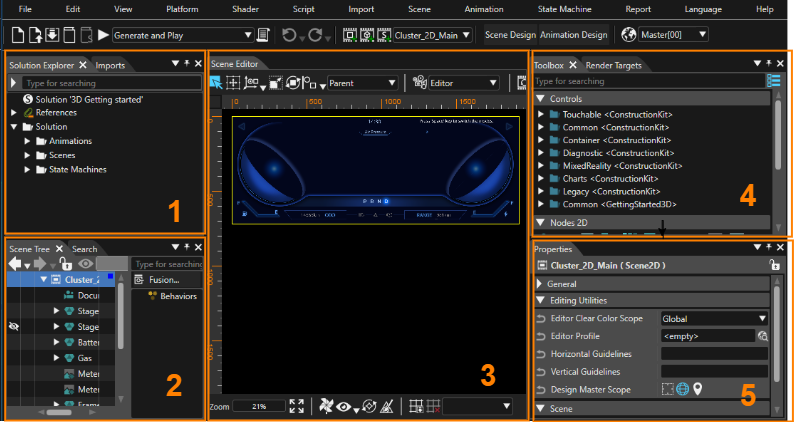
This page is explained according to the default layout for convenience.
1. Solution Explorer/Imports
| Panel name | Description | Note |
| Solution Explorer |
All items in the solution are displayed. You can add new items, edit existing items and so on. |
[ Detail ] |
| Imports |
Displays all items imported into the solution. |
[ Detail ] |
2. Scene Tree/Search/Output etc.
| Panel name | Description | Note |
| Scene Tree |
All nodes in the scene are displayed in a tree format. You can add, edit, delete, etc. nodes. |
[ Detail ] |
| Search |
Displays trace information about the Scene Composer. |
[ Detail ] |
| Output |
Displays trace information about the Scene Composer. |
[ Detail ] |
| Problems |
Displays errors/warnings/messages. |
[ Detail ] |
| Text Size Report |
Displays a text size report. |
[ Detail ] |
3. Scene Editor/State Machine Editor/ Fusion etc.
| Panel name | Description | Note |
| Scene Editor |
The main panel of Scene Composer allows you to view and edit the nodes contained in a scene. |
[ 2D Scene ] [ 3D Scene ] |
| Fusion |
Various actions can be configured by adding Fusion nodes to the nodes selected in the scene tree. |
[ Detail ] |
| State Machine Editor |
You can edit the selected state machine in the Solution Explorer. |
[ Detail ] |
| Shader Editor |
You can edit the selected shaders in the Shaders panel. |
[ Detail ] |
| Script Editor |
You can edit the selected script in the Solution Explorer or in the Toolbox. |
[ Detail ] |
| SCML Editor |
You can edit the SCML. |
[ Detail ] |
| Appearance Editor |
You can edit node attachment templates. |
[ Detail ] |
| Graph Dependencies |
Visualize the dependencies of the nodes in the scene tree. |
[ Detail ] |
|
Transition Rules Editor /Transition Execution |
Transitions between scenes can be set up. |
[ Detail ] |
|
Player/CGIPane |
The Embedded Player validates solutions created with Scene Composer. |
[ Detail ] |
4. Toolbox/Render Targets etc.
| Panel name | Description | Note |
| Toolbox |
Items (controls, nodes, effects, behaviors, and scripts) that can be added to scenes and other objects are listed. |
[ 2D Toolbox ] [ 3D Toolbox ] |
| RenderTargets |
Create/edit new render targets. |
|
| Tempates |
View templates included in the solution. |
|
| Diagram Bird's Eye |
View a bird's eye view of the Fusion diagram or the entire State Machine Editor. |
|
| Scopes |
Set up camera culling and light culling. |
|
| Shaders |
Shaders included in the solution are displayed. |
|
| Render Statistics |
A performance indicator for the display is shown during rendering. |
|
| Text Search |
This panel allows you to search for text contained in the solution or selected scenes. |
5. Properties
Here displays the properties of the selected item in the Solution Explorer, scene tree, and various editors. You can also edit the value of each property.
Animation Panels
The animation-related panel appears when [ Animation Design ] is enabled via the mode-switching button on the toolbar.
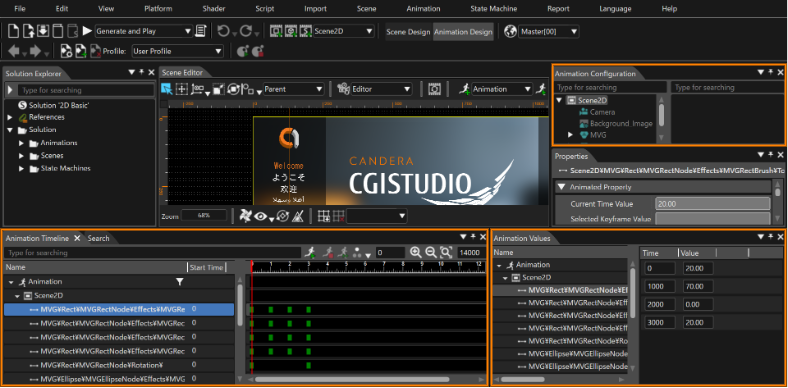
| Panel name | Description | Note |
| Animation Timeline |
Graphically view or edit animation-related settings. |
|
| Animation Values |
View or edit animation-related settings with information in text format. |
|
| Animation Configuration |
Nodes in the solution are displayed in a tree format, with only the nodes related to the active animation highlighted. |
[ Detail ] |
Other panels
| Panel name | Description | Note |
|
Live Preview |
The definition of the data binding used in the selected scene can be displayed. You can also simulate the behavior of data binding by dynamically setting values for the definitions. |
|
|
Candera Logging |
Trace information about the Candera Graphic Engine is displayed. |
|
| Widgets | User custom widgets can be used. |
[ Detail ] |
| Render Order Bins | Manage the rendering order in a 3D scene. |
[ Detail ] |