
2D Nodes
2D Toolbox
The Toolbox for 2D scenes provides the following items:
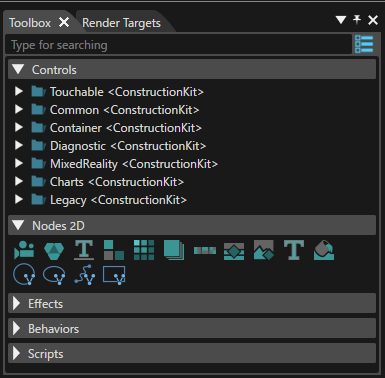
-
A "Show Controls as Big Icons/List" button is available in the upper right corner. If this button is used, a different presentation mode - as icons instead of a text list of items - will be made available (see the image below).
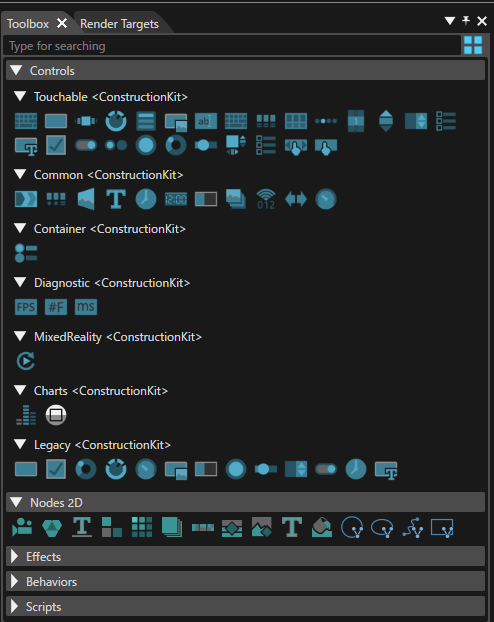
Create 2D Nodes
Following items can be used to create a new node in the scene graph:

|
1 |
2D Camera: To be linked to a render target, where the render result of the camera will be drawn. Candera::Camera2D |
|
2 |
2D Group: Parent item for other nodes. Child nodes are located relative to the parent group. Candera::Group2D |
|
3 |
Base Line Layout: Provides a stacked layout in the horizontal direction. Candera::BaseLineLayouter |
|
4 |
Dock Layout: Provides an area divided into five screens (Top, Bottom, Center, Left, Right). Nodes can be placed in the screens surrounding the Center screen. Candera::DockPanelLayouter |
|
5 |
Grid Layout: Each node within the group will be positioned within a grid. Candera::DockPanelLayouter |
|
6 |
Overlay Layout: Allow you to place nodes on top of each other to create a layered effect. Candera::OverlayLayouter |
|
7 |
Stack Layout: Stacks nodes in the horizontal or vertical direction. Candera::StackLayouter |
|
8 |
RenderNode: Can be associated with any type of effect. Candera::RenderNode |
|
9 |
BitmapNode: By default associated with a BitmapBrushAlphaBlend effect. Candera::BitmapBrushAlphaBlend |
|
10 |
TextNode: By default associated to a TextBrushAlphaBlend effect. Candera::TextBrushAlphaBlend |
|
11 |
Solid Color Node: By default associated to a TextBrushAlphaBlend effect. Candera::SolidColorBrush |
|
12 |
MVG Arc Node: can be used to display an arc |
|
13 |
MVG Ellipse Node: can be used to display ellipse |
|
14 |
MVG Path Node: can be used to display paths with a combination of instructions |
|
15 |
MVG Rect Node: can be used to display rect. |
For each of these types, refer to the Properties panel for inspecting all properties specific for the type of node. Tooltips are available to explain the purpose of the property. Refer also to the Properties Overview listing the Tooltip descriptions.
About MVG nodes, please refer to MVG Nodes page.
Position of 2D Nodes
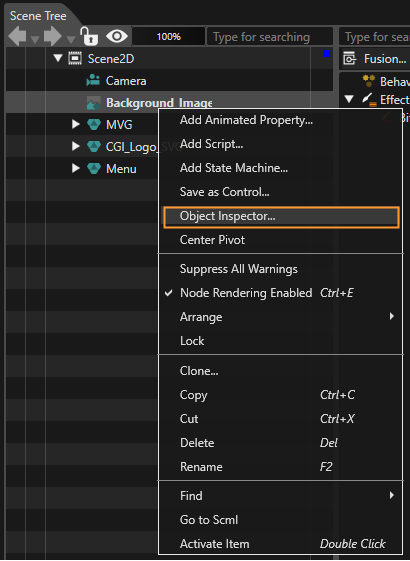
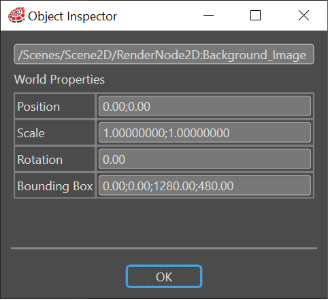
By using the so-called "Object Inspector" feature, it is possible to display the following properties of a 2D node: Position, Scale, Rotation and BoundingBox. This can be done by right-clicking on a 2D node and selecting the "Object Inspector" from the context menu.
The displayed data (visible in the "Object Inspector" panel) is always refreshed reflecting all the changes made by the user.
WorldPivotPosition, WorldPosition and WorldBoundingBox can also be displayed in the Scene Editor panel.
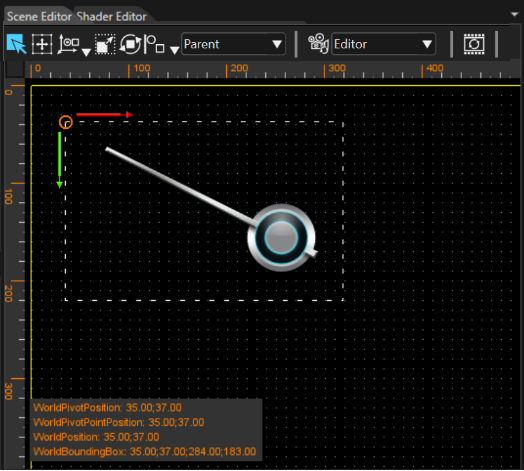
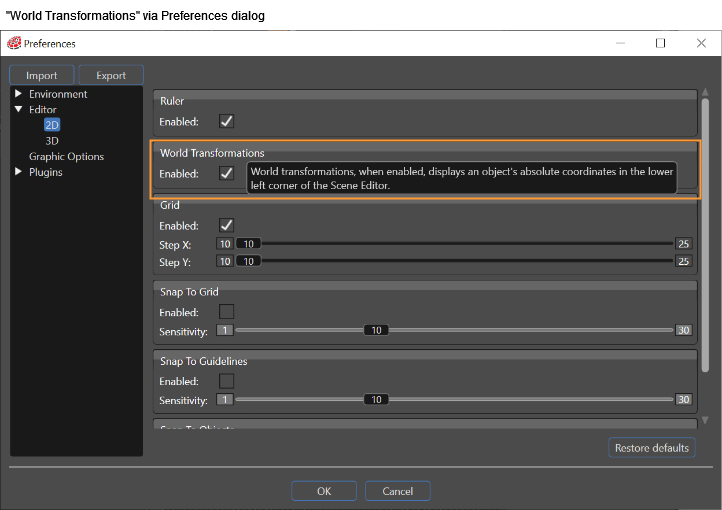
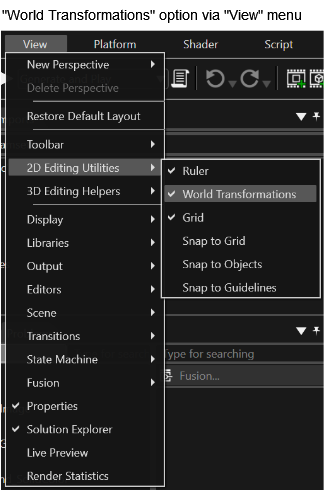
This feature is disabled by default and can be enabled in "Preferences" > "Editor" > "2D" > "World Transformations". Alternatively, it can be enabled in "View" > "2D Editing Utilities" > "World Transformations".
Adding Text to the 2D Scenes
Text can be added to the scenes either by using a dedicated node called TextNode2D or by using a Render Node in conjunction with a text effect.
TextNode2D
The image below shows how to drag and drop the TextNode2D from the Toolbox to the scene tree:
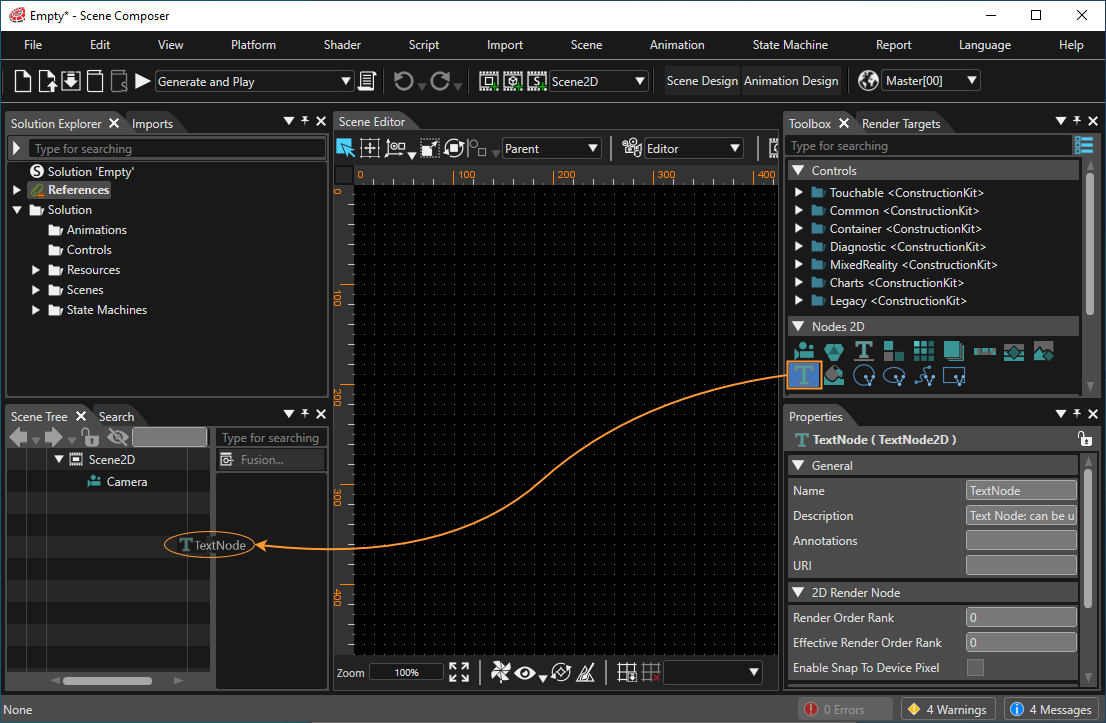
The TextNode2D default properties are set so that the node is displayed after it is added to the scene tree.
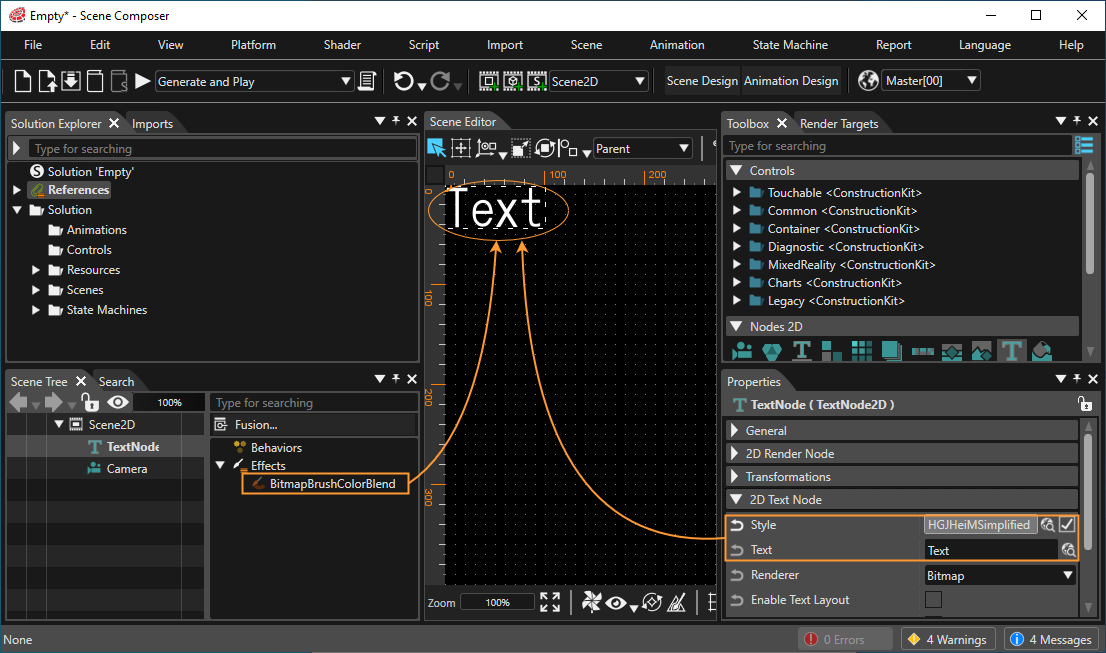
-
Please consult Text Style Palette for detailed information about adding and editing styles.
Multi Line Text Input
Sometimes it could be necessary to introduce a long text - structured in multiple, successive lines - into a text field. To support this, SceneComposer allows multi-line input in any text field within the Properties panel. To insert a newline press Ctrl + Enter. This will put the cursor at the beginning of the next line.
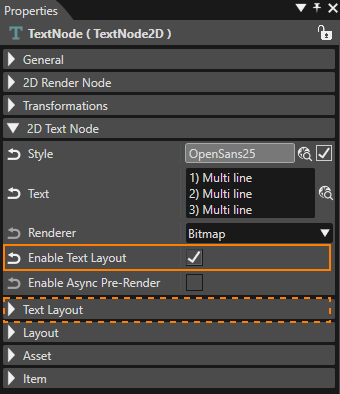
More text layout properties are available when "Enable Text Layout" is checked .
Text Layout
Another category called "Text Layout" includes the following properties: TextAlignment, LineSpacing, Trimming, MultiLine and WordWrap.
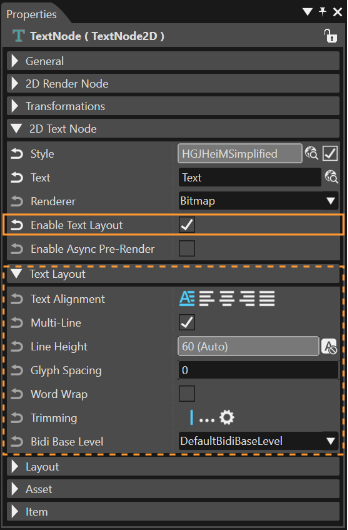
This properties section is only visible if Enable Text Layout is checked. If it is unchecked, the default values of the properties will determine the way the text is rendered.