
Databinding UI
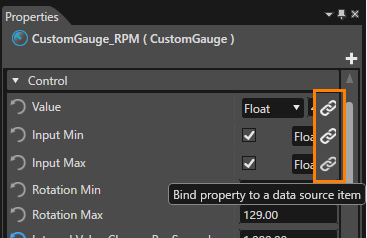
Each bindable property have a button next to the property that allows to define a binding.
-
Following items have bindable properties: Behaviors, Widgets, Behavior, Building and BlocksControls
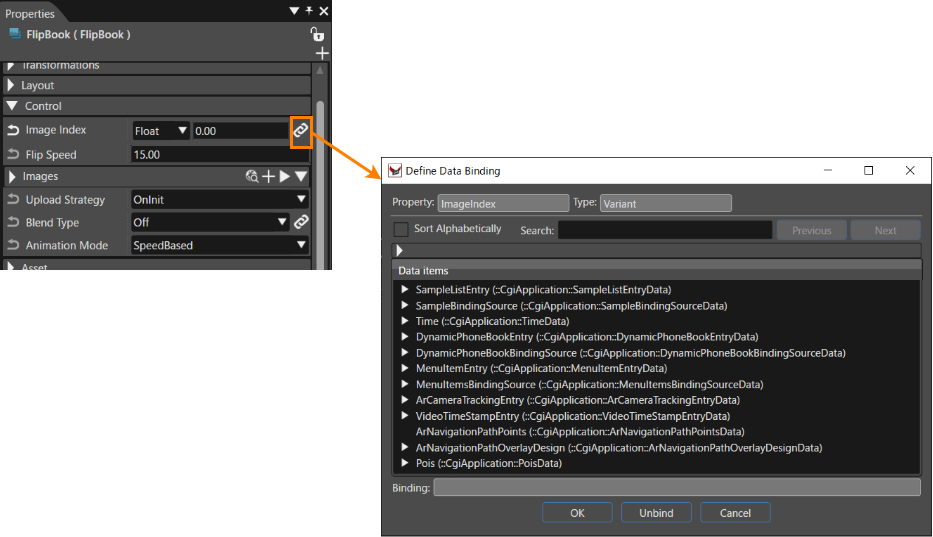
When unbound, clicking the button shows the databinding dialog that allows to link the property to a data source. The binding dialog shows all matching datatypes in the editor:
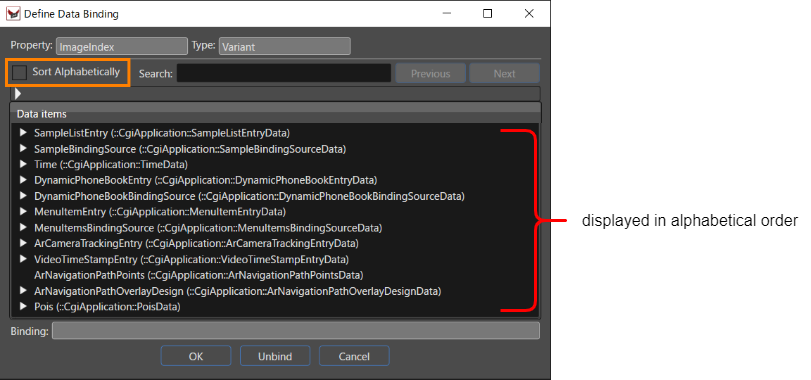
Data items displayed in the [ Define Data Binding ] dialog are normally displayed in definition file order. By checking the [ Sort Alphabetically ] checkbox in the dialog, data items are displayed in alphabetical order.
You can also filter the data binding items displayed in the dialog's [ Data Items ] by a combination of data type and read-only status. Filter items can be expanded and displayed by clicking on the right triangle icon in the dialog (see the orange frame below).
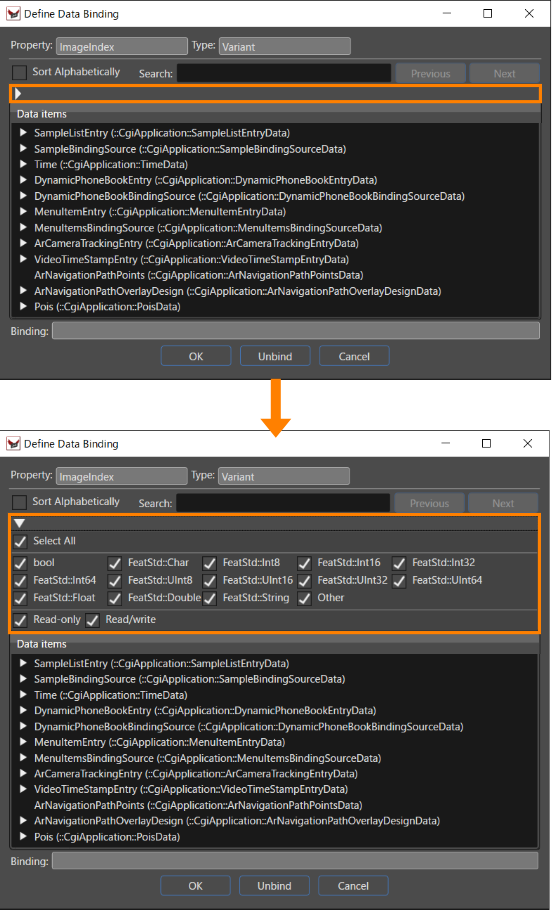
- Checking [ Select All ] will check all filtering data types and read-only statuses (if all are checked, uncheck them).
- Checking [ Other ] will check non-primitive data types.
Note that an icon (  ) indicating read-only status is displayed to the right of the read-only data item.
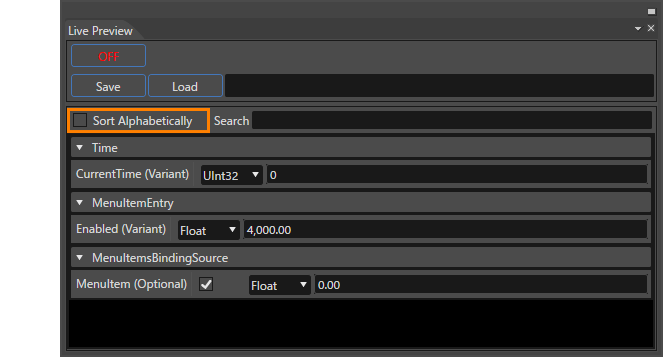
The order in which the currently used items are displayed can also be changed in the Live Preview panel, which is displayed via [ View > Live Preview ] in the menu bar, by using the [ Sort Alphabetically ] checkbox.
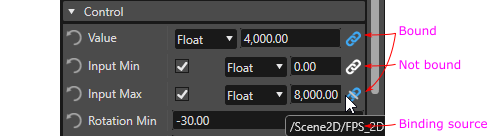
Buttons for bound property items are displayed in blue (white for unbound buttons). To remove the bound setting, click on the button to display a dialog box, then click on the [ Unbind ] button at the bottom of the dialog box.
Live Preview panel
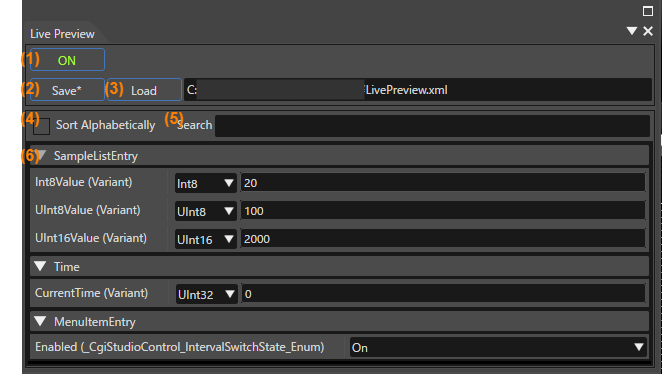
You can check the behavior of the bound data binding items in the Scene Editor using the Live Preview panel. If the Live Preview panel is not displayed, check "Live Preview" on the menu bar under "View" to display it.
| (1) |
ON/OFF: Toggles the Live Preview behavior ON/OFF. |
| (2) |
Save: Saves the values currently set in the Live Preview panel. |
| (3) |
Load: Loads values from an existing file. |
| (4) |
Sort Alphabetically: Sorts the data binding items displayed in the Show Data Binding Items field alphabetically. |
| (5) |
Search: Searches the data binding items displayed in the Show Data Binding Items field. |
| (6) |
Data Binding Items Display Field: Displays all bound data binding items. Allows you to set values for each data binding item. When the Live Preview behavior is on, the values you set are reflected in the Scene Editor. |
For an example of how to use the Live Preview panel, see also "Operation confirmation using Live Preview panel"