
Creating a new Solution
The first step is to create a new solution with Scene Composer. A solution is a project file containing resources for a single project. Selecting a template makes it easy to create a new Solution.
- Double-click on the Empty template in Samples and Templates.
- Selecting an Empty template creates a solution based on the template.
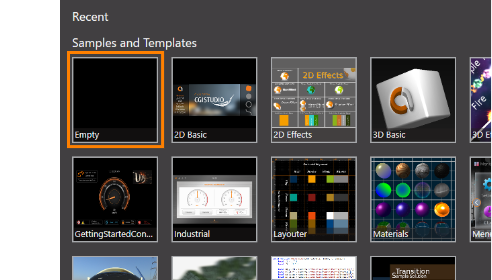
- Selecting an Empty template creates a solution based on the template.
- Click the "Save solution..." icon on the toolbar or use the keyboard shortcut Ctrl + S.
- The Windows "Save As" dialog will be opened, where you can define the location and file name for your solution.
You can also save a your solution via the menu: "File" - "Save Solution" or "File" - "Save Solution as...".
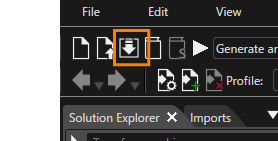
- The Windows "Save As" dialog will be opened, where you can define the location and file name for your solution.
- In the "Save As" dialog choose a location, enter a suitable filename and click [Save].
- Your solution will be saved at the specified location.
- This completes the creation of a new solution.