
Script Editor and Script Validation
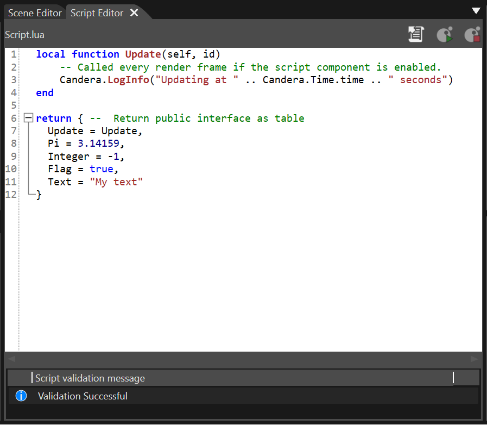
Double clicking on a script in the Solution Explorer, Toolbox, or on a script component, opens the Script Editor. The editor supports syntax highlighting for Lua.
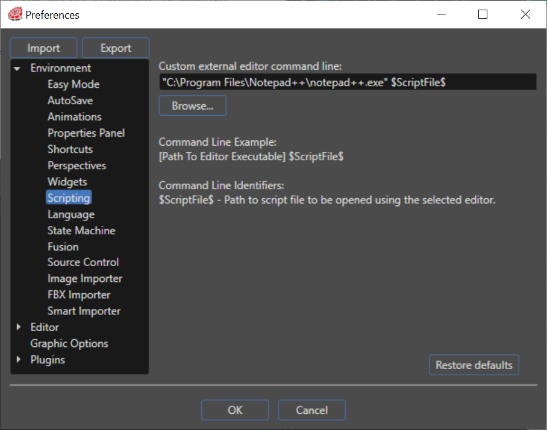
The user can edit scripts by using an external editor, too. The script code will be automatically updated and validated in SceneComposer after any modification in the external editor. Any error will be shown. To set up the path to the external editor a specific section is available in "Preferences" panel (see the image bellow).
Once a script has been input (a tutorial covering script development can be found here), it needs to be validated. The operation of starting scripts will validate any script that has not been validated yet. Validation of a script means that the script is passed to Lua's virtual machine which checks if the script is syntactically correct.
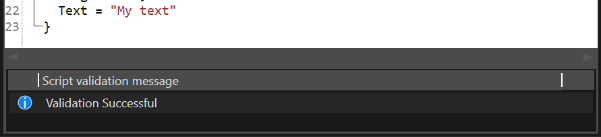
After a successful validation no errors will be shown.
If a script has a component which cannot be validated, the script system will not start
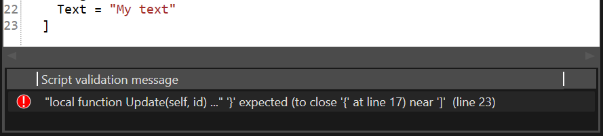
After an unsuccessful validation the Lua error message is displayed with the offending line. Clicking on the error message will position the cursor in that line in the editor.
When a scene is loaded, all its scripts are validated automatically. Any scripts that were changed or added after loading the scene, have to be validated manually.
The "Script Editor" is not cleared if the script loaded inside is deleted from solution.