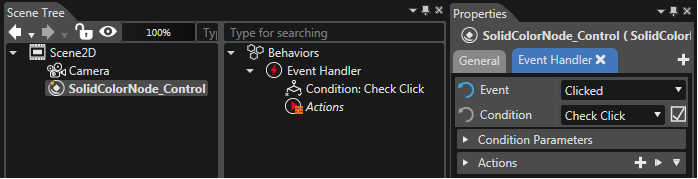
EventHandler Tab
Every control needs an EventHandler in order to handle user events and take appropriate actions.
Events, Conditions and Actions for a node can conveniently be edited in SceneComposer in the EventHandler Tab, which is located in the properties view. Using the EventHandler Tab the user can choose the event he wants to react on from a drop-down menu. Furthermore, conditions and actions can also be configured with drop-down menus in this tab. Once an Event is selected, only conditions that are suitable for the selected event are offered in the drop-down menu. For a list of all selectable Events see chapter Control Behaviors Events .
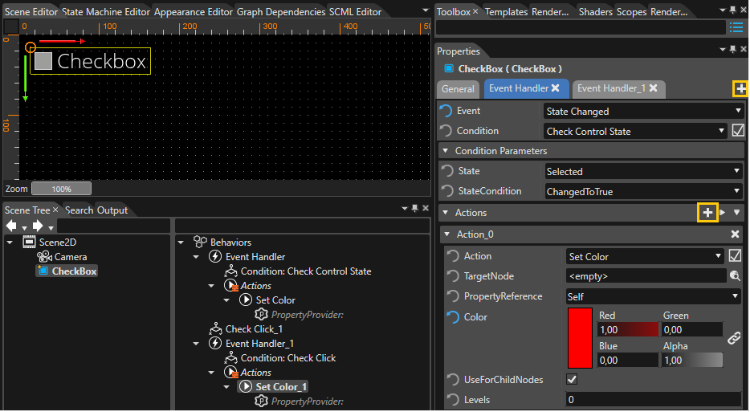
Additional EventHandlers can be added by clicking the '+' sign next to the EventHandler Tabs, more Actions can be added by clicking the '+' sign next to the Actions (marked in orange in the image above).
Filtering Conditions according to the selected Event
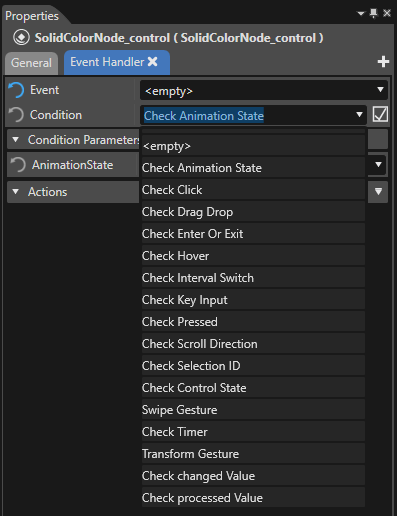
Before selecting an Event, the Conditions drop-down menu contains quite a lot of entries:
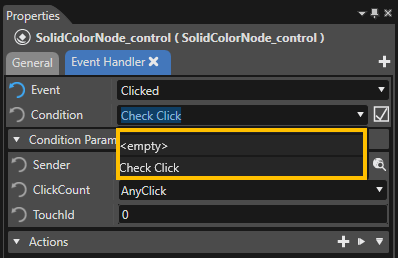
After selecting an Event, the Conditions drop-down menu only contains Conditions that are applicable for the selected Event:
When implementing a ConditionBehavior, filtering for a specific Event can easily be configured using the CdaProperty "CdaEvents" as seen in the code example below, where the StateConditionBehavior is the configured to be visible for the StateEvent:
private:
    CdaBehaviorMixedDef(StateConditionBehavior, StateConditionBehaviorBase)
        CdaDescription("Expects a State Event (generated by Control State Behavior) and returns either a positive or negative response.")
        CdaReadableName("Check Control State")
        CdaCategory("Condition/Control")
        CdaProperties()
        CdaPropertiesEnd()
        CdaEvents()
            CdaEvent(CdaInputEvent, StateEvent, "")
        CdaEventsEnd()
    CdaBehaviorDefEnd()
Adding an EventHandler to a Control
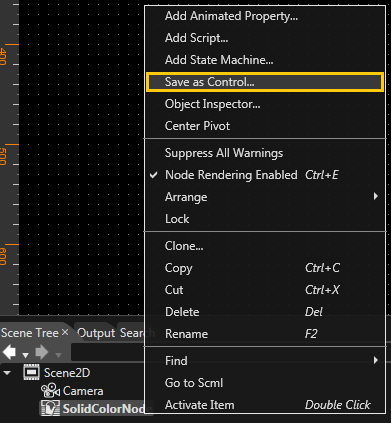
A Control can be created from a simple RenderNode using "Save as Control..." from the RenderNode's context menu in the Scene Tree View:
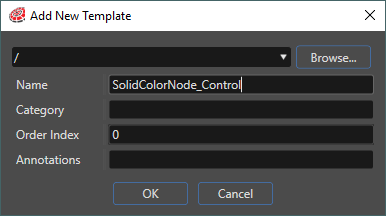
For creating a Control, a name can be specified:
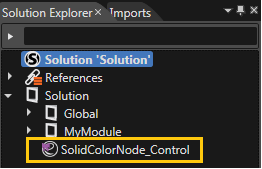
After clicking "OK", the new Control is visible in the Solution Explorer
When right-clicking on the context menu of the new Control, the Control's properties can be edited choosing "Control Properties...":
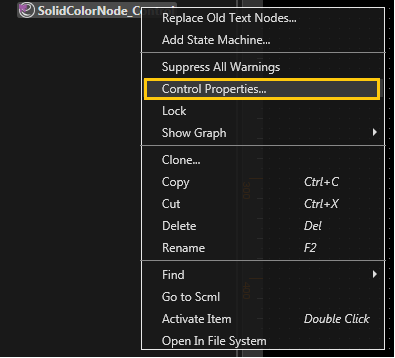
The "Configure Properties" window offers a checkbox to choose if an EventHandler shall be added to every instance of this kind of Control that is created.
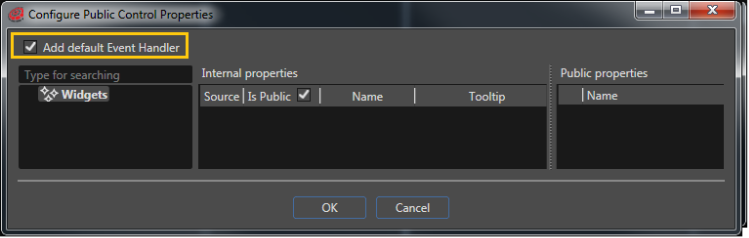
Now, whenever such a control is dragged-and-dropped to the SceneComposer scene, an EventHandler is added and the EventHandler Tab is visible in the Properties view.