
External Resource
This page explains how to use the behaviors that operate on external resources (such as images) located outside the Scene Composer solution: External Bitmap Provider, Set External Bitmap and Check External Resource Change.
For how to reference external resource files, see Referencing external resource.
A new FileSystemResourceManager (identified as FileSystem) has been introduced, extending the functionality of the External Resource Behaviors (such as Set External Bitmap and External Bitmap Provider), removing execution device restrictions. These behaviors are now available across all platforms. This allows users to dynamically load image files, such as PNG and JPEG files, from the file system at runtime using relative paths, without embedding them in the asset binary file. This functionality is primarily used for setting images on 2D Bitmap Nodes. Since the ExternalResourceManager ID property defaults to AndroidSystem, users must manually enter "FileSystem" as the value to enable file system resource support.
For further details and limitations, please refer to the External Image Behavior page.
Use cases
-
Render external images: Preview images residing under an Android Studio project in Scene Composer and verify the display in Player.
-
Switch the displayed image from the UI: Attach External Bitmap Provider to a bitmap node, then use a button with Set External Bitmap to switch the image according to
ExternalResourceId. -
Detect external-resource changes: Use Check External Resource Change to detect changes in the external resource setup and reload cached external objects as needed.
Action External Resource Behavior
Set External Bitmap
Sets ExternalResourceId and ExternalResourceManagerId properties of an associated ExternalBitmapProvider when its action is triggered.
Common Properties
| Property Name | Type | Description |
|---|---|---|
| ExternalResourceId | String |
Full path to resource. (A unique ID to be provided.) If the ExternalResourceManagerId is Android, provide the full path to the resource (a unique ID should be specified). If the ExternalResourceManagerId is FileSystemExternal, provide the file system path in .png or .jpg format. |
| ExternalResourceManagerId | String |
External resource manager ID. (e.g., Android, FileSystem) used to retrieve the external resource. |
| ImageProvider | ExternalBitmapProviderBehavior* |
External Bitmap Provider Behavior which sets an external image on a node and is the target receiving set resource on action. |
Condition External Resource Behavior
Check External Resource Change
Checks is external resource setup changed if test pass need to reload extand whole cache for external objects needs reload.
Reacts on ExternalResourceEvent if and only if the ExternalResourceId and ExternalResourceManagerId of the event match the condition’s properties, triggering the associated action.
Common Properties
| Property Name | Type | Description |
|---|---|---|
| ExternalResourceId | String | External resource name ID. (A unique ID to be provided.) |
| ExternalResourceManagerId | String |
External resource manager ID. (A unique ID to retrieve the external resource from.) |
Value Processing External Resource Behavior
External Bitmap Provider
Sets an image on a Render Node based on External resource Id. Retrieves an external bitmap with ExternalResourceId from an external resource provider with ExternalResourceManagerId and provides the bitmap to an associated bitmap node.
Common Properties
| Property Name | Type | Description |
|---|---|---|
| TargetNode | Candera::AbstractNodePointer |
The Node which is modified. If not set, then the node where the behavior is attached to, will be modified. |
| ExternalResourceId | String |
Full path to resource. (A unique id of an external resource to be provided.) If the ExternalResourceManagerId is Android, provide the full path to the resource (a unique ID should be specified). If the ExternalResourceManagerId is FileSystemExternal, provide the file system path in *.*png or .jpg format. |
| ExternalResourceManagerId | String |
External resource manager ID. (e.g., Android, FileSystem) used to retrieve the external resource. |
Example Usage of External Resource Behaviors
Here is an example of the use of each External Resource behavior.
How to reference external resources
For information on referencing external resource files, see Referencing external resource. The following usage example uses an external resource that was loaded into the solution during this operation.
External Bitmap Provider
- Drag and drop the [ Node 2D > Bitmap Node ] from the toolbox onto the scene editor, or the scene tree.
- Attach [ Behavior > External Resource > Value Processing > External Bitmap Provider ] in the Toolbox to the Behavior in the Extra Scene Tree of the placed bitmap node by drag-and-drop operation.
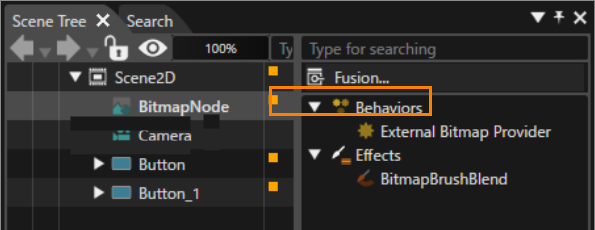
- Click External Bitmap Provider behavior and and specify the target image file to ExternalResourceId in the properties panel that appears. ExternalResourceId can be set in the following two ways.
-
- Enter the resource ID directly into the ExternalResourceId text box.
- Press the select item button on the right side of ExternalResourceId, select the target file from the displayed dialog box, and press the [ OK ] button.
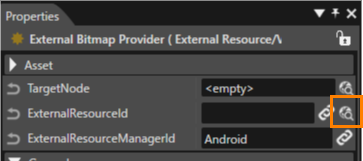
-
- The selected external resource will appear in the scene editor.
- Save the solution and launch Player to confirm that this external resource is displayed.
Set External Bitmap
- Drag and drop the [ Node 2D > Bitmap Node ] from the toolbox onto the scene editor, or the scene tree.
- Attach [ Behavior > External Resource > Value Processing > External Bitmap Provider ] in the Toolbox to the Behavior in the Extra Scene Tree of the placed bitmap node by drag-and-drop operation.
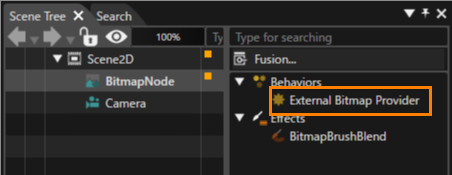
- Drag and drop the [ Controls > Touchable > Button ] from the toolbox onto the scene editor, or the scene tree. Take place this operation twice (add two button control nodes).
- Attach [ Behavior > External Resource > Action > Set External Bitmap ] in the Toolbox to the Actions in the Extra Scene Tree of the placed Button control nodes by drag-and-drop operation.
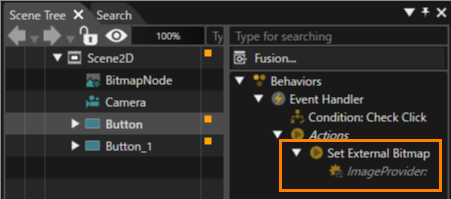
- Select the Button control, then select the Set External Bitmap behavior in the Extra Scene tree that appears.
- Click the select item button on the ImageProvider in the properties panel that appears and select the External Bitmap Provider connected to the BitmapNode (this operation is performed for the two Button controls).
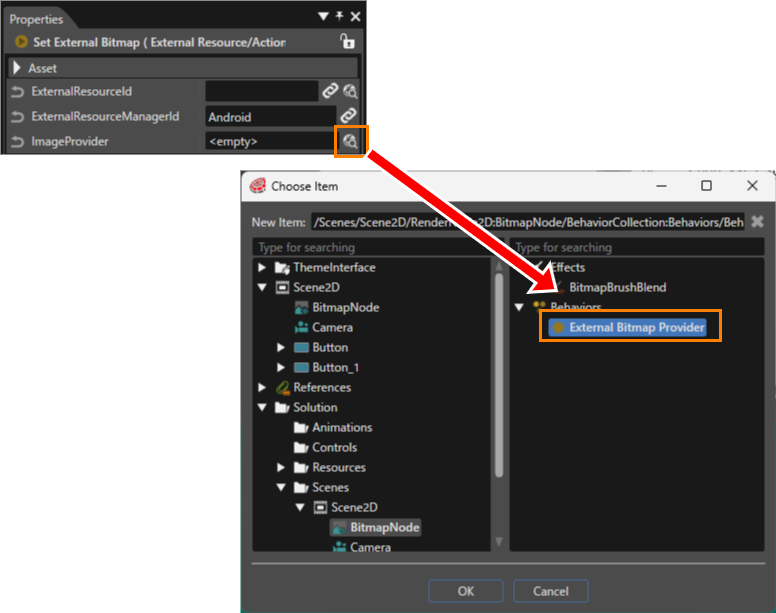
- Select the Button control, then select the Set External Bitmap behavior in the Extra Scene tree that appears.
- Click the select item button on the ExternalResourceId in the properties panel that appears and select the External Bitmap Provider connected to the BitmapNode (this operation is performed for the two Button controls).
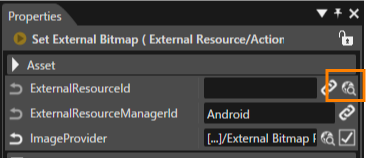
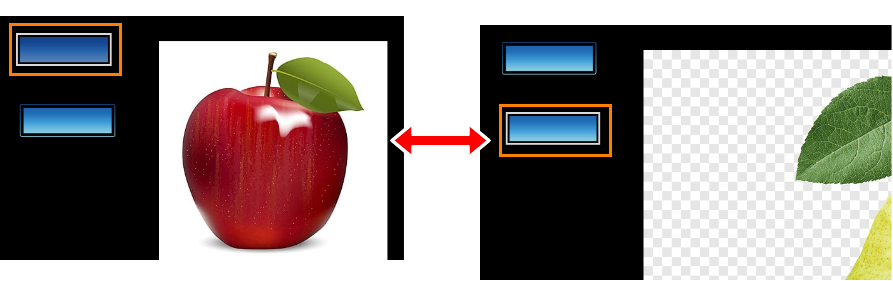
- Run the player and press the placed buttons. By pressing each button, the image specified in Set External Bitmap will be displayed.
Check External Resource Change
- Drag and drop the [ Node 2D > Bitmap Node ] from the toolbox onto the scene editor, or the scene tree.
- Attach [ Behavior > External Resource > Value Processing > External Bitmap Provider ] in the Toolbox to the Behavior in the Extra Scene Tree of the placed bitmap node by drag-and-drop operation.
- Select Scene2D in the scene tree and attach [ Behaviors > Control > Event Handler ] to the displayed extra scene tree by drag-and-drop operation.
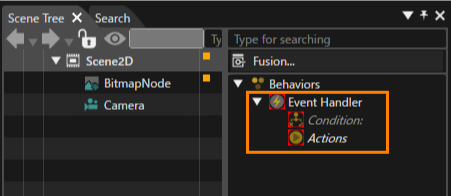
- Select the Scene2D in the scene tree, in the displayed extra scene tree, attach [ Behavior > External Resource > Condition > Check External Resource Change ] to the Condition of the Event Handler by drag-and-drop operation.
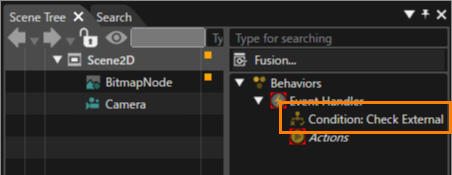
- Select the Scene2D in the scene tree, in the displayed extra scene tree, attach [ Behavior > External Resource > Action > Set External Bitmap ] to the Actions of the Event Handler by drag-and-drop operation.
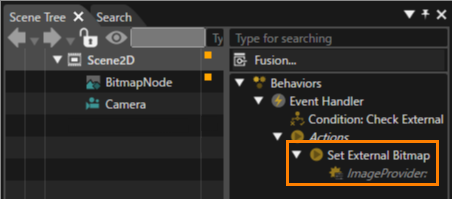
- Select the Set External Bitmap behavior you added.
- Click the select item button on the ImageProvider in the properties panel that appears and select the External Bitmap Provider connected to the BitmapNode.
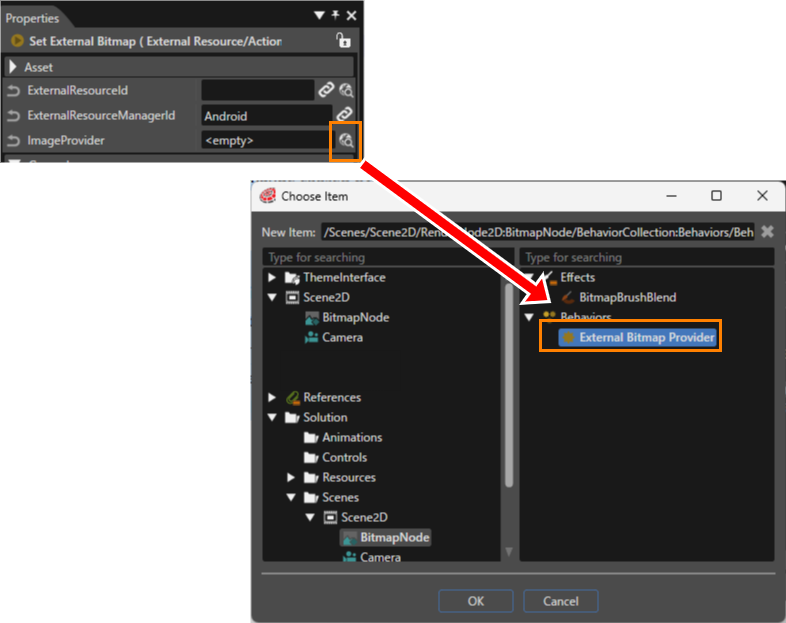
- Select the Set External Bitmap behavior you added.
- Click External Bitmap Provider behavior and and specify the target image file to ExternalResourceId in the properties panel that appears. ExternalResourceId can be set in the following two ways.
- Enter the resource ID directly into the ExternalResourceId text box.
- Press the select item button on the right side of ExternalResourceId, select the target file from the displayed dialog box, and press the [ OK ] button.
- Select Check External Resource Change in the Event Handler.
- Click the Select Item button for ExternalResourceId in the Properties panel that appears and select any external resource specified in step 9.
- Each time the image definition is changed, the displayed image should be updated.