Edit Controls
Edit Controls
Controls are listed in Toolbox-Controls panel and Solution Explorer panel. By double clicking on a control, it will be opened for editing just like a normal scene.
Editing controls allows to:
- Modify the scene graph structure and content of the control;
- Create and modify anchors to a control.
It is possible to set a description for the control properties. This description will be shown as tooltip in the properties panel for the associated property of the the control node.
Create Anchors
The Toolbox panel provides an "Anchor" node in addition to regular scene toolbox items but no cameras, when editing controls. An anchor will later be used by a scene to attach further content to the control.
Add an anchor dragging it from the Toolbox and drop it on a desired node part of the control. The anchor will appear as a new child of the control in the Scene Tree panel, named after the parent node on which it is dropped:
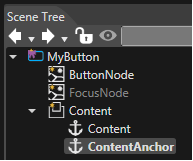
The node an anchor is assigned to can be modified in the Properties panel of the anchor.
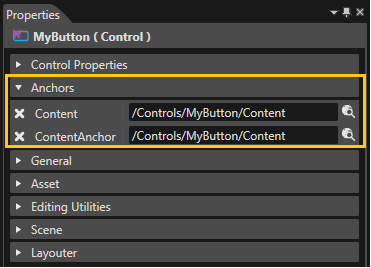
Further, all anchors of the control are also listed in the Properties panel of the control.
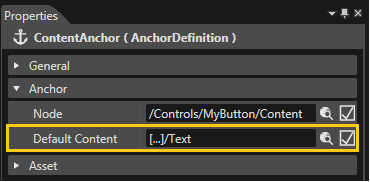
The control functionality provides support to add default content to anchors. When a control is instantiated in a scene, in the anchors where the "Default content" is specified, a control node of that type will be instantiated and added as child to the anchor node itself.
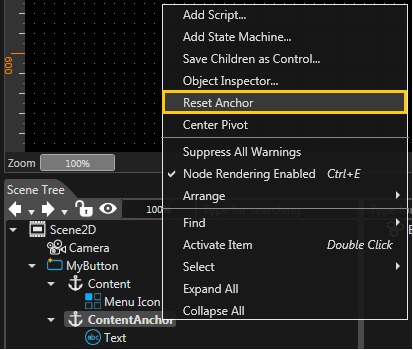
A specific option is available in the context menu of a control instance which has an anchor with default content. The name of this option is "Reset Anchor". By using this option it is possible to reset anchors to the default content.
Delete Anchors
Delete an anchor in the Scene Tree panel via context menu or in the Properties panel of the control by using the "X" button on the left side of the anchor: