List Control - Snapping Mechanism
Snap List Item Extension
The Snap List Item Extension Behavior is a Control > Scroll Behavior that allows to configure a snapping mechanism for a List Control. To use this snapping mechanism, drag and drop a Snap List Item Extension behavior onto a List control in your Scene Editor or Scene Tree panel.
The Snap List Item Extension behavior considers the following use cases:
- When a new item is focused, the list snaps to this item at the aligned snapping position of this item with a snapping animation.
- When the list is scrolled by direct touch, scroll of the list or by external scroll via scrollbar, the list will snap to the item with the smallest distance to the aligned snapping position.
- When the list is scrolled by a next/previous page scrollable event the list will snap to the item with the smallest distance for that new page to the aligned snapping position.
- When the list is scrolled by a next/previous item scrollable event, the list will snap to the newly requested item to the aligned snapping position.
- When a list is flicked by a touch gesture, the final target position will be adjusted in a way that the list snaps to the item with the smallest distance at the flick target position that is determined by the flick speed.
This snapping mechanism supports
- static and dynamic lists
- vertical and horizontal lists
- left-to-right and right-to-left direction
- the wraparound feature for static lists
- restoring the last focused index
- disabled items (Note: not supported for dynamic lists)
Wraparound is only available for static lists with an accumulated complete item size that is larger than the arrange area of the list.
Configuration
The Snap List Item Extension behavior can be applied to a list control via drag and drop from the toolbox.
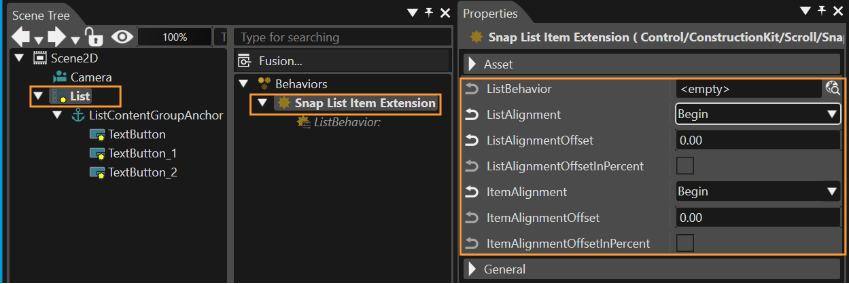
In case you are using a custom ListControl, it is recommended to configure the ListBehavior of the ListControl as the ListBehavior of the SnapListItemExtension behavior. Please see Configure ListBehavior in Custom List for more information.
The properties List Alignment and Item Alignment define the snapping position. The snapping position can be refined by the List Alignment Offset and Item Alignment Offset properties. The properties List Alignment Offset In Percent and Item Alignment Offset In Percent define if the unit of the offset is in percent or in pixel.
List/Item Alignment
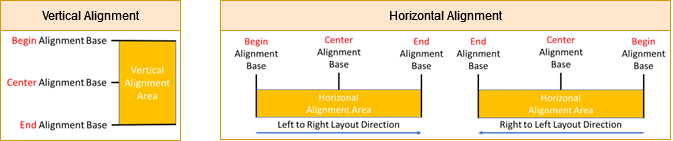
These properties can be set to
- Begin
- Center
- End
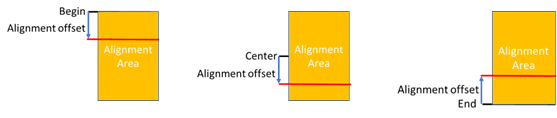
The base alignment for item/list is defined as follows:
List/Item Alignment Offset
The Alignment Offset properties allow to refine the snapping position.
The following rules apply to the alignment offset properties:
- For begin and center alignment the offset is directed towards the end of the arrange area.
- For end alignment the offset is directed toward the begin of the arrange area.
- In case of percental offset configuration, the offset value has to be between 0 and 1 and will be multiplied with the alignment area size to calculate the absolute offset.
Aligning the List and the Snapped Item
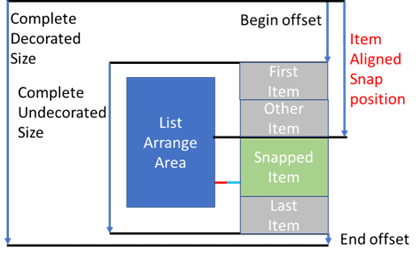
The configuration in the properties describe an alignment point for the list and an alignment point for the snapped item. The alignment point of the list and the alignment point of the item shall be aligned at the same visual position for a snapped item.
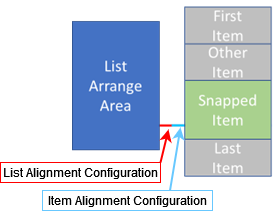
For a normal ListBehavior instance the item alignment starts with the first item presented on top of the list arrange area and stops with the last item at the bottom list arrange area:
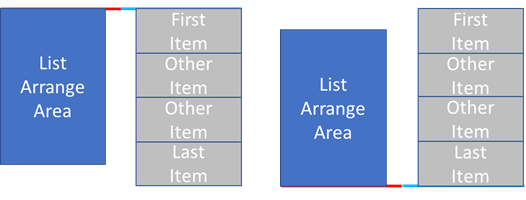
So, the accumulated size of all items represents the complete size of the virtual area presented by the list that can be accessed via scrollbar and scrollable events.
Due to the static item snap position the list
has to present additional empty space before the first item as a begin offset and also after the last item as an end offset:
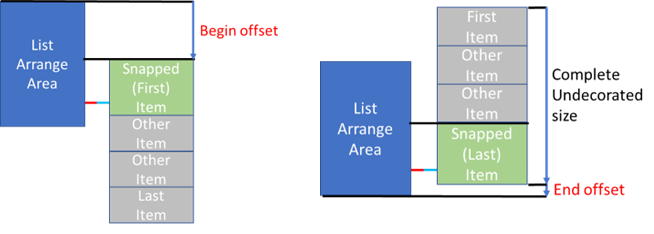
So, the normal list without snapping extension presents an undecorated complete size of its items. But the snapping extension has to add the begin and end offset to this undecorated complete size to present the decorated complete size as complete size of the scrollable interface:
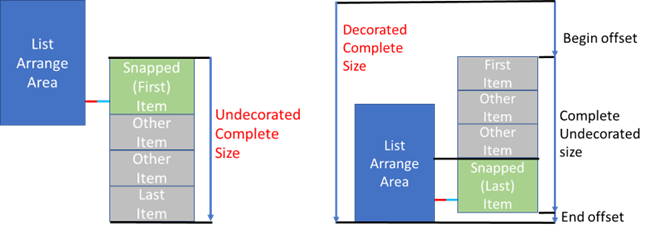
This begin offset also affects the position of the item. So, the first item is virtually positioned at the virtual position of the begin offset. The final aligned snap position of an item has to reflect the begin offset, the accumulated size of all predecessor items, the item alignment offset and the list alignment offset.
Find the Matching Snap Item
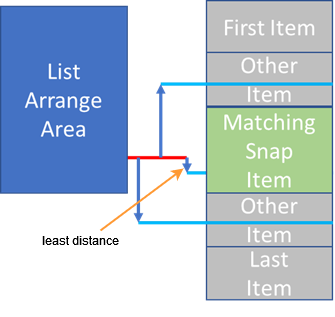
Whenever the position of the items in the list is changed (e.g. when scrolling or flicking or the like) the snapping extension will determine the item to snap to. The item, whose alignment position has the least distance to the list alignment position, will be the matching snap item.
Configure ListBehavior in Custom List
The Snap List Item Extension's ListBehavior can be configured in the custom List Control.
Open your custom list control with a double click or create your custom list control by dragging the predefined list control from the Toolbox into the Controls folder of your solution in the Solutions Explorer.
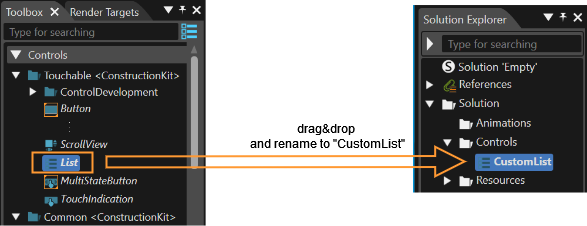
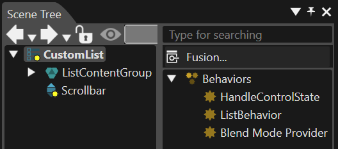
The CustomList looks like this in the Scene Tree:
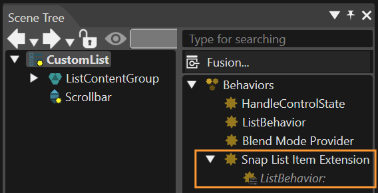
Drag and drop a Snap List Item Extension behavior to the CustomList:
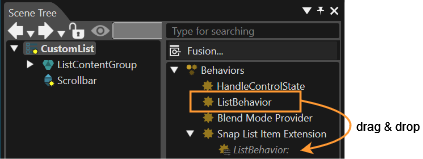
Drag the ListBehavior from the CustomList's Behaviors down to the SnapListItemBehavior's ListBehavior:
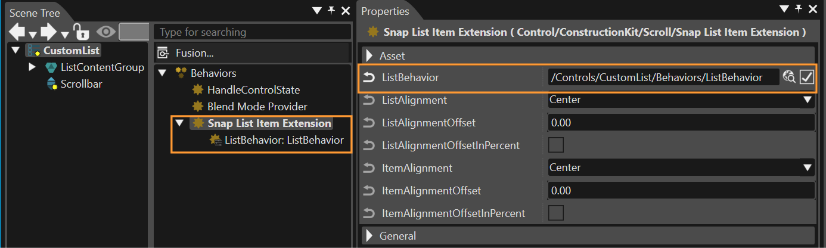
Now you can see that the ListBehavior property has received a new value:
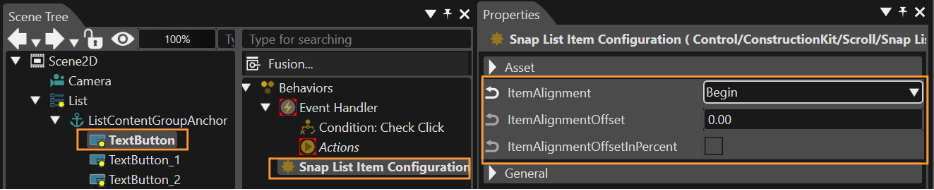
Snap List Item Configuration
The alignment position of a list's items is configured in the Snap List Item Extension behavior with the following properties:
- ItemAlignment
- ItemAlignmentOffset
- ItemAlignmentOffsetInPercent
In case certain items should be configured with a different alignment position, you can apply a Snap List Item Configuration behavior to those items that should be handled differently.
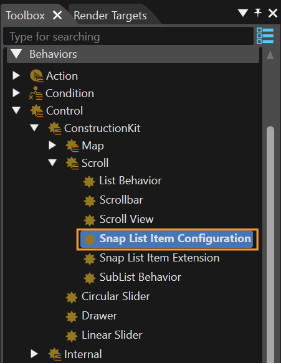
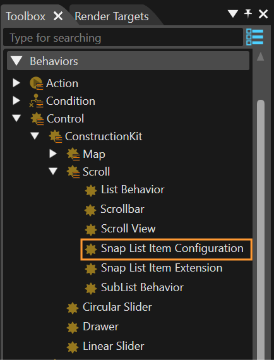
Drag and drop this behavior from the Toolbox onto the desired list item to be able to configure a different alignment position for this item.