Behavior Building Blocks - Behavior Blocks
Description
This chapter describes how to work with behavior building blocks - in short: behavior blocks.
Behaviors can be nested and this way combined to a reusable behavior building block. These behavior blocks offer the possibility to configure, which of the properties of this behavior block will be published and are therefore editable at the time the behavior block is instantiated and used in the SceneComposer scene.
In this tutorial a 2D scene is created with a simple SolidColorNode and an OnClick Behavior Building Block. When single-clicking on the SolidColorNode, its color will be changed to red, when double-clicking on it, its color will be changed to green.
The OnClick Behavior Building Block is built out of an EventHandler Control Behavior and a CheckClick Condition Behavior. The two instances of the Behavior Building Blocks are configured with an additional SetColor Action Behavior to change the color.
Create a Behavior Building Block
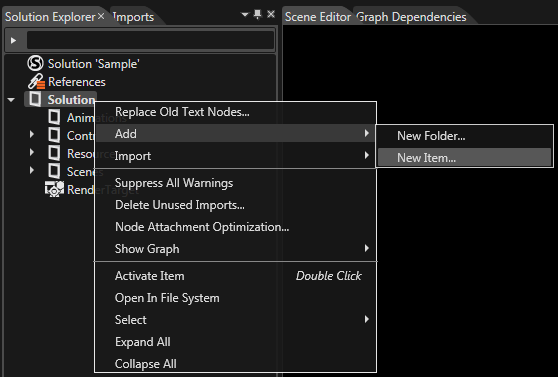
To create a behavior building block, right click on a folder in the Solution Explorer (e.g. Solution) to open the context menu and select "Add" - "New Item...".
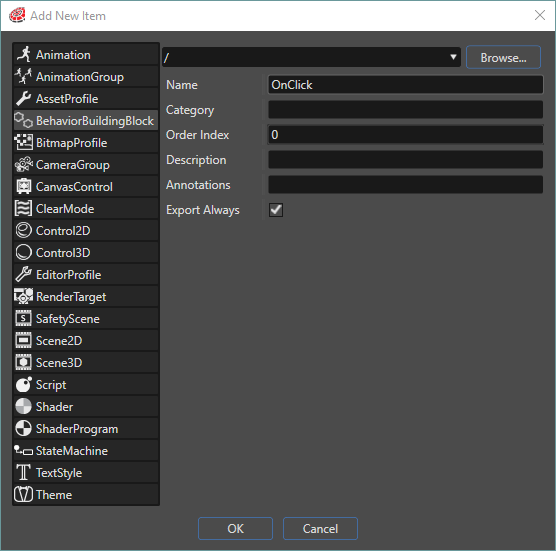
In the opening "Add Item Dialog" select "BehaviorBlock" on the left. You can then define a location in your solution using the "Browse" button, a name (e.g. "OnClick") and a category for your behavior building block. You can also specify an order index and if you want the behavior building block to be always exported.
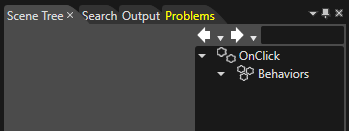
After Clicking "OK", the new Behavior Building Block called "OnClick" is created and visible in the Solution Explorer. Double-click on the newly created Behavior Building Block to edit it in the Scene Tree View.
Construct a Behavior Building Block
To construct the Behavior Building Block you can drag Behaviors from the Toolbox Tab of the Libraries View and drop them onto the Behavior Building Block in the Scene Tree View.
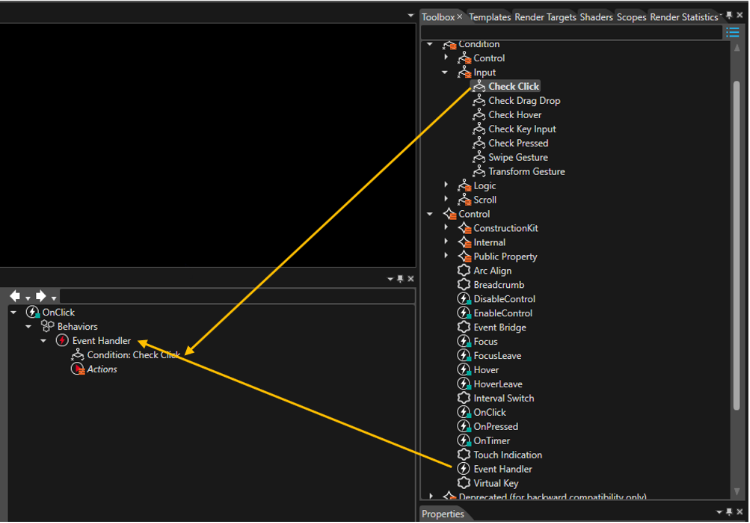
For this tutorial we first add an EventHandler Control Behavior to the Building Block that requires a condition. We add a CheckClick Conditon Input Behavior to the EventHandler Behavior by dragging and dropping it onto the EventHandler Behavior.
Our Building Block now consists of the following Behaviors:
- EventHandler Control Behavior passes a value to a Condition Behavior and if the response is positive, invokes an Action Behavior
- CheckClick Conditon Input Behavior evaluates the click event condition and is to be used with a Trigger Behavior to trigger a certain action.
-
You can also build up nested behaviors while working on your scene in the Scene Tree View. Whenever you decide that you want to reuse your built-up behavior construct, you can press the right mouse button on the parent behavior. The context menu of the behavior offers you the possibility to "Save as BehaviorBlock"
Configure Properties of the Behavior Building Block
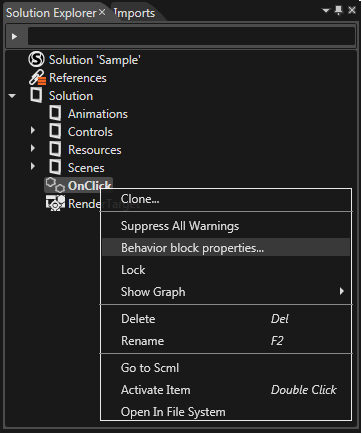
The Properties of the Behavior Building Blocks can be edited in the Configure Properties Dialog that is opened by right-clicking on the Behavior Block in the Solution Explorer and selecting "Behavior block properties...".
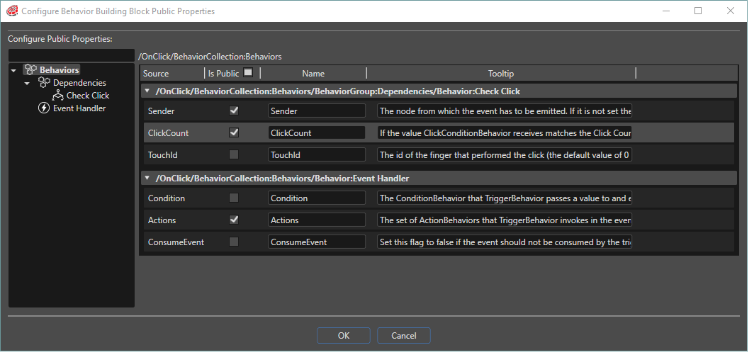
In the "Configure Properties" dialog you can define which properties you want to publish, that means, which properties you want to be able to edit when creating an instance of this Behavior Building Block.
For our tutorial we want to publish the following properties:
- the ClickCount of the CheckClick Behavior
- the Emitter of the CheckClick Behavior
- the Actions of the EventHandler
Instantiate the created Behavior Building Blocks
Now that we have created the "OnClick" Behavior Building Block, we can use it in our scene. For this, we create a simple 2D scene with one single white SolidColorNode.
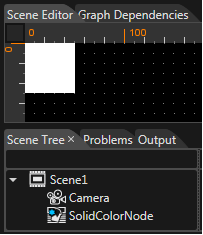
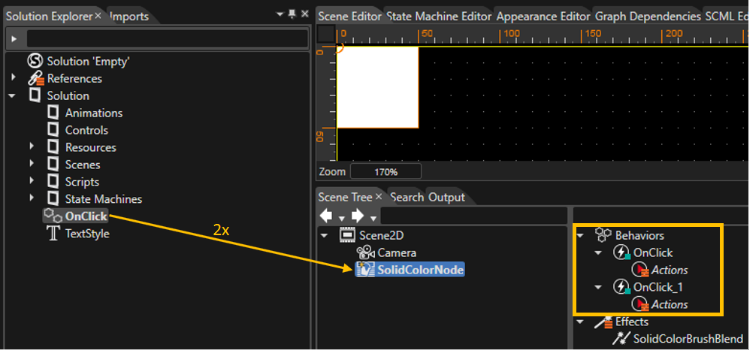
We want to have 2 OnClick Behaviors: one for a single-click and one for a double-click. To instantiate the "OnClick" Behavior Building Block, simply drag and drop it from the Solution Explorer onto the SolidColorNode in the Scene Tree View twice. You should now see the created instances of the Behavior Blocks on the right side in the Scene Tree View.
Configure Behavior Building Block Instances
These 2 instances can now be configured. One instance should be configured to change the color of the SolidColorNode to red when someone single-clicks on it and the second one should be configured to change the color of the SolidColorNode to green when someone double-clicks on it. You can configure the Click Count for one Behavior to 1 (single-click) and the Click Count for the other Behavior to 2 (double-click).
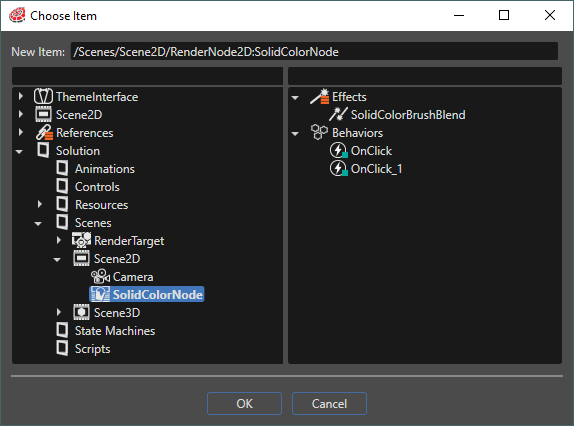
We also have to configure the Emitter, that means the node from which the click event has to be emitted. If no emitter is configured, all click events are handled. Therefore we configure the single SolidColorNode fom our 2D Scene as Emitter by clicking on the icon to the right of the Emitter property input field. In the opened "Choose Item" dialog the SolidColorNode can be selected.
To change the color of the SolidColorNode, an action is required. This means, we need another Behavior: The action Behavior "SetColor". It can be applied by dragging it from the Behavior ToolBox and dropping it onto our "OnClick" Behavior Building Blocks in the Scene Tree View.
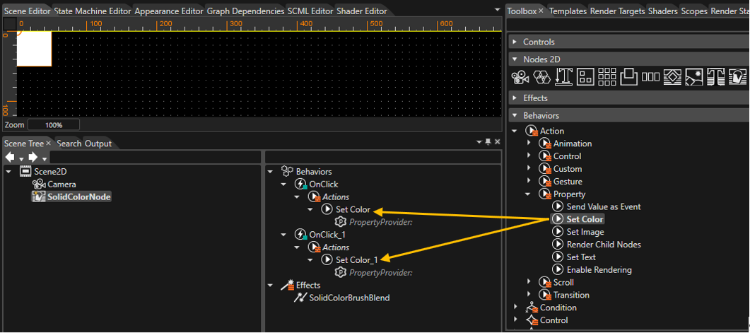
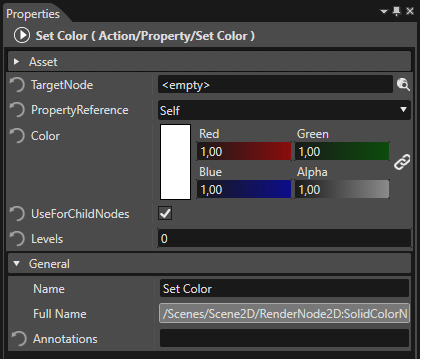
The last step of this tutorial is to configure these SetColor Action Behaviors: one SetColor Action should set the color of the SolidColorNode to red (see picture below) and the other one should set it to green.