
Plugin Options
Plugins Available
Available plugins are displayed under [ Plugins ] in the Preferences dialog.
All available plugins are enabled by default. To disable a plugin, click the button to the right of its properties. When the button displays "Enable," the plugin is disabled.
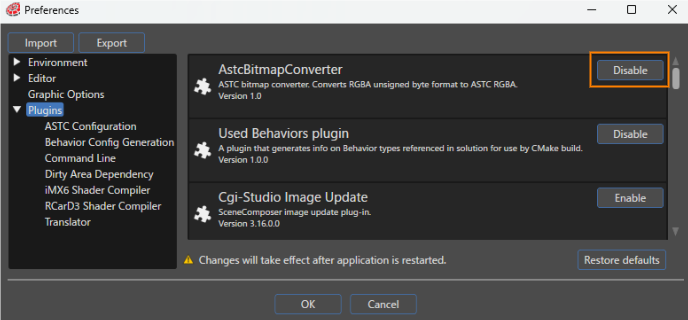
The following plugins are available for Scene Composer:
| Plugin Name | Description | Note |
| AstcBitmapConverter | This is an ASTC bitmap converter. Converts RGBA unsigned byte data to ASTC RGBA. | Details |
| Used Behavior plugin | This plugin extracts the type names of all behaviors included in the solution. When generating assets, a CMake file is generated according to the plugin's specific settings. | Details |
| Cgi-Studio Image Update | This is a plugin for the Image Update function. | Details |
| CommandLinePlugin | This is a plugin for executing commands when generating assets. | Details |
| List Property Editor |
This is a plugin for the List Editor. The List Editor can be used with controls such as BarGraph and LineGraph. |
Details |
| SpecificationPlugin |
This is a plugin for Define application specification. Define application specification is required to link data binding sources with Scene Composer. |
Details |
| DataBindingEditorPlugin |
This is a plugin for the Data Binding bind icon and Live Preview panel. |
Details |
| Dirty Area Dependency Plugin | This is a plugin for the Dirty Area Management (DAM). | Details |
| ExecutableGenerationPlugin |
This is a plugin for executing scripts when generating assets. |
Details |
| ExternalResourceContainerPlugin | This is a plugin for the Referencing external resource function. |
Details |
| iMX6 Shader Compiler | This is a shader compiler for iMX6. | Details |
| RCarD3 Shader Compiler | This is a shader compiler for RCarD3. | Details |
| RT117XBitmapConverter | This is a bitmap converter for RT117X. | Details |
| RZA1HBitmapConverter | This is a bitmap converter for RZA1H. | Details |
| Cgi-Studio Translator | This is a plugin for Localization. | Details |
| Traveo2BitmapConverter | This is a custom bitmap converter for Traveo2. | Details |
Enabling/disabling the plugin will take effect after restarting Scene Composer.
Plugin-Specific Settings
Some plugins have their own settings. You can configure these settings in the Preferences dialog.
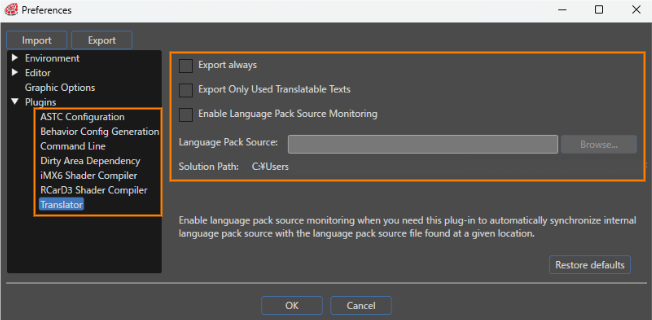
Details of plugin-specific settings are listed below.
ASTC Configuration
| Setting item | Description |
| Compression Speed |
The Compression Speed can be set to one of five levels. |
Behavior Config Generation
| Setting item | Description |
| Behavior Configuration Enabled |
If enabled, a CMake file containing the configuration of all behaviors included in the solution will be generated. |
| Destination path |
Set the path to the CMake file in the CMake flag "CONTROLS_USED_BEHAVIORS_CONFIG_PATH". |
Commnad Line
| Setting item | Description |
| Command Line |
Sets the command to be executed when generating assets. |
Dirty Area Dependency
| Setting item | Description |
| Include in asset |
If enabled, information about Dirty Area Management will be output to the asset. |
iMX6 Shader Compiler
| Setting item | Description |
| Generated output format |
Set the output format from three options (Text, Binary, or Binary program). |
| Custom command line string |
Enter the tool or identifier to execute in command line format. This setting can only be set when the output format is Binary or Binary program. |
RCarD3 Shader Compiler
| Setting item | Description |
| Generated output format |
Set the output format from three options (Text, Binary, or Binary program). |
| Custom command line string |
Enter the tool or identifier to execute in command line format. This setting can only be set when the output format is Binary or Binary program. |
Translator
| Setting item | Description |
| Export always | If enabled, all translated text will be included in asset. |
| Export Only Used Translatable Texts | If enabled, only translated text used in behaviors, etc. will be included in assets. |
| Enable Language Pack Source Monitoring | If enabled, Language Pack Source files will be monitored. |
| Language Pack Source | Set the Language Pack Source to be monitored. |
| Solution Path | The root path of the solution will be displayed. |
Changes to Plugin-Specific settings will take effect after restarting Scene Composer.