General Options
Editor General Options
General Editor options can be found in "File" > "Preferences" section "Editor".
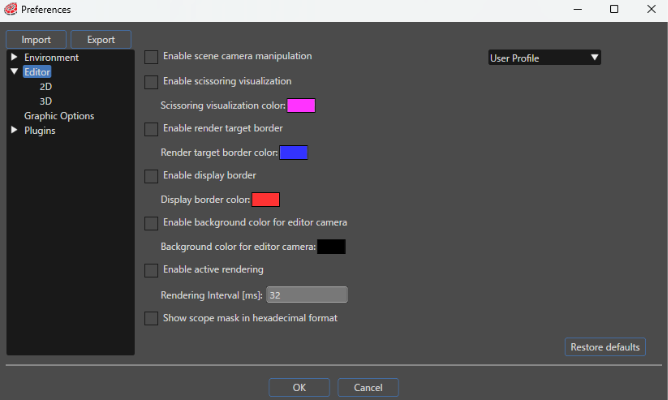
Enable scene camera manipulation
"Enable scene camera manipulation" enables the manipulation of the scene's cameras via the Scene Render panel. The cameras can be manipulated via navigation panel or using the appropriate shortcut commands (hot keys) combined with mouse operations when a scene camera is selected from the scenes combobox' from Toolbar.
Enable scissoring visualization
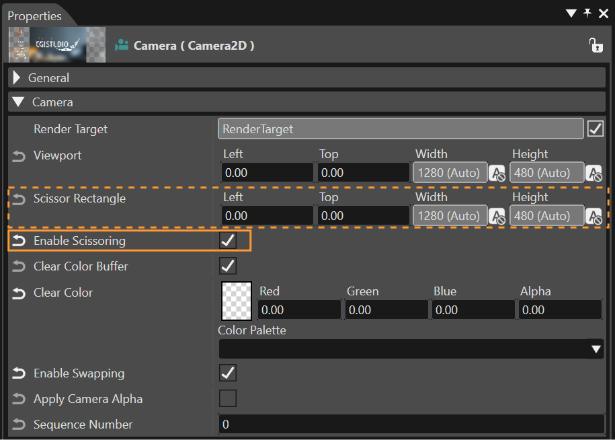
By using this feature all the pixels which are outside of the intersection area of the viewport and scissor rectangle can be clipped. After the activation of this feature the scissor rectangle's values have to be defined. This rectangle specifies a region within the Camera's RenderTarget. The rectangle's width and height values must be greater than 0. These values can be set on the Camera's Properties panel.
By using the "Scissoring visualization color" a desired color can be chosen and its transparency can be set.
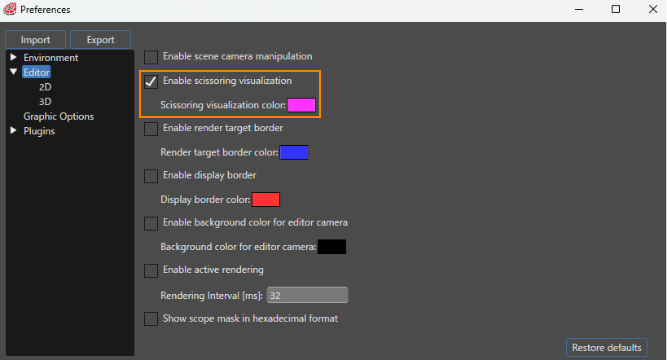
The chosen color can be saved to keep its info.
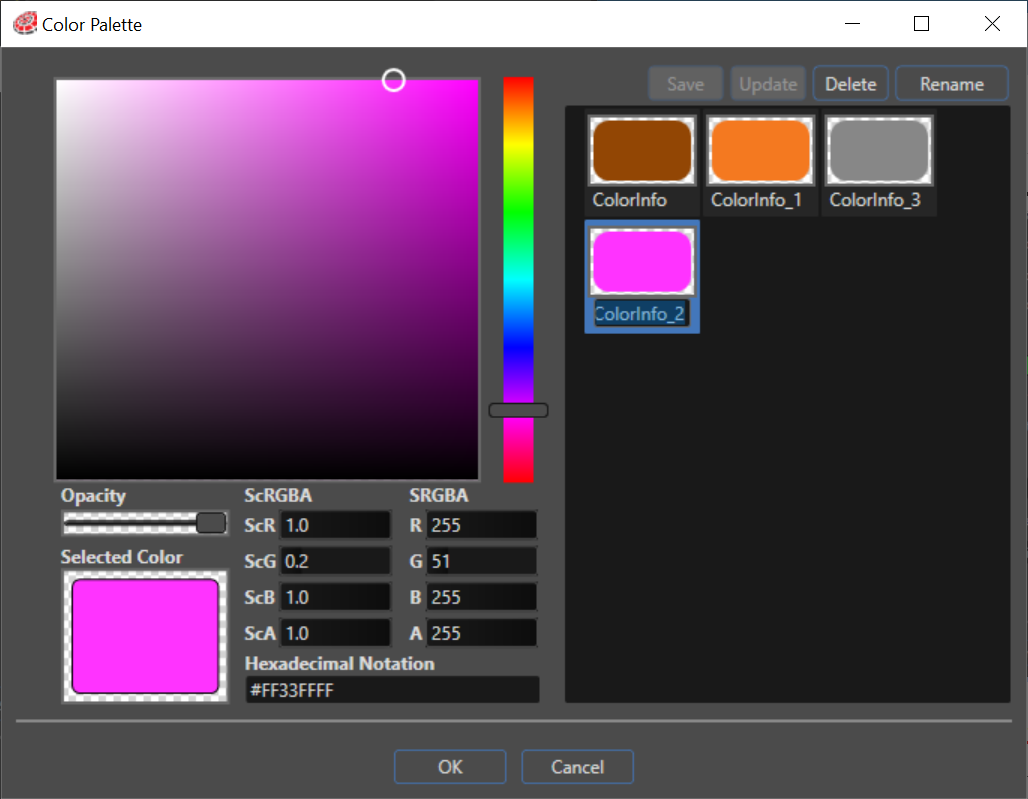
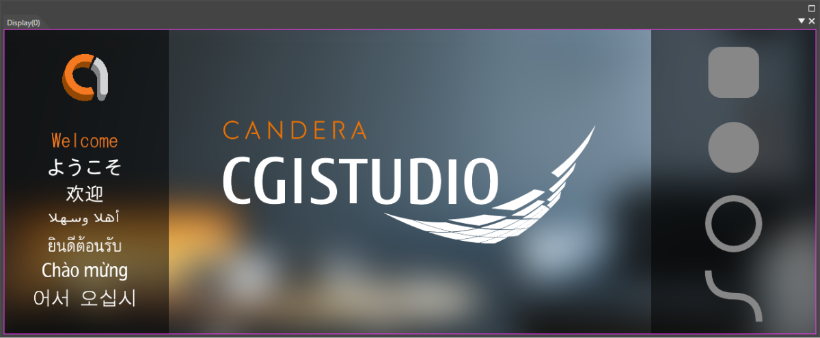
This feature allows the visualization of the scissoring rectangle in the display window as in the next figure.
Enable render target border
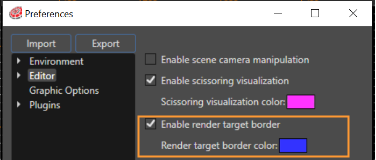
By checking the "Enable Render Target Border" box (which is available in Preferences > Editor, General Selection), the border of a render target can be colored. Any desired color can be chosen in the Color Palette.
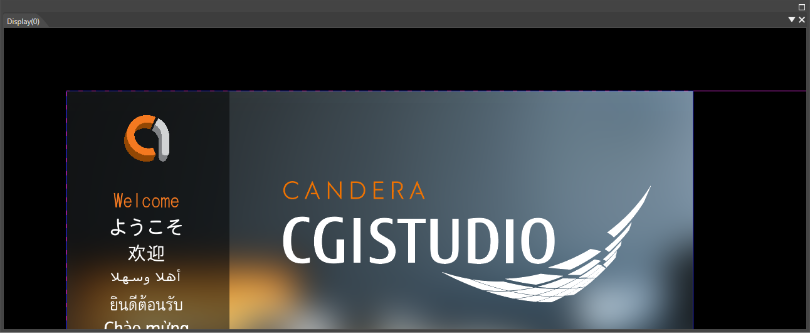
In this way, it is possible to see the borders of the RenderTargets graphically as colored rectangles.
Enable display border
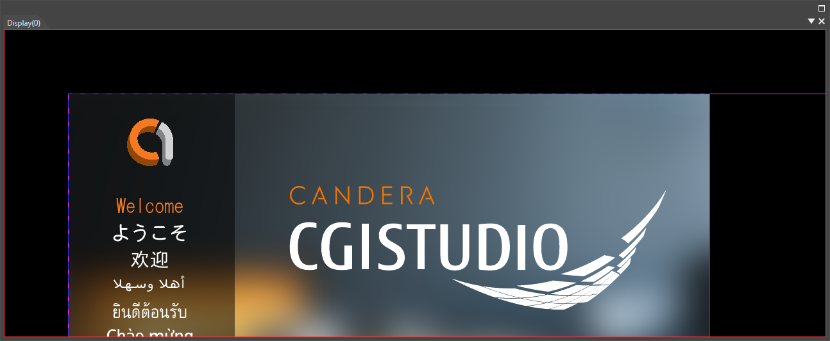
It is possible to visualize the Display border by enabling this feature. In Preferences dialog - Editor, the "Enable display box" should be checked. By using the "Display border color" a desired color can be chosen and its transparency can be set.
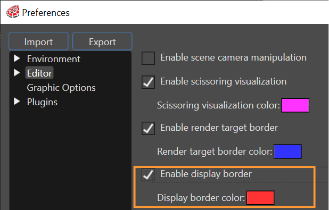
After this feature is enabled, the borders of the display can be graphically seen as a colored rectangle.
Enable background color for editor camera
If enabled, you can set the background color of the Editor Camera to any color. Click Background color for editor camera to open the color palette dialog and select the desired color.
Enable Active Rendering
This feature is to provide continuous rendering means in SceneComposer so that widgets get a regular update trigger in order to provide a convenient and friendlier development environment for development purposes . This feature can be activated/ deactivated from the "File" > "Preferences" dialog section Editor option or from the button ActiveRendering from the Toolbar.
When the ActiveRendering option is enabled, SceneComposer will start an internal repeatable timer with a configurable timeout (default value = 250ms) given in milliseconds by the value of option "Rendering Interval". Every time this timer expires SceneComposer calls RenderScene in SCHost which performs the rendering of the current content. This will trigger the update method for all widgets within all loaded scenes.
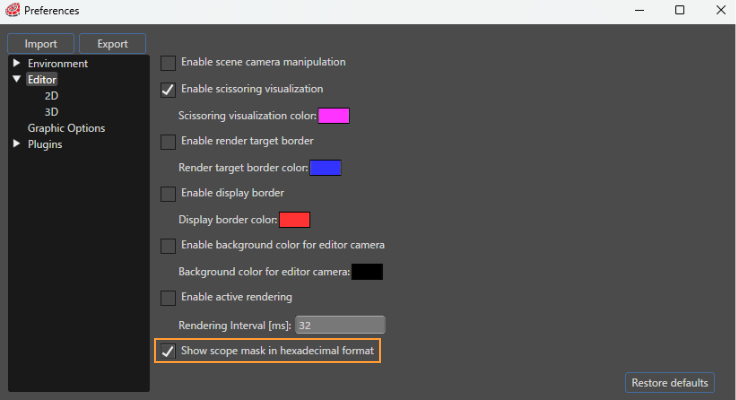
Show Scope Mask in Hexadecimal Format
The option "Show scope mask in hexadecimal format", when it is enabled, ensures that the values for Scope property will be displayed in hex in the Properties panel. This option is available in the Preferences dialog opened from "File" > "Preferences" menu, section Editor.