Use Transitions
Use Transitions
Every existing scene is automatically added in two scrollable lists, which are available in the rules editor as "Source" and "Destination".
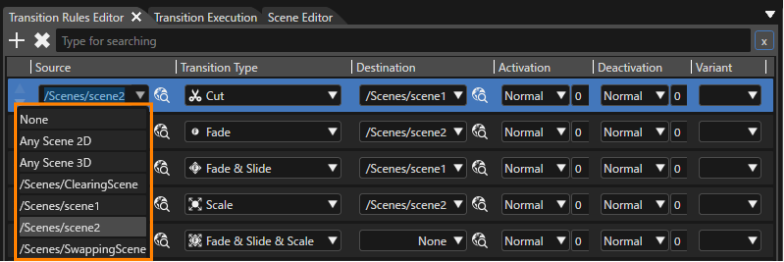
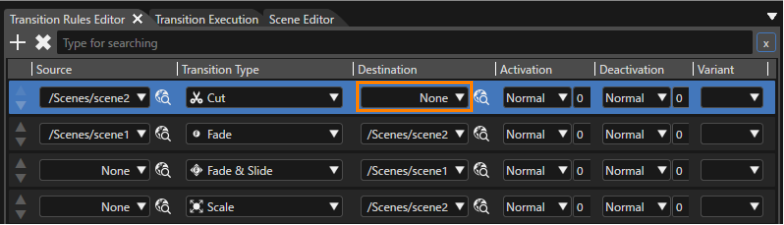
After the selection of the source scene, the destination can be another scene or just "None". If the later option will be chosen, a selected "Transition Type" will be applied to the selected scene.
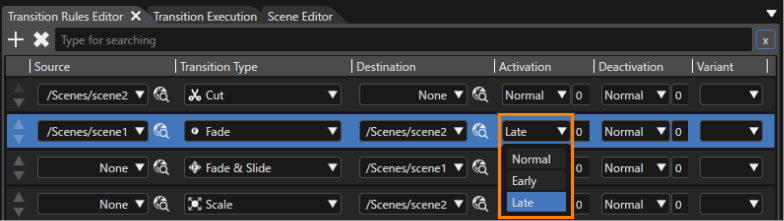
The left combobox of the "Activation" and "Deactivation" columns respectively sets the transition strategy. In order to enable a sequential transition execution, one strategy has to be set to "Early" and the other one to "Late". See the image below for an example.
Previously to the usage of an existing transition, the camera from every scene which will be used in the transition has to be assigned to a render target. Supposing that the scenes are prepared to be used in a transition, the user has to choose which kind of transition will be assigned to the "Activate" and "Deactivate" state of the scene. The former concept indicates what will happen when the transition will be working from a scene to that scene or when will be working on a scene alone, and the latter indicates what will happen when the transition will be working from that scene to another one or when will be working on a scene alone. This operation can be done in a secondary panel named "Transition Execution".
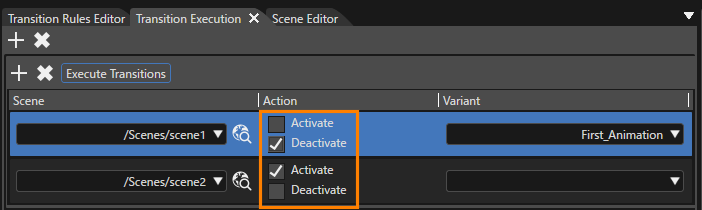
This means that when the user will use the button "Execute Transitions" some scene will get "activate" (if that specific option was checked) and other scenes will get "deactivate" (if that option was checked). For instance, if the transition type "Fade" will be executed for a scene which will get deactivate its content will be fading.
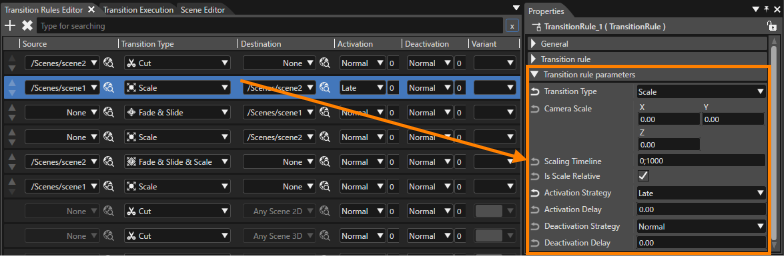
If desired, it is possible to create custom transitions. This can be done by using the "+" button that is placed in in the upper side of the "Rules Editor" panel. The properties that belong to that transition type can be set and will remain available for later re-use. Furthermore, transition strategies and delays can also be edited in the Properties tab. (see the image below).