3D Effects Solution
Summary
This solution shows various features of a 3D scene. These are mainly the different node-types including morphing, shadows, level of detail, particles and many more. Animations that illustrate the features are included. The animations also show that control properties can be animated.
Purpose
The user can see how the single 3D features are realized in a scene. Own use cases, based on the features, can be created with the help of the solution and this documentation.
Description
This section describes the single use cases that are represented in this solution. The particle emitters and 3d skinning are in separate scenes.
When viewing this solution in the Player, you can switch scenes using the buttons at the bottom (Effects/Particles/Skinning, orange frame in the figure below).
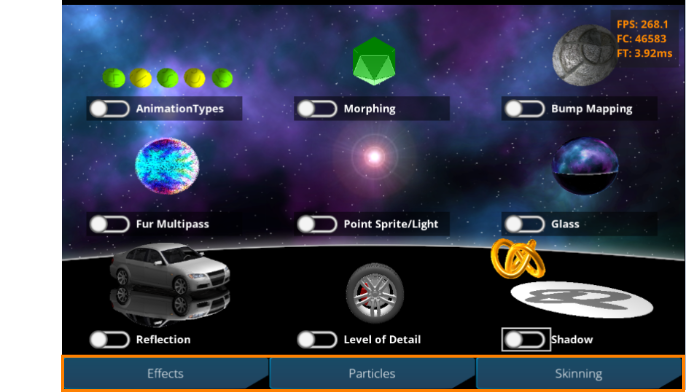
In the Effects tab, you can play the corresponding animations by enabling the toggle buttons for each 3D effect. Once started, an animation will continue to loop until the toggle button is disabled.
In the upper-right corner of the screen, various performance parameters are displayed, including FPS (Frames Per Second), FC (Frame Count), and FT (Frame Time). These allow you to monitor the performance impact when multiple animations are running simultaneously.
The properties of the particle emitters are animated, which can be seen when starting the appropriate particle animation.
Beside the use-cases, a Skybox is used in the scene to create an environment for it. The skybox is also used in the "Glass" use case. Due to the fact that this solution is a sample solution there are labels included in the Skybox (like "Left-Front") that show how it is applied.
Animation Types
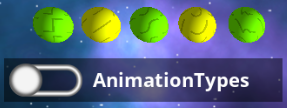
This use case shows the different animation interpolation types that can be chosen in SceneComposer. Those are from left to right: Step, Linear, Spline, Bezier, Ease. The spheres have the same keyframe values, only the animation type is different.
Morphing
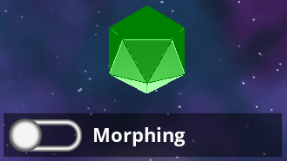
This use case shows how morphing can be realized in SceneComposer. Basically, all that is needed is a MorphingMesh-node that has the morphing vertex-buffers applied as in the sample scene. The weights of the morphing vertex-buffers are animated as well as the colors of the material. Please see Morphing for more information about morphing.
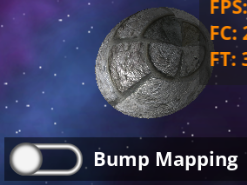
Bump Mapping
This use case shows how bump mapping can be realized. The node uses the bump-mapping appearance of the construction kit and a custom vertex buffer that has generated tangents and binormals.
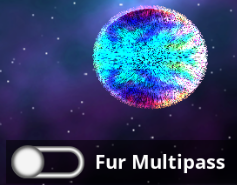
Fur Multipass Appearance
This use case shows how multipass appearances can be realized with SceneComposer. In this case a fur-material is created using multiple passes. Please see Fur for more information about fur.
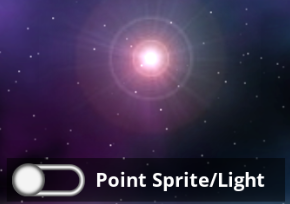
Point Sprite / Light
This use case shows how a PointSprite-node can be used in SceneComposer. In this case it represents a point light which will affect all other use cases by moving it.
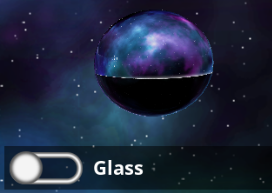
Glass
This use case shows an advanced appearance on a sphere. It uses cube-mapping, reflection and refraction. As cube-map the same one as for the Skybox is used. Please see Reflection & Refraction for more information about reflection and refraction.
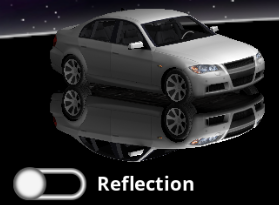
Reflection
This use case shows how a reflection can be realized in SceneComposer. This is done by a ReflectionCamera that is assigned to the camera that renders the scene. Note that in this solution scope-masks are used to be able to only reflect the car. In more detail the reflection camera has a scope-mask of 2 as the reflected car has. Objects that should not be affected by the ReflectionCamera have a scope-mask of 1, just as the scene-camera has.
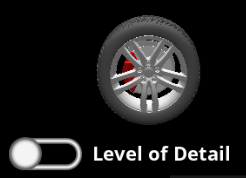
Level Of Detail
This use case shows how Level of Detail (LOD) can be realized in SceneComposer. A LodNode is placed in the scene with two children that represent the different levels of detail. The lower and upper boundaries are chosen in a way that there is a fade between the different levels. The animation moves the node closer to or further from the camera, causing the models to be exchanged. Please see Level of Detail (LOD) for more information about LOD.
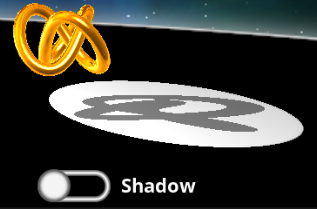
Shadow
This use case shows how a shadow can be realized with SceneComposer. Especially when the light in the middle is moved (for example by playing the light-animation), the shadow-effect can be recognized. There is a PlanarShadow-node attached to the torus-node. The plance-distance of the shadow is chosen in the way that it reflects on the platform below the torus. Please see Planar Shadows for more information about planar shadows.
Particles
This use case can be found in the "Scene_Particles" scene. It shows how the Point Sprite Emitter Control can be used to implement different particle effects. The effects shown in this sample are snow, fire, sparks and a sample for multiple textures. The animation effects for each particle emitter are controllable via the various parameters in the bottom-right section of the screen.
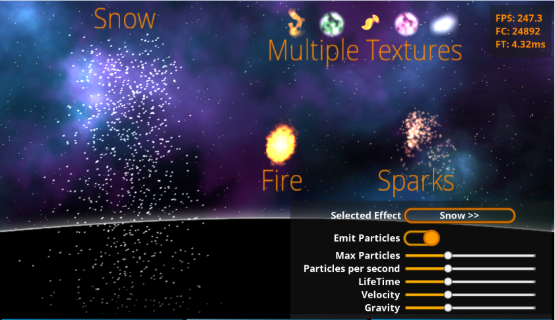
Bottom-right screen parameters
- Selected Effect: A multistate button used to select which effect to edit.
-
Emit Particles: A toggle to start or completely stop the particle emission.
-
Max Particles: A slider to control the maximum number of particles.
-
Particles per second: A slider to control the number of particles generated per second.
-
LifeTime: A slider to control the lifetime of the particles.
-
Velocity: A slider to control the velocity of the particles.
-
Gravity: A slider to control the gravity applied to the particles.
The values for sliders endpoints are different for each effect. They are initially set to a default value for that effect, and moving to 0 will reduce to 50% of the default, and moving to maximum would increase to 200% of the default.
Skinning
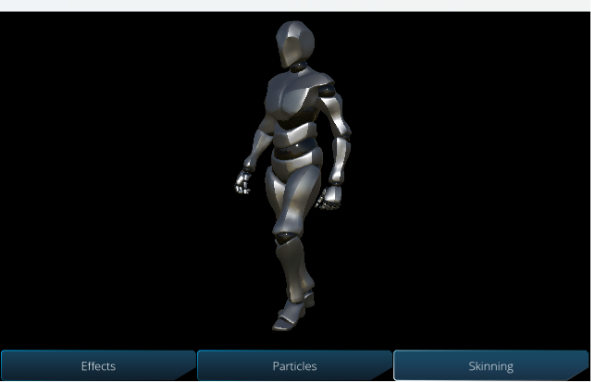
As a sample of skinning, skinning is set on the human body model and a walking motion is set as the animation.