In-Vehicle Infotainment Solution
Overview
The in-vehicle infotainment solution showcases a full feature automotive IVI, which could be used as a solution template.
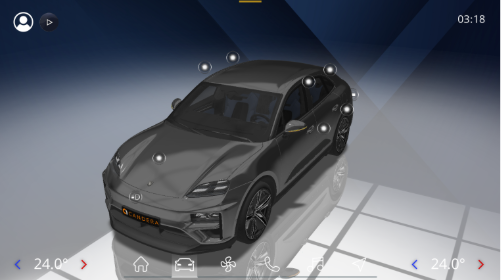
The solution has a interactive 3D digital twin, a dashboard, media phone and HVAC and also an application drawer and car settings pages. It also features a navigation scene with a navigation solution placeholder.
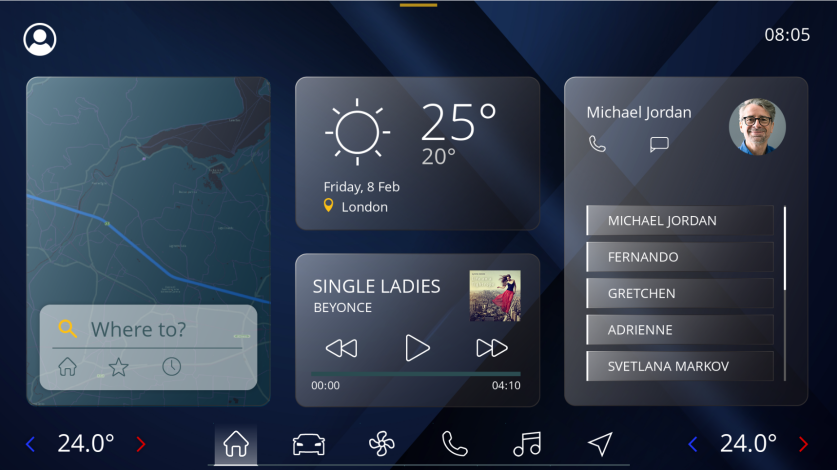
Scene
| No | Category | Name(s) | Description |
| (1) | Digital Twin |
/DigitalTwin/Porsche_Macan_Turbo_EW /DigitalTwin/Scene2D-UI /Menu/DigitalTwin |
The digital twin scenes. |
| (2) | HVAC |
/Menu/HVAC/HVACScene2D |
Heat, ventilation and air conditioning related points were covered. |
| (3) | Media |
/Menu/Media/MP3AlbumScene2D /Menu/Media/MP3PlaylistScene2D /Menu/Media/RadioScene2D |
The media related playlist, album and radio scenes included |
| (4) | Phone |
/Menu/Phone/CallPopupScene2D /Menu/Phone/ContactScene2D /Menu/Phone/IncomingCallScene2D |
The phone connection scenes such as call notification, incoming call and contacts list |
| (5) | Settings |
/Menu/Settings/DisplayInterfaceScene2D /Menu/Settings/DrivingAssistScene2D /Menu/Settings/GeneralSettingsScene2D /Menu/Settings/MaintenanceScene2D /Menu/Settings/PrivacySecurityScene2D /Menu/Settings/SettingScene2D /Menu/Settings/VehicleSettingScene2D |
The IVI settings scenes to configure several features of the IVI and car. |
| (6) | AppDrawer |
/Menu/AppdrawerScene2D |
The app drawer shows the implementation of external optional applications. |
| (7) | Home |
/Menu/HomeScene2D |
The home scene where main options available for quick selection rather than going into main scenes |
| (8) | Navigation |
/Menu/NavigationScene2D |
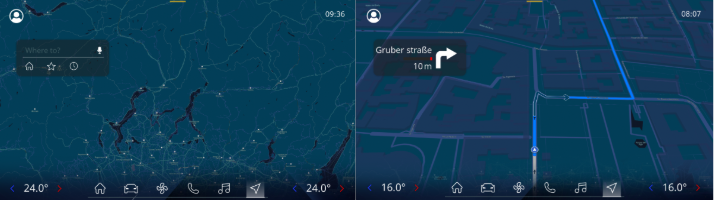
The navigation scene/tile is a placeholder for a navigation solution integration, as there is no "standard" for navigation integrations and strong depend on the navigation software provider solution. |
| (9) | Background |
/BackgroundScene2D |
Mainly contains background for IVI where few bitmaps were animated and used masking effects to mimic background movement effects. |
| (10) | Status |
/StatusBarScene2D |
The status bar of the IVI. Bottom and top bar provide basic information about the profile, time, temperature, and dashboard icons for transition. |
Scenes overview
Media: All media channels are accessible with a single media icon in the bottom bar. Afterwards an overlay screen allows you to select among three icons: media, radio or USB.
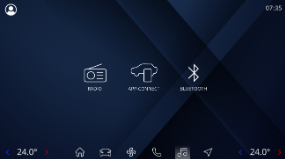
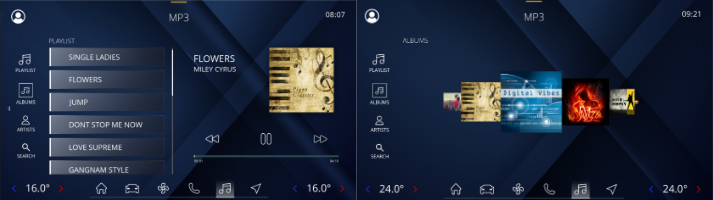
Once the Bluetooth button is pressed, music information is displayed with menu button selections among playlist and albums. List control handles displaying song names with scrollbar control and besides that there is specific design which shows album and song time. Slider control along with animation for song time and switch from one song to another with the next and previous button. Albums screen shows coverflow of songs that are added to the playlist.
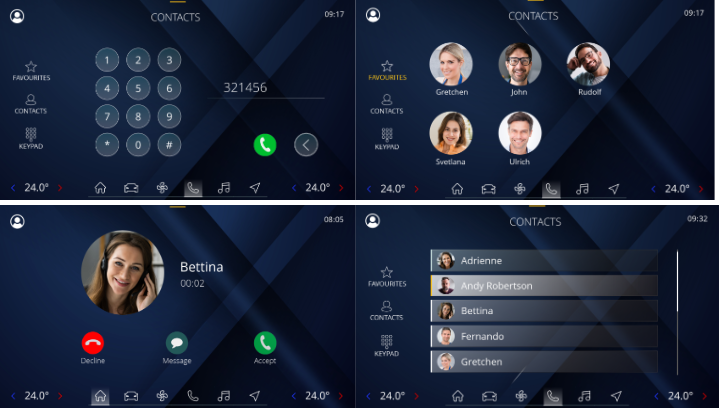
Phone: showcases the following screens along with one incoming call popup. Contact lists are animated to scroll outgoing calls. Keypad also implemented based on keyboard control. Menu buttons (like favorites, contacts) work upon a click. Custom contact button control is used in the contact list.
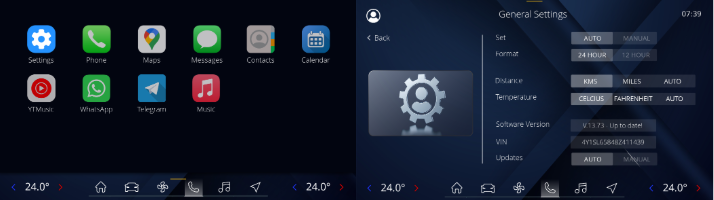
AppDrawer and settings screens: Appdrawer control displays settings and other apps that are supported in the feature. The icons on the drawer can be moved from one place to another via a long press of the button. On press of the Settings icon, it navigates to settings page where a user can select among different settings to be done as per requirement of user.
Each settings screen (general, display interface, ...) consists of states as text-based toggle buttons (2 and 3 states). 2 states toggle button can be of yes or no format. The Tri-state toggle button indicates 3 different state selections (for instance, auto, km, miles). Among 10 settings button shown in the settings main page, only 6 of them were implemented and those are General settings, Display interface, driver assistance, vehicle, maintenance and security. Other 4 are left for future addition if required.
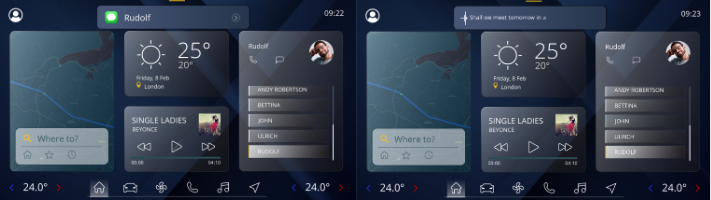
Home: Dashboard has all the tiles in general such as navigation, weather information, music player and contacts. On click of home button under navigation tile, it leads to navigation screen. Music tile operates in a similar way as there under the main media playlist screen. Under contacts tile, message popup screen overlays on top of the tiles when a user clicks message icon.
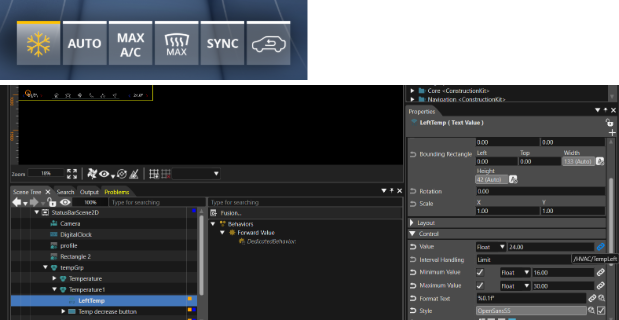
HVAC component: is added as code part to handle sync operation. The sync button will synchronize the passenger's temperature as per the driver's temperature. On click of temp increase or decrease button of the passenger side, sync button automatically disables.
3D and 2D scenes interactions
Few solutions are providing such link between scenes were:
Heating, Ventilation and Air conditioning (2D HVAC and 3D Seat heating) -
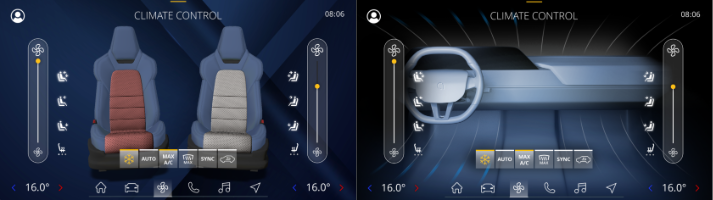
HVAC 2D Scene: HVAC 3D seat heating, air flow motion and its speed uses animations for showing different effects and are linked to 2D HVAC for operating those effects using Value generator behavior and animations along with it.
-
AC by default is enabled for all settings.
-
When AUTO mode is enabled, temperature set to 24°C, sliders were set to 50 on both sides, Max AC and Max fan disabled, and air recirculation is enabled. Air recirculation is disabled on AUTO mode disable
-
When Max AC is enabled, temperature set to 16°C, and Max Fan and AUTO are disabled. When Max AC disabled, AUTO is enabled and temperatures were set to 24°C (normal).
-
When Max Fan is enabled, Max AC and AUTO are disabled, and sliders were set to 100 on both sides
-
Circulating Air is always a “auto” or “disabled” feature. It enables when the parameters are right (e.g. dust, dirty, smell, etc.). Circulating air is either ON automatic mode or OFF.
Digital twin (Porsche_Macan_Turbo_EW, Scene2D-UI and DigitalTwin) -
The DigitalTwin scene provides an interactive 3D representation of the Porsche Macan Turbo EW model, fully synchronized with the Scene2D-UI. In this 3D environment, users can interact directly with several 3D buttons placed around the car model to open and close the doors, trunk, and hood, as well as toggle the front and rear indicator lights.
In addition, the 2D scene contains a Play button that triggers a demo animation where the vehicle moves forward in presentation mode. This setup allows users to interact with both 2D and 3D buttons, seamlessly controlling various features of the digital twin. All interactions are managed using behaviors, value changes, and predefined animations to create a smooth and realistic connection between the 2D UI and the 3D model.