
MATLAB
The ‘MATLAB’ tool offers special features to make integration into MathWorks MATLAB easier.
Requirements
The following requirements must be fulfilled to be able to use the CGI Connector with MATLAB:
MATLAB Version:
The current version is tested to run with MATLAB 2021b. However newer versions are also expected to be compatible.
MEX Compiler:
It is necessary to configure the compiler that is used by MATLAB to build a MEX File. This can be achieved by calling “mex -setup" and “mex -setup c++” from within MATLAB. The configured compiler must match with the compiler used to build the CGI Studio application.
The “mex” command must also be executable from the command line. This can be done by adding the correct path in the systems environment variables. Alternatively, the build scripts can be modified to point directly to the mex executable.
Special Features
Interfaces defined in a MATLAB module have the following tool specific properties.

| Property Name | Description |
| Port | Defines the port index of the interface for the generated MATLAB S-Function block. When specifying ‘-1’ the port index will be calculated automatically during code generation. |
| Port Width | Specifies the MATLAB port width. This option is only visible if the interface uses a dynamic length datatype. |
Limitations
Currently the following limitation apply:
- Interfaces that use dynamic sized data need to specify a fixed sized for MATLAB side. See “Special Features” for more details.
Generators
This tool is located at “cgi_studio_connector/bin/MatlabCodeGenerator.exe” and generates files to be used in MathWorks MATLAB.
It has the following arguments:
| Full Name | Short Name | Optional | Description |
| -definitionFile | -d | No | File containing interface definition |
| -complexTypes | -ct | Yes | Path of Complex-Type definition file |
| -outputPath | -o | Yes | Path for generated output files |
Usage
To use the MATLAB integration the following steps are required.
- Build CGI Application
As the integration into MATLAB simulation uses TCP/IP to send data between MATLAB and the CGI Application, this feature needs to be enabled. To do this the ‘APPLICATION_IPC_ENABLED’ and ‘APPLICATION_IPC_INTERFACE_ENABLED’ CMake flags must be set. This is already done when building the application using the default builds from within the Connector.
When running the generated MATLAB code after integration into the application code the IPC communication is however not required anymore. - Build Integration Modules
After the application is built, the ‘MATLAB Integration’ can be built. The integration must be built matching the Release/Debug configuration of the CGI Application.
If the MATLAB application is already opened and the Model has been started before, it is required to unload the S-Function from MATLAB before building a new version. This can be done by running ‘clear mex’ command in MATLAB.
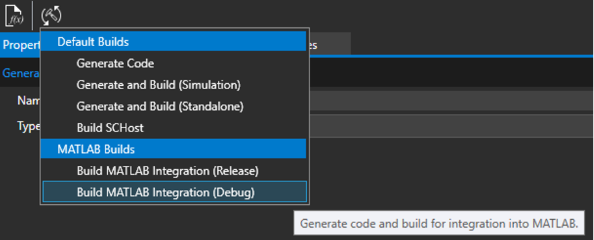
- Startup MATLAB model
After the build is finished, the MATLAB application can be opened. The default template includes all related MATLAB component in the ‘src\Matlab’ folder.
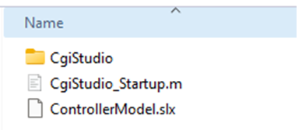
The ‘CgiStudio_Startup.m’ script needs to be run in MATLAB to include the ‘CgiStudio’ code folder and files.
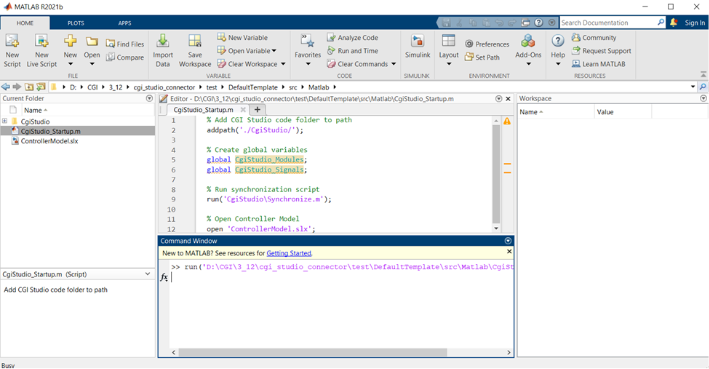
If already run before, it is sufficient to only run the ‘CgiStudio/Synchronize.m’ script.
- Add CGI Studio block
The integration provides a ‘CGI Studio’ library which contains the ‘CGI Studio Integration’ block.
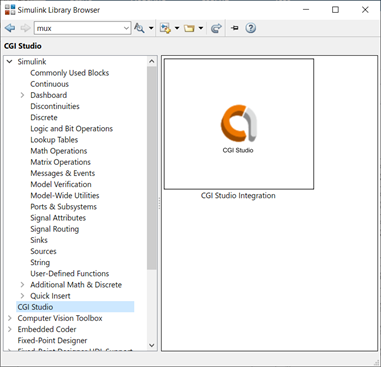
This block can be added to the Model to represent a Module defined with the CGI Connector. The provided ‘ControllerModule’ model already contains one such block per default.
- Configure Module
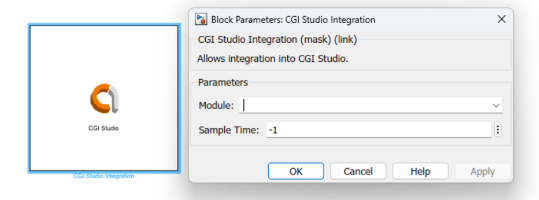
After a ‘CGI Studio Integration’ block has been added, it can be configured by double clicking it. This will open a dialog which allows the user to select the module this block should represent. Additionally, the Sample Time for the block can be configured.
After the module has been selected, the block will show all configured input- and output interfaces as ports.
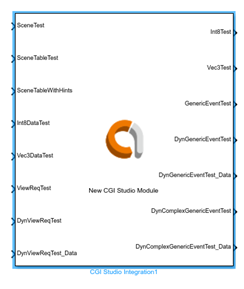
It might be required to update the model (CTRL + D) to show the ports.
- Running the Simulation
When running the simulation, the CGI Application must be started beforehand. Similar after stopping the simulation the CGI Application should be closed afterwards.
Additional Information
Actions/Events: Actions are triggered by any flank change. If an action has additional data an additional port with the suffix ‘_Data’ is generated. The same applies also to events.
Module Changes: If a module can’t be found in the generated code, the block will indicate this by adding ‘[Not found]’ to the Module name. If the containing MATLAB model is opened newly no ports will be generated and connected signals will be disconnected. If the model has already been opened before, the latest generated ports will be kept (until it is reopened). Therefore, if the name of a module is changed, it is recommended to open the MATLAB model before generating the new integration code. Doing so will keep all signals connected.
S-Function: It is possible to directly use the generated S-Function without making use of the CGI Studio block, by using a standard S-Function block.
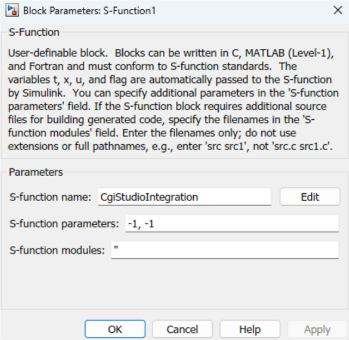
The name of the S-Function is “CgiStudioIntegration”, and the first parameter indicates the MATLAB-Id of the module the block should represent. This Id can be found in the Interface-Definition XML file or the generated MATLAB code (e.g. in ‘[PROJECT]srcMatlab\CgiStudio\Modules.xml’ called MID). The second parameter refers to the sample time of the S-Function.
In this case no named ports will be generated for the module.