
Interfaces
Interfaces define the inputs and outputs of the CGI Application. Depending on the module type either one or both types of interfaces are available.
By selecting the corresponding tab, interfaces can be added, removed or rearranged using the buttons at the top of the interface list.

General Properties
The following general properties are available for all interfaces.
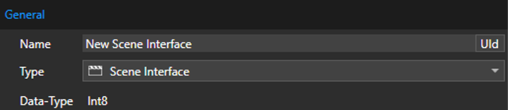
| Property Name | Description |
| Name | Name of the interface. Only characters from ‘a’-‘z’, ‘A’-Z’, ‘0’-‘9’, ‘ ‘, ‘-’ and ‘_’ are allowed, though the name must start with a character. |
| UId | The UId is used to identify the interface. It can be seen as the tooltip of the ‘UId’ button. When the button is clicked a new UId will be generated. |
| Type | Defines the type of interface. The available options depend on the specific target tool. |
| Data-Type |
The used basic data type of the interface to transfer data. This value is automatically calculated depending on the used interface type and set properties. For arrays the length is indicated in brackets. |
Types
The following general interface types are available.
Input:
| Name |
| Scene |
| Scene-Table |
| Data-Input |
| Function Call (Action) |
| Message (Action) |
Output:
| Name |
| Data-Output |
| Generic Event |
| Function Call (Event) |
| Message (Event) |
Depending on the used module type, some interface types might not be available or special interface types might be supported. Please refer to the target tool specific section for more details.
Scene Interface
The Scene interface allows to control the state of a scene or group of scenes. Depending on the set value the scene/scenes will change to a different state. By default, the values have the following meaning:
| Property Name | Description |
| 0 | Destroyed (No data loaded) |
| 1 | Loaded (Scene data is loaded to system memory) |
| 2 | Uploaded (Scene data is uploaded to VRAM) |
| 3 |
Active (Scene and related behaviors are updated) |
| 4 | Rendering (Scene is drawing) |
The actual meaning of each value is controlled by the application specific implementation.
Icon:

Properties:
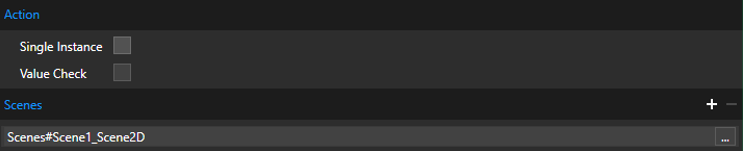
| Property Name | Description |
| Single Instance | When selected, only a single instance of this action will be queue. If the action is triggered again before the previous instance is executed it will overwrite the previous action in the queue instead. |
| Value Check | If enabled, the sent value will be compared to the previous value and processing will be skipped if it has not changed. This can improve performance if the sent value is often the same/different. |
| Scenes | Scene controlled by the interface. A scene is defined by the following expression: [FOLDERNAME#….#]SCENENAME Clicking on the ‘…’ button next to the field opens a dialog window which lists possible scenes from the referenced Scene Composer solution. Multiple scenes can be specified by adding or removing additional lines with the ‘+’ and ‘-‘ buttons. |
Scene Table Interface
The Scene-Table signal allows to specify a collection of scenes and assigns them a certain Id. The interface value controls this Id and therefore selects the next entry to be activated. If the new entry contains a scene which was not ‘active’ before, it will be ‘activated’. Similar if the new entry is missing a scene which was ‘active’ before it will be ‘deactivated’. If a scene was part of the previous set of scenes and is still part of the new set, no action will be performed.
Additionally, “Hints” can be specified which can affect how the change between different sets happens. These are primarily used to control the transition animation.
The actual behavior is controlled by the application specific implementation.
Icon:

Properties:

| Property Name | Description |
| Single Instance | When selected, only a single instance of this action will be queue. If the action is triggered again before the previous instance is executed it will overwrite the previous action in the queue instead. |
| Value Check | If enabled, the sent value will be compared to the previous value and processing will be skipped if it has not changed. This can improve performance if the sent value is often the same/different. |
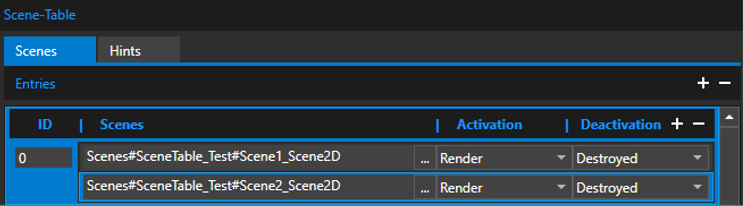
| Property Name | Description |
|
(Scenes) Entries |
Collection of Scenes represented by an Id. Multiple collections can be specified by adding or removing additional lines with the ‘+’ and ‘-‘ buttons. |
|
(Scenes) Entries ID |
The Id representing this set of Scenes. |
|
(Scenes) Entries Scenes |
Scenes which belong to this entry. A scene is defined by the following expression:
|
| (Scenes) Entries Activation | State of the scene to be applied when scene is activated. |
| (Scenes) Entries Deactivation | State of the scene to be applied when scene is deactivated. |

| Property Name | Description |
|
(Hints) Entries |
Collection of Hints represented by an Id. Multiple collections can be specified by adding or removing additional lines with the ‘+’ and ‘-‘ buttons. |
|
(Hints) Entries ID |
The Id representing this Hint. |
|
(Hints) Entries Hint |
Hint which belongs to this entry. |
Data-Input Interface
The Data-Input interface is used to send data values from external to the CGI Studio application. Only data-items provided by Courier Data-Binding can be set as destination. For more information about Data-Binding please refer to the Courier documentation.
Icon:

Properties:

| Property Name | Description |
|
Item |
Data-Item used as a destination for the data value transferred via this signal. Clicking on the ‘…’ button next to the field opens a dialog window which lists all possible data items defined for this application. |
|
Value Check |
If enabled, the sent value will be compared to the previous value and processing will be skipped if it has not changed. This can improve performance if the sent value is often the same/different. |
Function Call (Action) Interface
The Function-Call (Action) interface allows to trigger a user defined function. To learn how to define functions to be used in the Connector refer to the Native Functions chapter.
Icon:

Properties:
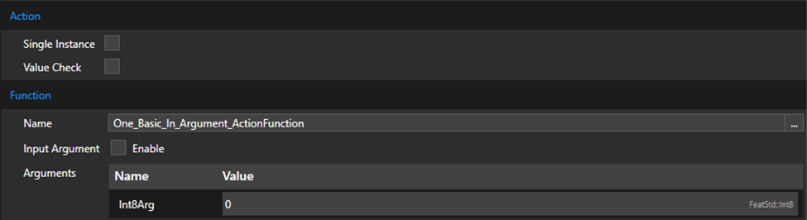
| Property Name | Description |
| Single Instance | When selected, only a single instance of this action will be queue. If the action is triggered again before the previous instance is executed it will overwrite the previous action in the queue instead. |
| Value Check | If enabled, the sent value will be compared to the previous value and processing will be skipped if it has not changed. This can improve performance if the sent value is often the same/different. |
| Name | Name of the function to execute. Clicking on the ‘…’ button next to the field opens a dialog window which lists all possible functions defined for this application. |
| Input Argument | When enabled, a single argument of the function can be defined as Input-Argument. The value of the argument will then depend directly on the data sent when triggering the interface. |
| Arguments |
List of arguments for this function (excluding the Input-Argument if specified). Here the values for the arguments that will be used to execute the function are set. Depending on the type of the argument, the [ … ] button will be displayed next to the field. When clicking it, it will open a dialog window which lists possible objects from the referenced Scene Composer solution that can be used as a value. |
Message (Action) Interface
The Message (Action) interface allows to trigger the sending of a Courier message. For more information about Messaging in Courier please refer to the Courier documentation.
Icon:

Properties:
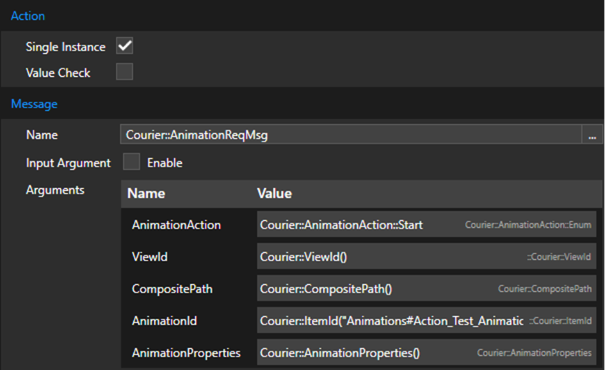
| Property Name | Description |
| Single Instance | When selected, only a single instance of this action will be queue. If the action is triggered again before the previous instance is executed it will overwrite the previous action in the queue instead. |
| Value Check | If enabled, the sent value will be compared to the previous value and processing will be skipped if it has not changed. This can improve performance if the sent value is often the same/different. |
| Name | Name of the message to send. Clicking on the ‘…’ button next to the field opens a dialog window which lists all possible messages defined for this application. |
| Input Argument | When enabled, a single argument of the message can be defined as Input-Argument. The value of the argument will then depend directly on the data sent when triggering the interface. |
| Arguments |
List of arguments for this message (excluding the Input-Argument if specified). Here the values for the arguments that will be used to send the message are set. Depending on the type of the argument, the [ … ] button will be displayed next to the field. When clicking it, it will open a dialog window which lists possible objects from the referenced Scene Composer solution that can be used as a value. |
Data-Output Interface
The Data-Output interface is used to receive data values from CGI Studio application. Only data-items provided by Courier Data-Binding can be set as source. For more information about Data-Binding please refer to the Courier documentation.
Icon:

Properties:

| Property Name | Description |
| Item | Data-Item used as a destination for the data value transferred via this signal. Clicking on the ‘…’ button next to the field opens a dialog window which lists all possible data items defined for this application. |
| Value Check | If enabled, the sent value will be compared to the previous value and processing will be skipped if it has not changed. This can improve performance if the sent value is often the same/different. |
Generic Event Interface
The Generic Event interface is used to signal an event. Instead of being automatically triggered, this interface must be manually triggered from the CGI Application side. For more information on how to do this refer to the TriggerGenericEvent article.
Icon:

Properties:
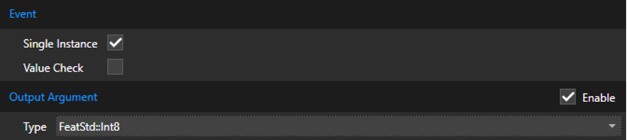
| Property Name | Description |
| Single Instance | When selected, only a single instance of this event will be queue. If the event is triggered again before the previous instance is executed it will overwrite the previous event in the queue instead. |
| Value Check | If enabled, the sent value will be compared to the previous value and processing will be skipped if it has not changed. This can improve performance if the sent value is often the same/different. |
| Output Argument | If enabled the event will be accompanied by an output value. |
| Type | Data type of the value. |
Function Call Interface (Event)
The Function-Call (Event) interface will execute a native function to check if an event has been triggered. Depending on the result of the function call (return value must be true) and specified conditions, an event will be queued.
To learn how to define functions to be used in the Connector refer to the Native Functions chapter.
Icon:

Properties:
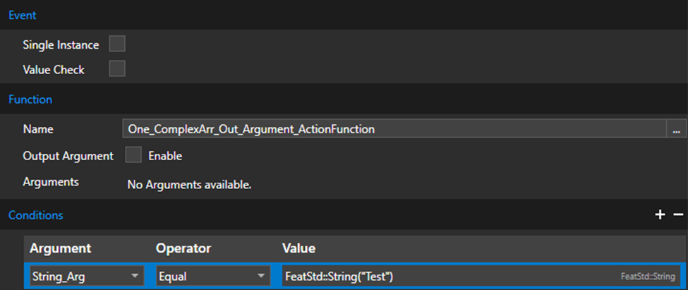
| Property Name | Description |
| Single Instance | When selected, only a single instance of this event will be queue. If the event is triggered again before the previous instance is executed it will overwrite the previous event in the queue instead. |
| Value Check | If enabled, the sent value will be compared to the previous value and processing will be skipped if it has not changed. This can improve performance if the sent value is often the same/different. |
| Name | Name of the function which triggers the event. Clicking on the ‘…’ button next to the field opens a dialog window which lists all possible messages defined for this application. |
| Output Argument | If enabled, the event will be accompanied by an output value. This value can be selected from the available members of the related message. |
| Conditions | Conditions allow to specify additional conditions which the function must fulfill before the event is triggered. If multiple conditions are set, all conditions must be fulfilled. Conditions can be added and removed with the ‘+’ and ‘-‘ buttons. |
| Argument | Name of the argument of the function this condition is applied to |
| Operator | Operator used to check the condition |
| Value |
Value of the condition. Depending on the type of the argument, the [ … ] button will be displayed next to the field. When clicking it, it will open a dialog window which lists possible objects from the referenced Scene Composer solution that can be used as a value. |
Message Interface (Event)
The Message (Event) interface allows to react to incoming Courier messages. If a matching message is received and all conditions are fulfilled an event will be queued.
For more information about Messaging in Courier please refer to the Courier documentation.
Icon:

Properties:
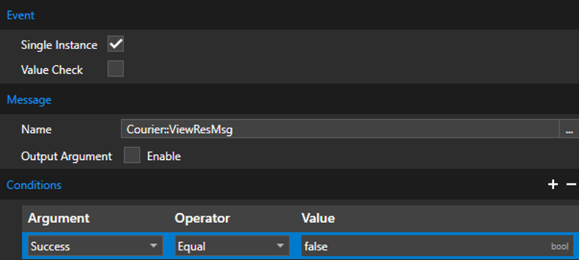
| Property Name | Description |
| Single Instance | When selected, only a single instance of this event will be queue. If the event is triggered again before the previous instance is executed it will overwrite the previous event in the queue instead. |
| Value Check | If enabled, the sent value will be compared to the previous value and processing will be skipped if it has not changed. This can improve performance if the sent value is often the same/different. |
| Name | Name of the message which triggers the event. Clicking on the ‘…’ button next to the field opens a dialog window which lists all possible messages defined for this application. |
| Output Argument | If enabled, the event will be accompanied by an output value. This value can be selected from the available members of the related message. |
| Conditions | Conditions allow to specify additional conditions which the message must fulfill before the event is triggered. If multiple conditions are set, all conditions must be fulfilled. Conditions can be added and removed with the ‘+’ and ‘-‘ buttons. |
| Argument | Name of the member of the message this condition is applied to |
| Operator | Operator used to check the condition |
| Value |
Value of the condition. Depending on the type of the argument, the [ … ] button will be displayed next to the field. When clicking it, it will open a dialog window which lists possible objects from the referenced Scene Composer solution that can be used as a value. |