CGI Studio 3.5
CGI Studio 3.5 - What's new:
Welcome to CGI Studio 3.5, Candera's software development platform for development of hybrid 2D and 3D graphical interfaces for Automotive Systems.
This page informs about the most important features, added since the last Release. Focus of this Release was to improve usability of SceneComposer, but also brand new features have found their way into it. Please see yourself.
Monotype
Font engine iType feature has been integrated. iType is a font engine which main purpose is fast and qualitative rasterization of fonts.
There are two different approaches to integrate the third party code iType into CGI Studio:
- adding prebuilt libraries
- add the third party code into the build process
Monotype/iType has a special porting API with which target and OS specifics can be overridden. CGI Studio provides a single solution for all targets. For this, the framework links the API to the device and operating system layers. It is also possible to use an own customized port instead of the CGI Studio solution.
For complete description refer to Integration of Monotype chapter.
Candera Scripting
Script Events
This versions adds support for script events. Script events can be sent and received by both Lua scripts and native code.
Candera Object References in Scripts
This versions adds support for referencing Candera objects in scripts. These object references are aware about the lifetime of the objects they reference without interfering with them. They can be passed from native code to scripts and vice versa, as well as dereferenced to call object specific methods in Lua.
Property Editing Improvements
Visualization of Enums as Icons
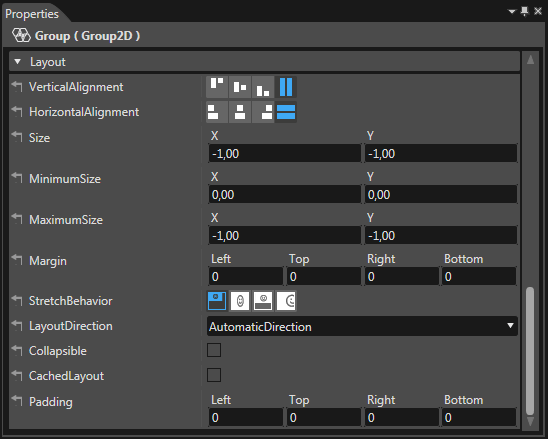
In CGI Studio SceneComposer for some properties the user can choose from a defined set of values e.g. the type of layout he wants to use (GridLayout, StackLayout...) or he can define the values for horizontal and vertical alignment. CGI Studio 3.5 offers intuitive icons to the user, so he can easily decide, which option he wants to take. Tooltips when hovering these icons make these icons even more user friendly.

Multi-Column Properties in the Property Panel
Several items have properties where more than one value can be entered:
- position properties require a value for the x- and a value for the y-coordinate
- size properties require a value for the x- and a value for the y-coordinate
- margin properties even require 4 values (for left, top, right and bottom)
With CGI Studio 3.5 the input fields for these values are positioned next to each other in multiple columns to save space and reduce scrolling effort.
As you can see in the screenshot below, the appearance of the properties has been very much improved and looks a lot tighter.
Nine-Patch
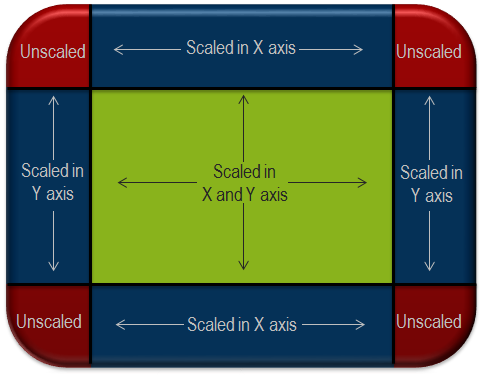
When scaling images, the loss of too much quality shall be prevented. To optimize the scaling process, with CGI Studio 3.5 each image allows the configuration as Nine-Patch. By defining four stretchable areas for left, top, right and bottom, the image will be divided into 9 differently scaled patches (thus Nine-Patch) as seen in the image below.
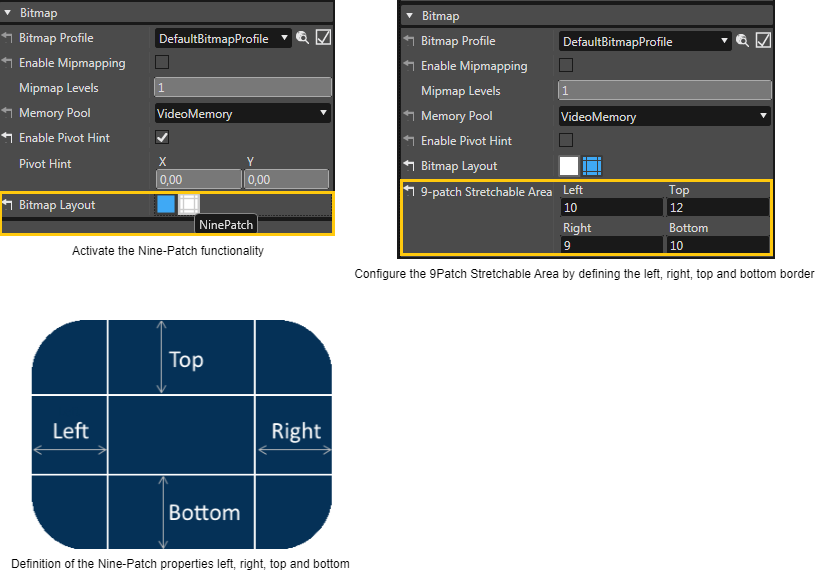
The properties for the Nine-Patch can be defined on image level in the properties tab after activating the Nine-Patch functionality by clicking on the NinePatch icon. When the Nine-Patch functionality is activated, the user can define the 9Patch Stretchable Area by entering a value for each of the borders: left, right, top and bottom as explained in the right picture below.
The Nine-Patch configuration is considered at any kind of scale operation - no matter if it is a manual scale operation or during layout calculation. Here is an example that shows the original image and the same image resized using the Nine-Patch configuration:
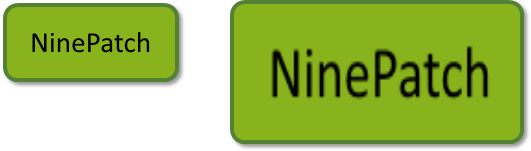
Note: that when computing the resized image, the position of the center point is calculated accordingly. This is especially important as the image center is used when composing and positioning parts of a control (e.g. the needle image of a NeedleControl has to rotate around the defined image center no matter if it has been resized using the Nine-Patch.)
For complete description refer to 9-patch image chapter and for a small tutorial check 9-patch image chapter.
Pivot Hint
In addition to optimized resizing of images using the Nine-Patch approach, the user can define a Pivot Hint for each image. Additionally the Pivot Hint is used by Behaviors to allow them to set a Pivot Offset to an image that has been set.

Controls and Behaviors
There is a bunch of new predefined Controls in SceneComposer. Those reach from Cluster Controls to IVI Controls. They cover many elements necessary in a user interface. Among those Controls are a progress-bar, gauge, telltale, list, button, slider and many more. Controls quicken the process of HMI development massively. The HMI elements can interact with each other and because of the underlying Behaviors no single line of code has to be written for many use cases.
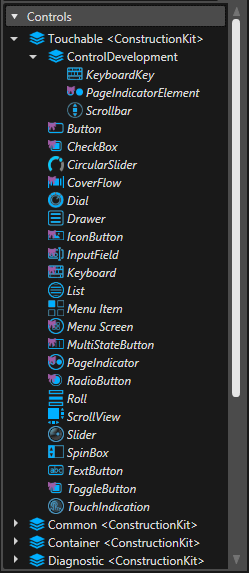
To make these Controls work and to be able to define own Controls, the list of Behaviors has increased significantly. There are many different Behaviors reaching from Event Handling to Value Processing. For a more detailed documentation of the new Controls and Behaviors please refer to Controls and Behaviors.
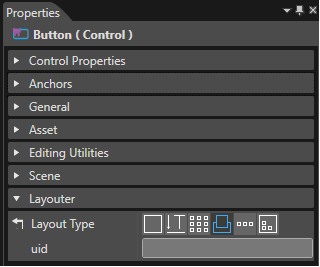
The LayoutType of a Control can now conveniently be configured via the LayoutType in the properties panel of a Control.
A new tutorial is available here. This tutorial covers most of controls and behaviors.
Building Blocks for Behaviors
Behaviors can be nested and in this way combined to a reusable behavior building block that is part of the solution and appears in the Solution Explorer. These behavior blocks offer the possibility to configure, which of the properties of this behavior block will be published and are therefore editable at the time the behavior block is instantiated and used in the SceneComposer scene.
Visualization of Behaviors as Tree in SceneComposer
When many behaviors are nested, the hierarchy of the behaviors is shown trough the visualization of the behaviors integral map ( = "tree") structure. The tree structure of nested behaviors is now visualized properly in the Scene Tree View. This makes it easier to see, which behaviors belong together.
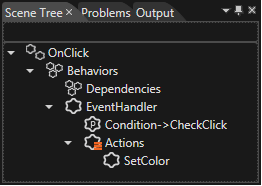
For more information please check out the Behavior Building Blocks
EventHandler Tab
Every control needs an EventHandler in order to handle user events and take appropriate actions. With CGI Studio 3.5 an EventHandler Tab has been introduced in the Properties View for all Controls. In this EventHandler Tab the user can choose the event he wants to react on from a drop-down menu. Furthermore, conditions and actions can also be configured with drop-down menus in this tab. Once an Event is selected, only conditions that are suitable for the selected event are offered in the drop-down menu.
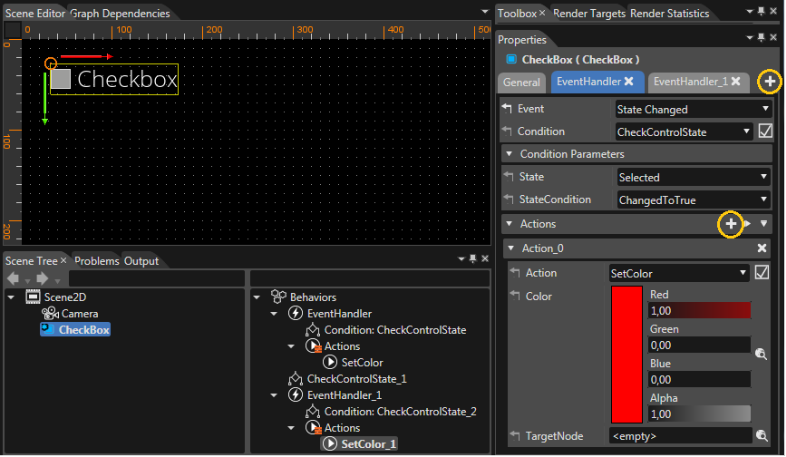
Additional EventHandlers can be added by clicking the '+' sign next to the EventHandler Tabs, more Actions can be added by clicking the '+' sign next to the Actions (marked in orange in the image above).
Having only a selection of suitable and applicable conditions available at configuration time after selecting an event makes this new EventHandler Tab a welcome and user friendly feature.
New Data Types: Optional and Variant
Especially for the implementation of the new Behaviors new data types have been introduced.
- Optional: The Optional data-type allows the use of uninitialized objects. Therefore it provides methods to check whether the object has been initialized or not.
- Variant: The Variant data-type allows to store one value in different types. The type can be an integer, unsigned integer, floating point number or boolean.
Sample code for Optional:
Optional<Int> opt;
if(true == opt) {
Int value = *opt; //opt has been set
}
else {
//opt has not been set
}
State Machine
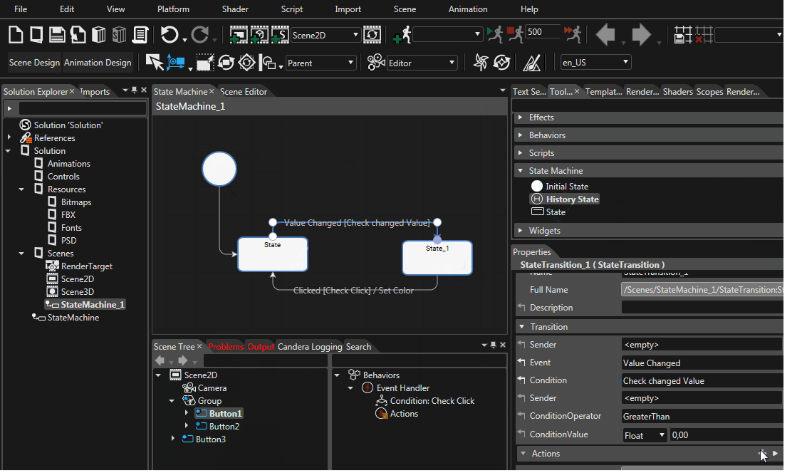
CGI Studio introduces support for a new integrated solution to model behavior based on the state machine concept. By using traditional design means, multiple state machines can be defined. A state machine contains states and transitions and allows defining model changes into the graphical model when certain conditions are met. The state machine links workflow logic to existing CGI Studio graphical items and building blocks such as behaviors and controls.