
CGI-Player Launcher
Requirements
This document mandates adherence to the Android Application Development Environment Setup Guide, as a prerequisite for system compliance.
The project requirements
- CGI-Player Launcher Android application uses the Android Gradle Plugin version 7.2.1 and Gradle version 7.3.3.
- A custom NDK 26 is required, as described in the Android Native Development Kit (NDK) chapter.
- CMake 3.22.1 is required as described in the CMake chapter.
- Eclipse Temurin JDK 11 is required as described in Java Development Kit (JDK) chapter.
- Supported API levels: 23–28 (The application is compatible with later Android versions up to API 36 on Android 16).
- Supported ABIs: arm64-v8a, x86_64, x86
- The CGI-Player Launcher Android application integrates the NativeView library, which is provided externally from ../libs/nativeview-lib and already imported into the project.
Building and Running the Android Application
To build and run the Android application, perform the following steps:
1. Substitute the CGI Studio root as described in the windows-commands/subst article.
Open a Command Prompt in the CGI Studio root directory (e.g., “...\cgistudio”) and type:
subst x: .
Press enter. The CGI root is now available under the X: drive in Windows Explorer.
2. Open the Android Application:
Launch Android Studio and open the project located at:
X:\cgi_studio_apps\References\Android\AndroidCgiPlayerLauncher
3. Configure local.properties:
-
- Open local.properties.sample file from the root of the Android application.
- Copy the content of the sample to the local.properties file in the root of the Android application.
- Update the USERNAME in the SDK and NDK paths to match your system.
- How the asset can be loaded is described in the Asset Configuration block.
- Set the ABI to the target CPU architecture under the Target ABI block.
- If you need Vulkan support, change
angle_vulkan=offtoangle_vulkan=onin local.properties. - Save local.properties and sync project with Gradle files (Ctrl+Shift+O).
Note: If the SDK or NDK paths do not exist, Android Studio may reset local.properties after syncing the project with Gradle files.
4. Create an Android asset
Run the following batch file:
X:\bin\SceneComposer\SceneComposer_Android_OpenGLES30.bat
-
- Choose an asset template (e.g., “3D Basic”) and save this as Test.bin
- If from sdcard: to the /sdcard/ directory of the target or emulator. In Android Studio, this can be done in the "Device Explorer" of the target or emulator.
- If from APK: to the following folder:
- Choose an asset template (e.g., “3D Basic”) and save this as Test.bin
X:\cgi_studio_apps\References\Android\AndroidCgiPlayerLauncher\app\src\main\assets
5. Build variant:
-
- In Android Studio, open [View | Tool Window | Build Variants].
- In the Build Variants tool window, select debug or release under Active Build Variant.
6. Run the application:
-
- Select the target device or emulator in Android Studio.
- Click Run (the play button)
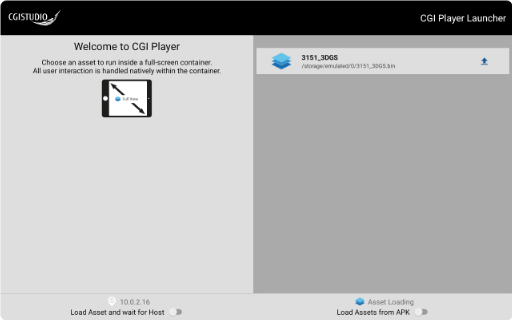
- The first time the Application starts, it will request permissions. Accept and restart the application.
- The assets are loaded from the location that is set in the Asset Location option in the application.
- The desired asset can be clicked on and the asset should be running.
6.1 Launching an asset via ADB (command-line)
The asset path can be found in the CGI-Player Launcher app. Replace the asset path and asset filename in the command. Use this method to start the CGI-Player Launcher and open a selected asset from cmd:
adb shell am start -n at.cgistudio.player/.presentation.nativeview.NativeViewActivity -e extra_asset_path "/storage/emulated/0/3151_3DGS.bin" -e extra_asset_name "3151_3DGS.bin" -e extra_load_from_assets false -e extra_wait_for_connection false
7. APK
After the application is running, the current built APK can be found in the build directory. This can located by opening [Build | Analyze APK]. The usual directory would be:
X:\cgi_studio_apps\References\Android\AndroidCgiPlayerLauncher\app\build\intermediates\apk\
If the build was for release, the APK will be signed.
Troubleshooting
- If encountering any issues during the setup, refer to the official documentation for Android Studio,
CMake, and NDK for troubleshooting steps.
Platform Tests
- Google Pixel C, ARM Cortex A57, Android 8.1.0, API 27
- Huawei MediaPad M5, ARM Cortex A73, Android 9, EMUI 9.1.0, API28
- Emulator Pixel 2, x86_64, Android 6, API 23 (Without Play/APIs)
- Emulator Medium Phone, x86_64, Android 9, API 28 (Without Play/APIs)
- Emulator Pixel 2, x86, Android 9, API 28 (Without Play/APIs)
- Emulator Google Pixel Tablet, x86_64, Android 14.0, API 34
- Emulator Google Pixel Tablet, x86_64, Android 16.0, API 36
- Emulator Google Pixel 9 Pro XL, x86_64, Android 16.0, API 36