
Animation Editing Modes
Both in Animation Timeline Editor and in Curve Editor, following animation editing modes are available:
- Move key frame without restriction
- Move only between neighbors
- Scale earlier, move later key frames
- Scale key frames
- Shift all key frames
- Move later key frames of all animated properties
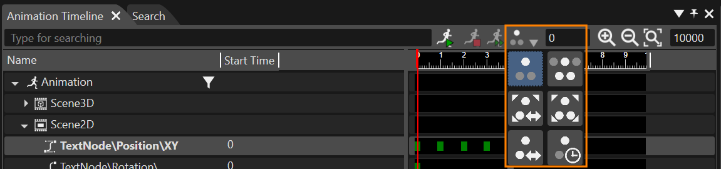
If multiple animated properties are selected (by using the CTRL + left click), the related operation will affect all selected animated properties.
For "Move key frame without restrictions" and "Move only between neighbors", the operation can only be applied to a single selected key frame.
Move key frame without restriction

The key frame is moved without affecting in any way its neighbors.
Example: Consider following key frame sequence with an animation duration of 200 msec.
- KF1: 70,
- KF2: 120,
- KF3: 130
Moving KF2 to 90 ms means -25 % for KF2 without affecting any of its neighbors.
Move only between neighbors

The selected key frame can only and exclusively be moved between neighbors.
Example: Consider following key frame sequence with an animation duration of 2000 msec.
- KF1: 500,
- KF2: 1000,
- KF3: 1500
Moving KF2 means that it can be moved just between 500 and 1500.
Scale earlier, move later key frames

The earlier key frames are scaled, while the later are shifted.
Example: Consider following key frame sequence with an animation duration of 300 msec.
- KF1: 50,
- KF2: 100,
- KF3: 150,
- KF4: 200
Moving KF2 to 90 ms means -10 % for earlier key frame and -5 % for later key frames.
- Applying -10 % to KF1: 45,
- Applying -5 % to KF3: 142,5, to KF4: 190.
Scale key frames

All key frames are moved in such a way as to keep the relative distance between key frames the same.
Example: Consider following key frame sequence with an animation duration of 300 msec.
- KF1: 200,
- KF2: 700,
- KF3: 1700
Moving the key frames means to keep the relative distance between key frames the same.
- Applying 612 ms to KF1: 812,
- Applying 867 ms to KF2: 1567,
- Applying 1400 ms to KF3: 3100.
Shift all key frames

All the key frames are moved by the same absolute amount as the key frame that is being edited.
Example: Consider following key frame sequence with an animation duration of 300 msec.
- KF1: 50,
- KF2: 100,
- KF3: 150,
- KF4: 200
Moving KF4 to 700 ms means to move +500 ms all the key frames.
- Applying +500 ms to KF1: 550,
- Applying +500 ms to KF2: 600,
- Applying +500 ms to KF3: 650
Move later key frames of all animated properties

Those key frames placed after a selected one are moved by the same absolute amount.
Example: Consider following key frame sequence with an animation duration of 300 msec.
- KF1: 50,
- KF2: 100,
- KF3: 150,
- KF4: 200
Moving KF2 to 150 ms means to move +50 ms for later key frames.
- Applying +50 ms to KF3: 200,
- Applying +50 ms to KF4: 250