
Add Animated Property
Configure an Animated Property
Design an animation by going to the in Animation Design perspective in SceneComposer. The perspective can be chosen by pressing the "Animation Design" button on the toolbar.
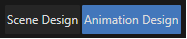
Each animation is composed of one or more animated properties. The animated properties can be:
- user defined animated properties, when the user configures all the key frames manually,
- template animated properties, which are based on an animated property from an Animation Template.
Animation Configuration Panel
The "Animation Configuration" panel allows the configuration of each animated property of both user defined and template animations.
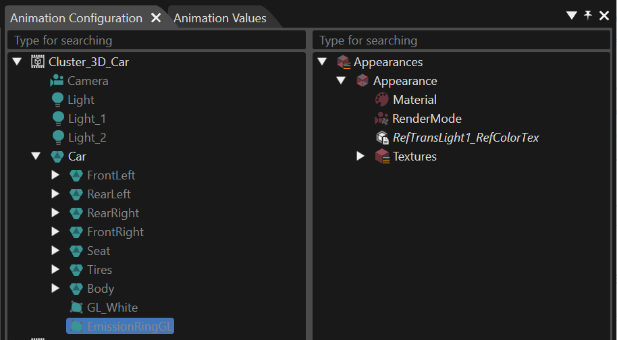
The left side of the "Animation Configuration" panel contains all the user defined scenes from the solution with nodes with properties which can be animated.
The right side of the "Animation Configuration" panel contains all the widgets of the scene highlighted in the left side of the panel. Each widget type has specific properties that can be animated.
Animation Configuration
To animate a property from a node or a widget, select it in the "Animation Configuration" panel, and in the property grid its already animated properties will appear. If the item has no animated properties yet, the text "Click '+' to animate a property for the selected node" will appear in the property grid.
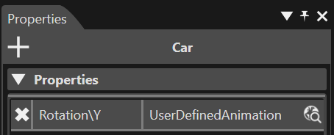
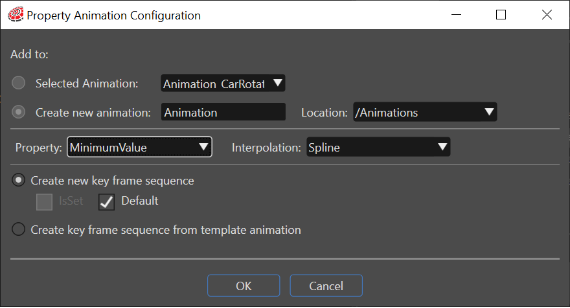
By clicking the '+' button on the property grid, the "Property Animation Configuration" dialog will appear.
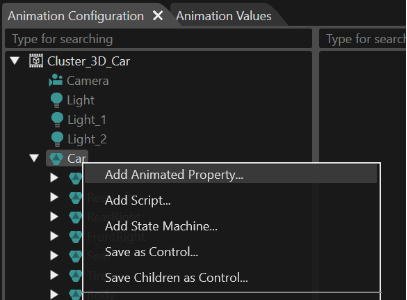
The "Property Animation Configuration" dialog can also be reached by choosing the context menu option "Add Animated Property" after selecting the item which the user wants to animate. This will add a new animated property to the current animation or create a new animation.
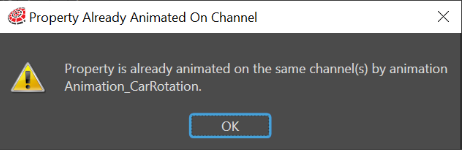
The same animated property is not allowed to be added for the same object in an animation more than one time, on the same channel. If such an addition is tried, the next message will appear: "Property is already animated on the same channel/channels by animation (name)."
The "Property Animation Configuration" dialog is divided into three sections.
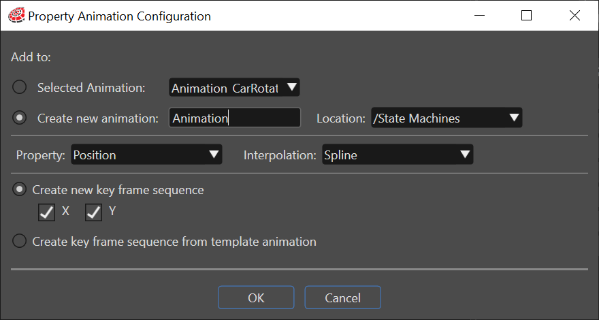
The first section contains two combo boxes. Via the Property combo box the user can choose which property to animate and the Interpolation combo box allows choosing between the provided interpolation strategies.
Ticking one of the radio buttons for the second and the third section the user decides to create a new user defined animation or to use an available animation from import or template.
The Create new key frame sequence section only allows selecting the channels on which the animated property will change the values.
When using available animation, all imported and template animations of the solution are listed in a tree, allowing the selection of an animated property that will be the template for the animated property.
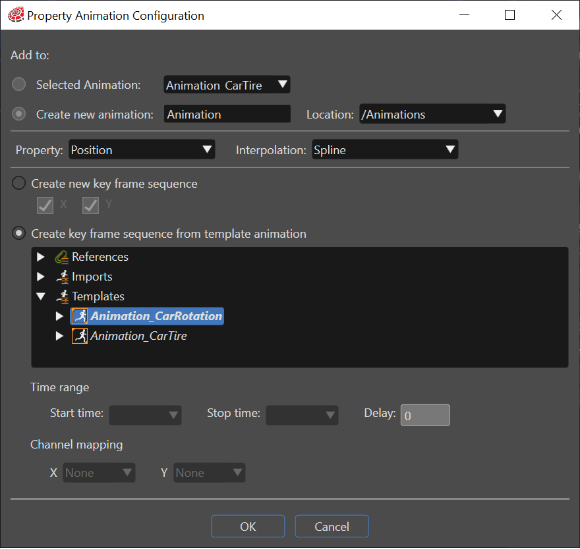
Furthermore it is possible to choose the first and last key frame and a delay which can be a negative or positive integer that will be added to the sequence times of all the key frames of the animated property.
A mapping between the channels of the animated property and the channels of the template animated property can be made using the combo boxes that allow associating to each channel of the animated property one (or None) channel of the template animated property that appears in the combo boxes.
Animation of all Items
Properties of widgets, effects and shader parameters can also be animated. This chapter briefly describes the approach in SceneComposer.
An animation can now contain animated properties for controls and scenes (they can also be mixed).
Animate Widget Properties
Add a widget to your scene and configure it. Right click on the widget (in the widget panel) and select "Add Animated Property...". Now you can choose the property and the values you want to animate.
Animate Effect Properties
Add an Effect to your 2D scene and configure it. Right click on the Effect and select "Add Animated Property...". Choose the property and value you want to animate.
Animate Shader Parameters
Import an parameterized shader and assign it to a node of your scene. Right click on the node and select "Add Animated Property...". The shader parameters will appear in the properties drop down list.
Animate Control properties
Starting with version 3.8 it is possible to animate control properties. Previously it was only possible to animate properties of Behaviors, Widgets and Effects.
In the composition part, control properties can be exposed as public properties.
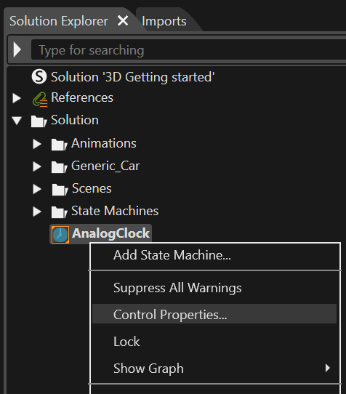
It is possible to animate those control properties which are animatable properties of behaviors. The animatable properties of a control are listed in the drop down box in the Property animation edit dialog. For example for the AnalogClock control it is now possible to animate the Time value.
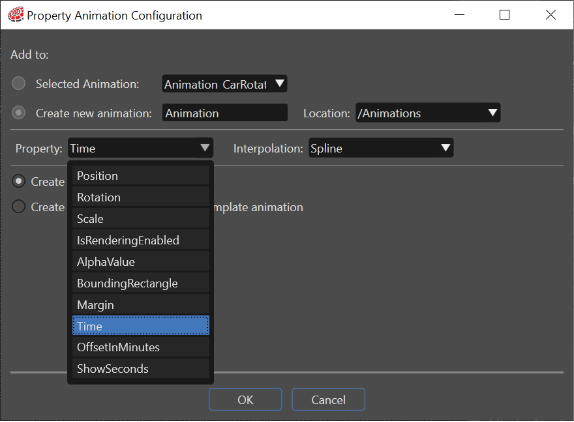
It is not possible to animate Reference types. For instance, it is not possible to animate the items in the Images property of the FlipBook.
Animate Variants and Optionals
As there are many control properties that are Variants and Optionals, support was added for animating them as well.
Animate Optionals
As many behaviors and controls rely on optional properties for exchanging data such as value properties, range properties, etc., support was added to animate such properties. In Scene Composer an optional property has a check box that allows to enable or disable the property. When checked (enabled), the editor of the property appears and a value can be entered for it.
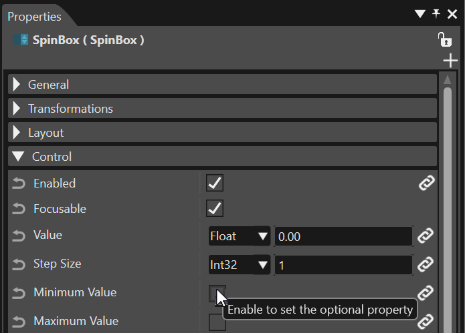
Specifying whether the property has a value or not is also animatable. This flag is called IsSet. It is connected to the check box from the property panel. So an animation can be created to set and unset an optional value on a control or on a behavior.
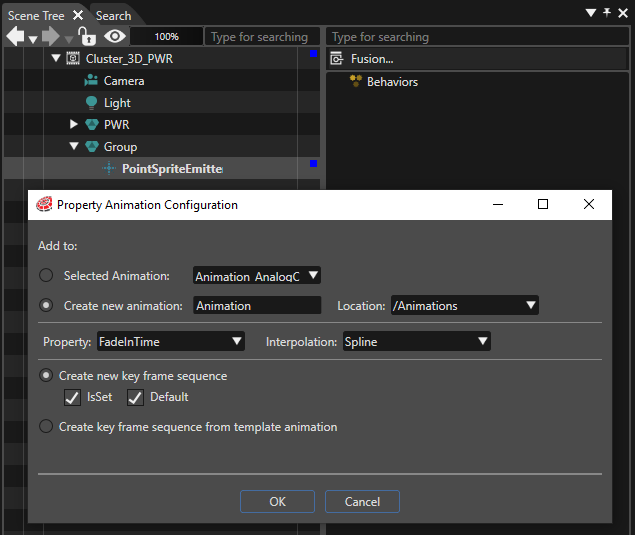
Animate Variants
Animating Variants is also supported. A variant is an object which can store a value of potentially different types. So to a variant you can assign an integer, a double, 64-bit integer and so forth.
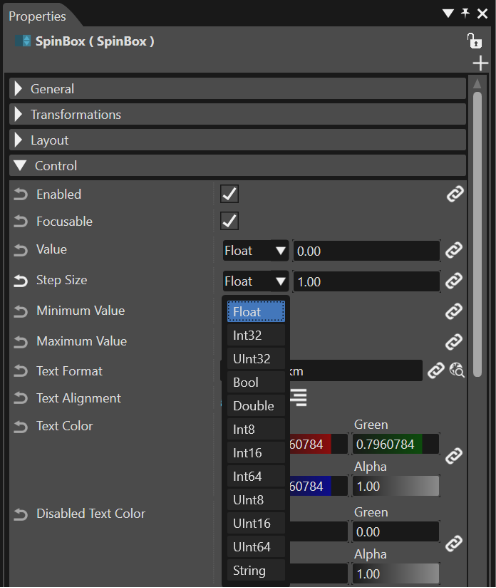
It is currently not possible to add keyframes of 8-bit integer, unsigned 8-bit interger and double types. Although it is possible to add an animated property for a property of type Variant with one of these types, the keyframes will have float values in the Animation Values tab.
Except for the 8-bit integer, unsigned 8-bit integer and double types, in Scene Composer the keyframes have dedicated value editors and validation for each type. So in Scene Composer in the Animation Values tab only values of the currently specified type for the variant property can be added for its animated property. However the Candera animations framework relies on float keyframes, so these values will be internally handled as float values. If a control or behavior already has a Variant value set, the animation framework will keep its type. Therefore the interpolated value computed by the Candera framework as float will be converted back to the type that the variant already has.
For an Optional of type Variant (Eg. SpinBox Minimum Value), the IsSet channel cannot be selected for animating because the variant type cannot be preserved. This is currently a limitation of the Candera framework and is planned for improvement in upcoming versions.
Animate script components properties
Script components are basically a connection between a script and a node. Scripts can be edited, they can be defined to act in the Scene tree. For example they can be configured to: move nodes, change colors, activate/deactivate Render Targets, run animations, etc. When a script is attached to a node, the parametrization of that script is called script component. Once there is a script component visible in Scene Composer, its properties which are the parameters can be edited and now they can also be animated.
There is a limited support for script components. Only boolean, integer and float types can be animated. Double can also be animated, but it is internally handled as float.
Reference parameters cannot be animated.
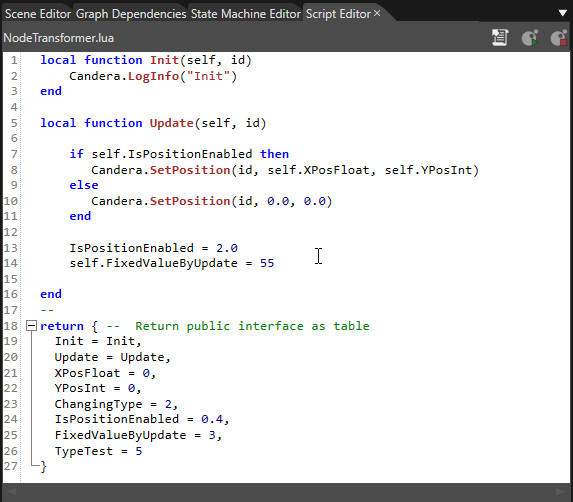
This is a very simple script that only moves the attached node around. There are two parameters that control the X and Y position: XPosFloat and YPosInt. By chaging the values of those parameters the script changes the node position.
When the script system is running, the script component parameters are read only.
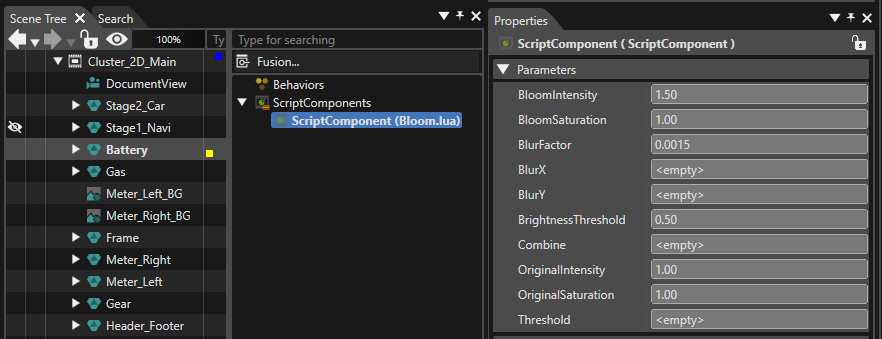
The script system can be stopped or paused and the values can be edited.
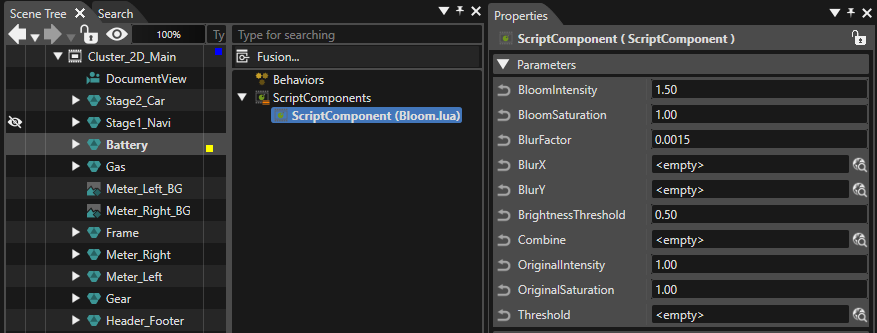
Then, when the script system is restarted or resumed, the nodes will change relatively to the new parameter values.
Now it is possible to animate the properties (parameters) of script components.
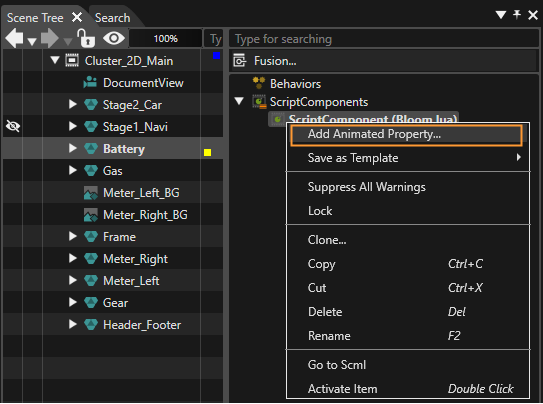
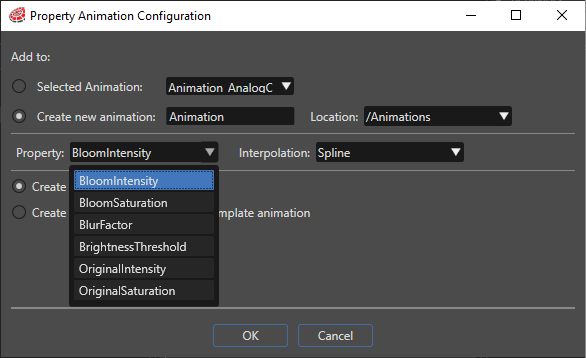
The script system needs to be running in order to see the visual changes in the Scene editor when sliding the animation timeline marker. This is because the script cannot update the node unless the script system is running.

The animation can be run using the menu bar button in the Animation Timeline panel or by pressing Ctrl+F5:

If the script system is not running, the following message appears:
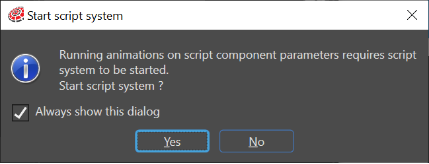
If the type of a parameter is changed, for example by changing in the script code XPosFloat = 0.0 (float) with XPosFloat = 0 (integer), the properties panel will then accept only integer values. If a value with decimal point is entered for XPosFloat in the property grid it will not be accepted. In Animation Design, if a new keyframe is added for the script component parameter animation, the new keyframe will inherit the new type from the parameter (integer in this example. This will lead to a mixture of float and integer values for this animation.
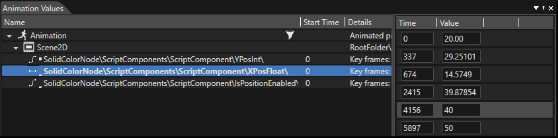
This is possible because the animation framework internally converts all the keyframe values to floats.
It is also possible to change the keyframe types and values from SCML. The Animation Values tab will be automatically updated in this case.
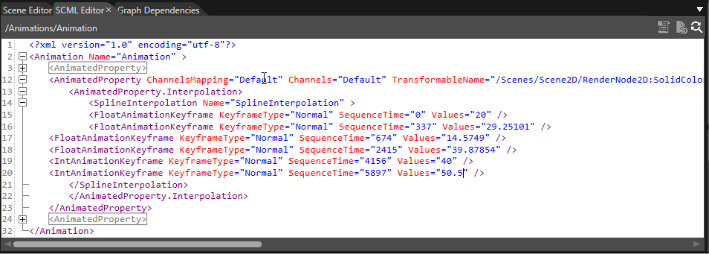
In the SCML the following types are allowed:
| Property type | Keyframe type |
| Int32 | IntAnimationKeyframe |
| UInt32 | UIntAnimationKeyframe |
| Int16 | Int16AnimationKeyframe |
| UInt16 | UInt16AnimationKeyframe |
| Bool | BoolAnimationKeyframe |
| Float | FloatAnimationKeyframe |