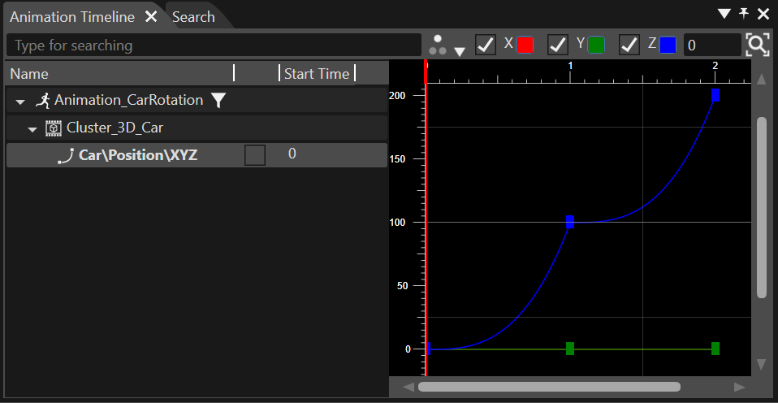
Interpolation
Interpolation Strategy
The interpolation strategy of an animation can both be selected during creation of the animation, and of course also later changed on existing animations.
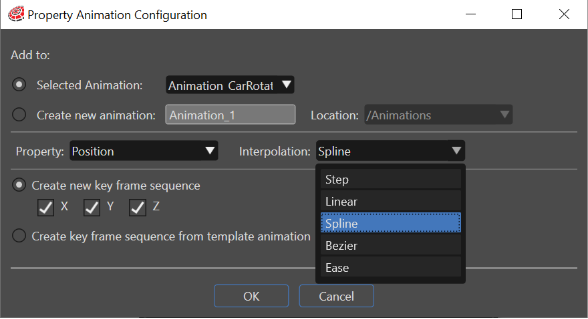
Configure an interpolation strategy by the following ways:
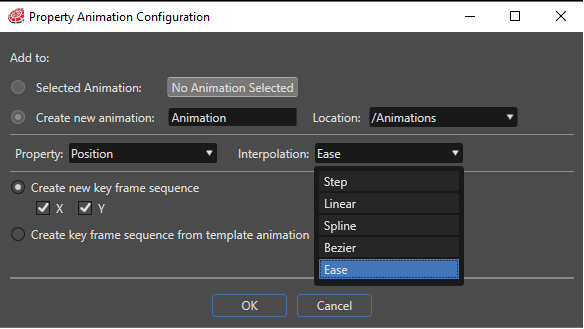
When a new property animation is being created in the Property Animation Configuration dialog, select the desired interpolation strategy from the combo box right to the animated property.
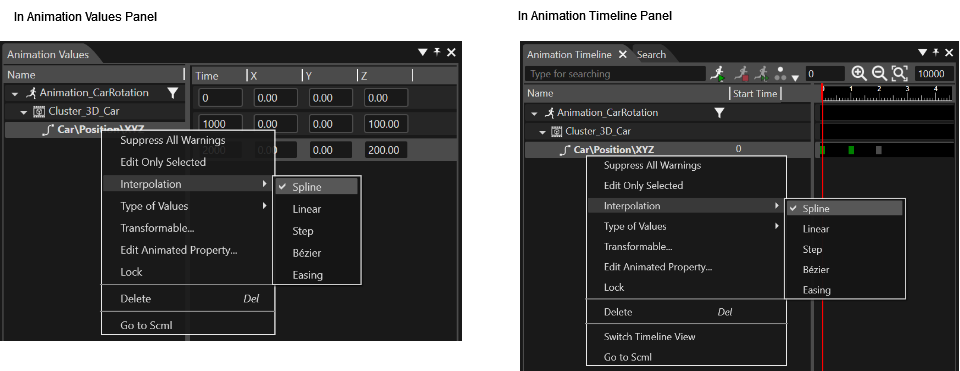
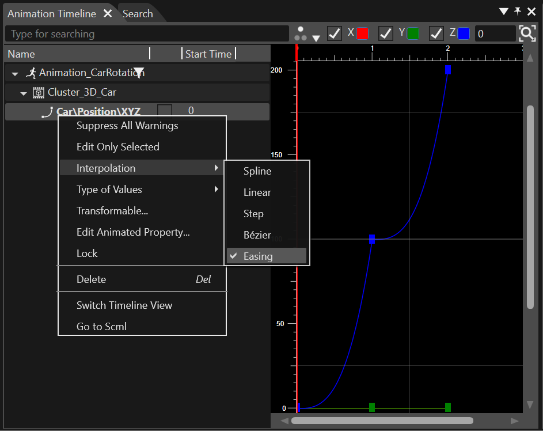
In the Animation Timeline or Animation Values panel, set the interpolation strategy by using the "Interpolation" context menu of the selected animated property:
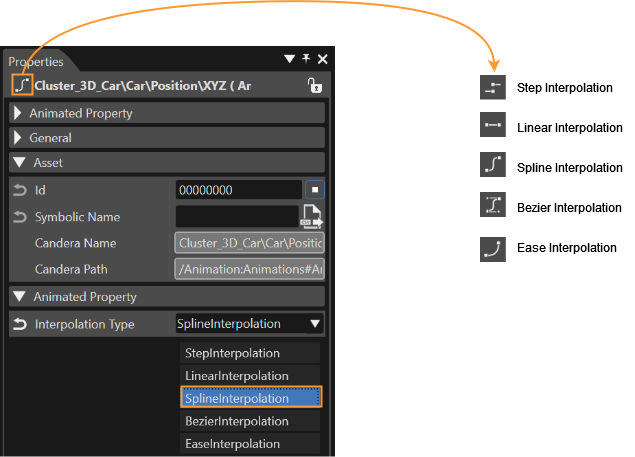
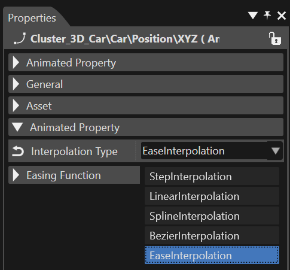
In the Properties panel, change the interpolation strategy of an animated property at the Interpolation Type property:
Type of Value and Template
The animation's context menu also allows changing the type of value from relative to absolute and vice versa.
It is also possible to save the animation as a template. The menu window allows the user to choose a path to store and which animated properties to add, and to change the name, speed factor, play direction of the template.
Easing Functions
Animation interpolation using easing functions allows creating special effects associated with a given animation. For instance, if it is desired to have an object that can realistically bounce or behave as it were on a spring, the ease interpolation is the right solution for this.
Select Ease Interpolation Strategy
There are three options to configure an animation with an Ease interpolation strategy:
When a new animated property is created, select the Ease interpolation from all available types of interpolations.
In the Animation Timeline Editor, set the type of the interpolation to Ease interpolation.
The third option is to change the interpolation type in the Property Panel related to the animated property.
Configure Easing Function
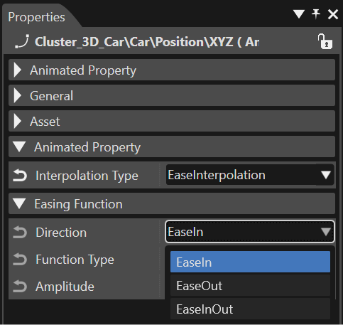
Once the Ease interpolation type is set for an animation, the specific easing function can be configured in the Properties panel.
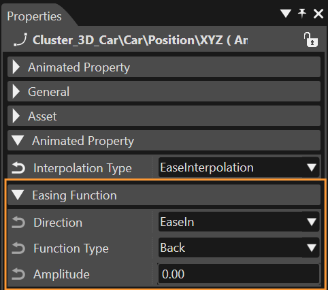
Direction: The Direction property can be used to alter how the easing function behaves, that is, how the animation interpolates.
Function Type: There are eleven types of Ease functions, each of them having its own specific properties:
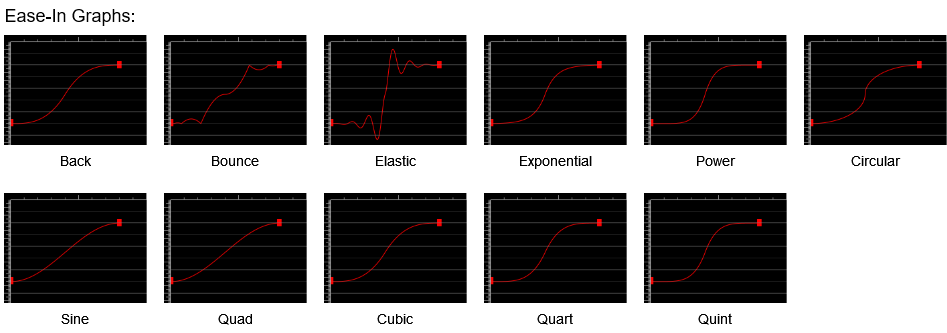
| Function Type | Behavior | Available Properties |
| Back | Retracts the motion of an animation slightly before it begins to animate in the path indicated. | The "Amplitude" of this function represents retraction amplitude; |
| Bounce | Creates a bouncing effect | The "Restitution Coefficient" represents the ratio of speeds after and before each bounce. The "Bounce Count" sets the number of bounces that will be mapped in the [0...1] input interval. |
| Elastic | Creates an animation that resembles a spring oscillating back and forth until it comes to rest. | The "Oscillation Count" sets the number of oscillations that will be mapped in the [0...1] input interval. The "Exponent" sets the exponential power of oscillation. |
| Exponential | Creates an animation that accelerates and/or decelerates using an exponential formula | The "Exponent".
|
| Power | Creates an animation that accelerates and/or decelerates using the formula f(t) = t^p where p is equal to the Power property. | The "Power" sets the exponential power of interpolation. |
| Circular | Creates an animation that accelerates from zero or decelerates to zero using the formula f(t)=1 - sqrt(1 - t^2). | None |
| Sine | Creates an animation that accelerates from zero or decelerates to zero using the formula f(t) = 1 - sin((1 - t) * PI/2) | None |
| Quad | Creates an animation that accelerates from zero or decelerates to zero using the formula f(t) = t^2 | None |
| Cubic | Creates an animation that accelerates from zero or decelerates to zero using the formula f(t) = t^3 | None |
| Quart | Creates an animation that accelerates from zero or decelerates to zero using the formula f(t) = t^4 | None |
| Quint | Creates an animation that accelerates from zero or decelerates to zero using the formula f(t) = t^5 | None |
A visual graphic representation of an animatable property with Ease interpolation is accessible in the Curve Editor.
To select the Curve Editor double click on an animated property or right click on the animated property and select "Show Curve Editor" from the context menu.