# Animation Editing Modes
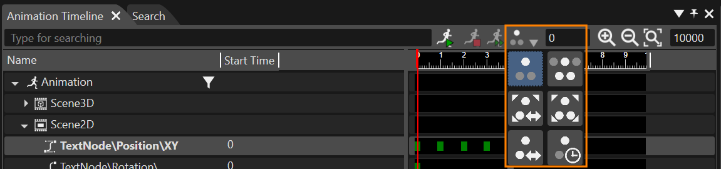
Both in Animation Timeline Editor and in Curve Editor, following animation editing modes are available:
- Move key frame without restriction
- Move only between neighbors
- Scale earlier, move later key frames
- Scale key frames
- Shift all key frames
- Move later key frames of all animated properties
If multiple animated properties are selected (by using the CTRL + left click), the related operation will affect all selected animated properties.
For "Move key frame without restrictions" and "Move only between neighbors", the operation can only be applied to a single selected key frame.
---
#### Move key frame without restriction
The key frame is moved without affecting in any way its neighbors.
***Example:*** Consider following key frame sequence with an animation duration of 200 msec.
- KF1: 70,
- KF2: 120,
- KF3: 130
Moving KF2 to 90 ms means -25 % for KF2 without affecting any of its neighbors.
---
#### Move only between neighbors
The selected key frame can only and exclusively be moved between neighbors.
***Example:*** Consider following key frame sequence with an animation duration of 2000 msec.
- KF1: 500,
- KF2: 1000,
- KF3: 1500
Moving KF2 means that it can be moved just between 500 and 1500.
---
#### Scale earlier, move later key frames
The earlier key frames are scaled, while the later are shifted.
***Example:*** Consider following key frame sequence with an animation duration of 300 msec.
- KF1: 50,
- KF2: 100,
- KF3: 150,
- KF4: 200
Moving KF2 to 90 ms means -10 % for earlier key frame and -5 % for later key frames.
- Applying -10 % to KF1: 45,
- Applying -5 % to KF3: 142,5, to KF4: 190.
---
#### Scale key frames
All key frames are moved in such a way as to keep the relative distance between key frames the same.
***Example:*** Consider following key frame sequence with an animation duration of 300 msec.
- KF1: 200,
- KF2: 700,
- KF3: 1700
Moving the key frames means to keep the relative distance between key frames the same.
- Applying 612 ms to KF1: 812,
- Applying 867 ms to KF2: 1567,
- Applying 1400 ms to KF3: 3100.
---
#### Shift all key frames
All the key frames are moved by the same absolute amount as the key frame that is being edited.
***Example:*** Consider following key frame sequence with an animation duration of 300 msec.
- KF1: 50,
- KF2: 100,
- KF3: 150,
- KF4: 200
Moving KF4 to 700 ms means to move +500 ms all the key frames.
- Applying +500 ms to KF1: 550,
- Applying +500 ms to KF2: 600,
- Applying +500 ms to KF3: 650
---
#### Move later key frames of all animated properties
Those key frames placed after a selected one are moved by the same absolute amount.
***Example:*** Consider following key frame sequence with an animation duration of 300 msec.
- KF1: 50,
- KF2: 100,
- KF3: 150,
- KF4: 200
Moving KF2 to 150 ms means to move +50 ms for later key frames.
- Applying +50 ms to KF3: 200,
- Applying +50 ms to KF4: 250
---