
Create Animation From Template
To create a new animation from template the "Add Animation From Template" context menu option should be used. This is possible on following types of animations: Imported animations and Template Animations.
Imported Animations
If an object which has its own animation gets imported, that animation will be available in two different panels: "Imports" and "Solution Explorer". When righting click on the imported animation in any of the two mentioned panels, the "Add Animation from Template" context menu option will become available.
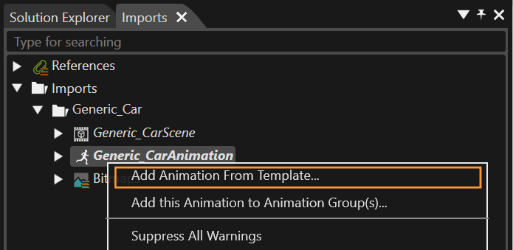
By using it, an "Add New Animation" dialog will pop up in order to give the user all the available options regarding the creation of a new animation. (See the continuation below, under the "Template Animations" section)
Template Animations
Template animations (animations saved as a template) are available in both the "Templates" or "Solution Explorer" panels. A specific context menu option named "Add Animation From Template" should be used to create a new animation.
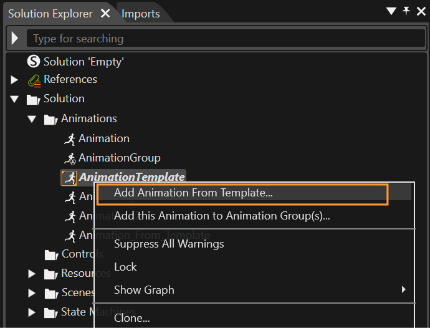
Add New Animation Dialog
So, if the user would like to create a new animation from an Imported animation or a Template Animation, it will have this possibility via the "Add New Animation" dialog. The mentioned dialog lists all animated properties part of the template animation together with the path to the transformable, on which the property animation will be applied:
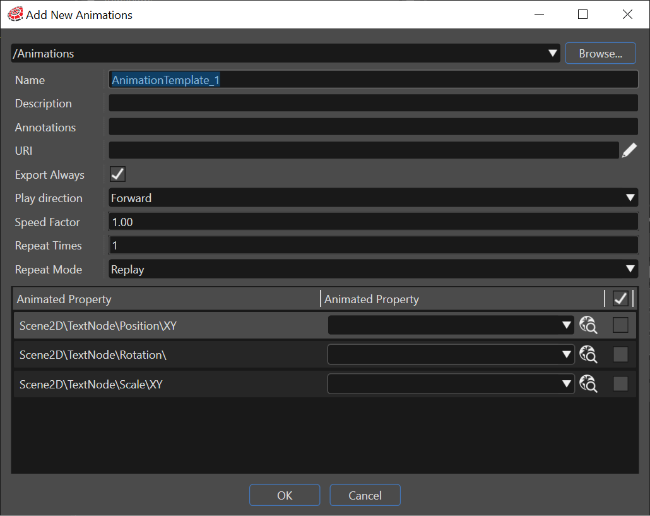
The check box beside each row means that the property will be animated in the newly created animation. If the second column is empty, the item corresponding to the path from the first column was not found in the current scene.
Choose the destination folder of the new animation, fill its name and enable the property "Export Always" if you would rather prefer the animation to be part of the asset.