Play Animation
Start/Stop Animation
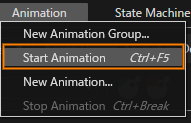
Start Animation
You can start an animation in one of the following three ways,
- Select [ Animation ] > [ Start Animation ] from the Menu Bar.
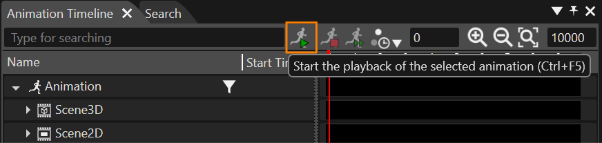
- Click the [ Start the playback of the selected animation ] icon in the Scene Editor (you can also pause the animation by clicking this icon during playback).

- Click the [ Start the playback of the selected animation ] icon in the Animation Timeline panel (you can also pause the animation by clicking this icon during playback).
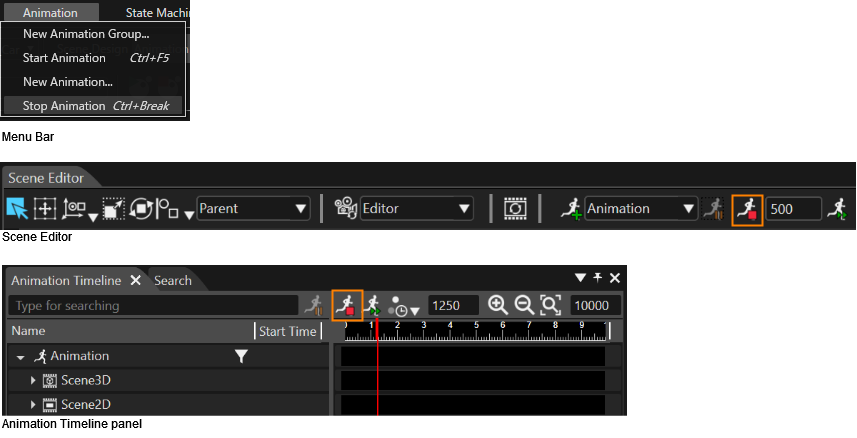
Stop Animation
Play from Animation List
Play Direction
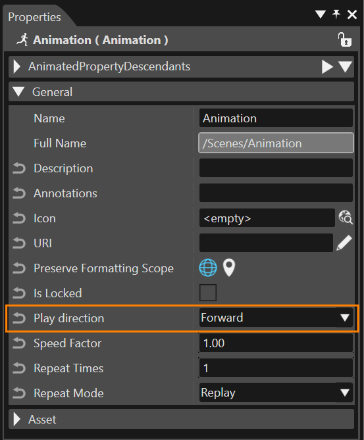
Play directions "Forward" and "Reverse" are available in the Properties Panel of the animation.
Speed Factor
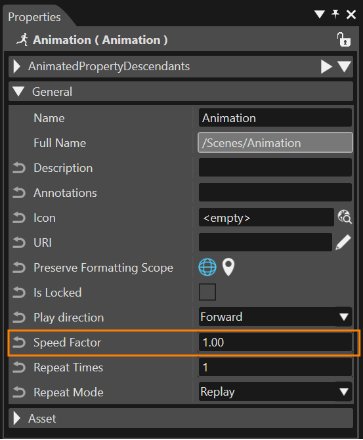
Configure the Speed Factor in the Properties panel of the animation.
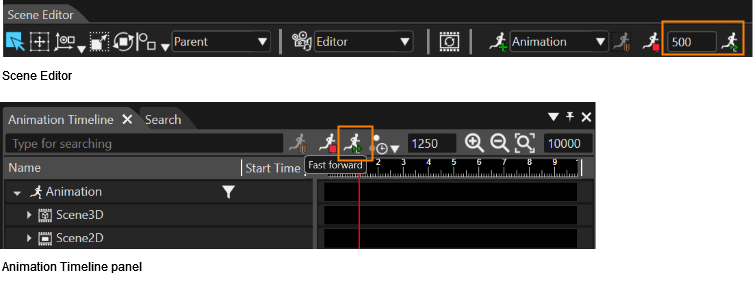
Animation Fast Finish
To play the animation faster, you can press the "Fast Forward" icon on the Scene Editor or Animation Timeline panel. The field near "Fast Forward" button allows the user to set the the value of forwarding (in milliseconds).