
Animation Values - Keyframes
Animation Values Panel
The "Animation Values" panel is used to textually view and edit the properties values and the key frame's sequence times of an animated property. Editing can only be done on the user defined animated properties. The template animated properties, which are displayed italic, can only be viewed.
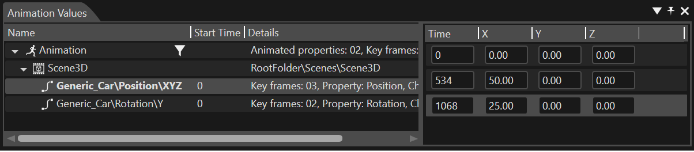
The left part of the "Animation Values" panel contains the selected animation and its animated properties.
- Selecting an animated property will show its key frames (sequence time and values for the channels) in a table at the right of the panel.
- The sequence time and each key frame's values can be edited manually. One can navigate easily through the table's cells using the Tab or arrows keys.
The right table's context menu allows inserting a key frame, deleting a key frame, copy and paste.
Add a new Keyframe
A new key frame is always added after the highlighted key frame. The new key frame's time and channels' values will be the mean values of the key frames' values it was added between.
If a key frame is added to the last key frame in the table, the channels values are the same as the highlighted key frames values but the new time value will have the same difference to the last like the second to last.
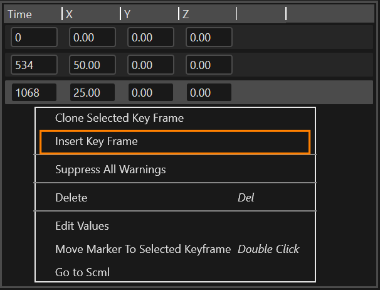
The timeslider can be moved by using "Move marker to selected keyframe" option from the context menu of any keyframe available in "Animation Timeline" or "Animation Values" panels.
Delete a Keyframe
To delete a key frame, select and hit the "Delete Keyframe" context menu item.
Copy and Paste Keyframes from and to Excel
Selecting one or multiple key frames in the table and hitting "Ctrl+C" copies the sequence times and values of the key frames to the clipboard, for later pasting in Excel. Copying the key frames can also be done via the "Copy" context menu item.
Also a table with the same number of columns can be copied from Excel and pasted by hitting "Ctrl+V" to form the key frames of the animated property. Pasting the key frames can also be done via the "Paste" context menu item.