
Custom
For advanced users, the Custom tab enables the user to edit and build the CGI Panel, as well as edit data bindings and Courier definitions.
Scripts here, used for general operations, can be changed and customized to fit the user’s needs.
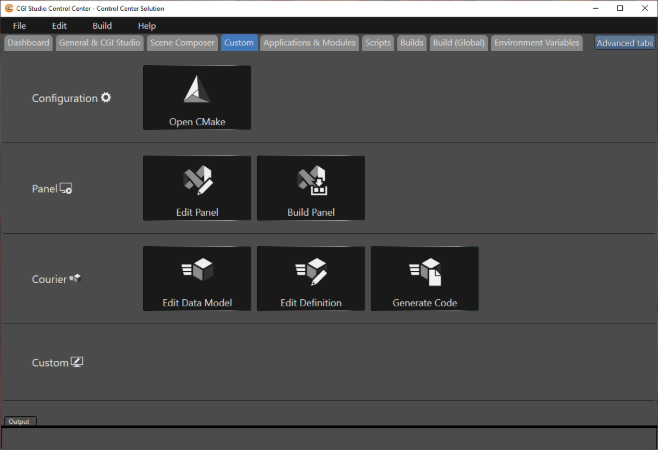
Build Configuration
Advanced users may want to change their CMake project configuration.
Open CMake
This "Open CMake" button will open your project in CMake, where you can change the CMake settings as you like.
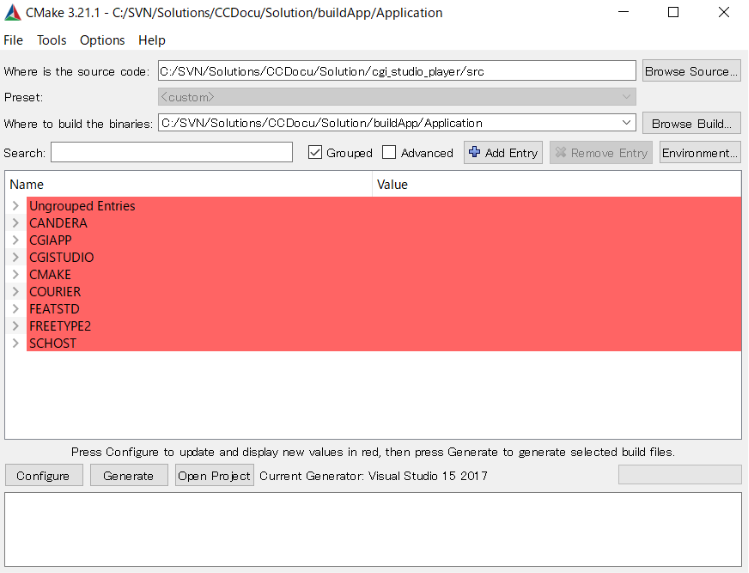
Custom "Panel" Section
In this section you can edit or build the CGI Panel.
Edit Panel
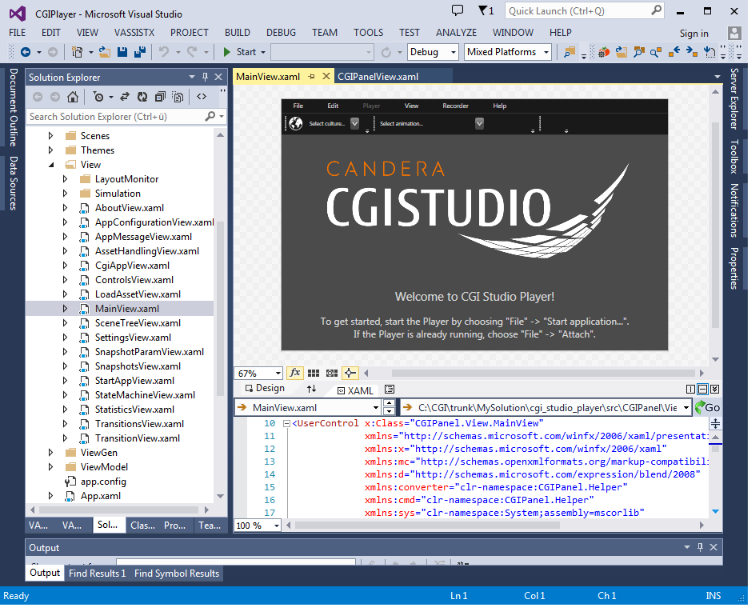
Click on the "Edit Panel" button, if you want to edit CGI Panel. As indicated by the icon, clicking "Edit Panel" launches Visual Studio for editing CGI Panel.
Build Panel
Click the "Build Panel" button to build the application. This opens the CGI Studio Control Center - Build Window and the build is started.
A successful build completion is signaled by "... succeeded" text in the output log.
Custom "Courier" Section
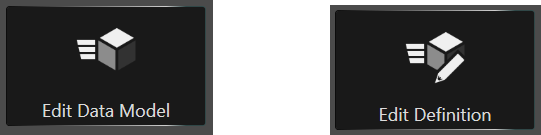
As seen below, this section of the Control Center is for editing the Data Model Definition and the Application Definition, as well as for code generation.
Edit Data Model Definition and Application Definition
|
To edit the Data Model Definition, click this "Edit Date Model" button to open Visual Studio and edit PlayerDataBinding.xhcdl. |
To edit the Application Definition, click this "Edit Definition" button to open Visual Studio and edit PlayerGenCode.xhcdl. |
Generate
Clicking this generates the above code.
Custom ☆
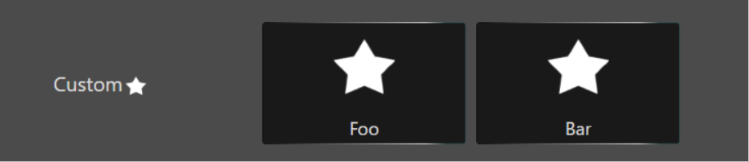
Custom builds defined in the “Builds” tab are saved and displayed here. Clicking a button will execute the referenced build.