
Basic Layouter Properties
Description
CGI-Studio provides various layouters with certain properties, which can be configured. Properties that apply to all of the CGI-Studio layouters are described below.
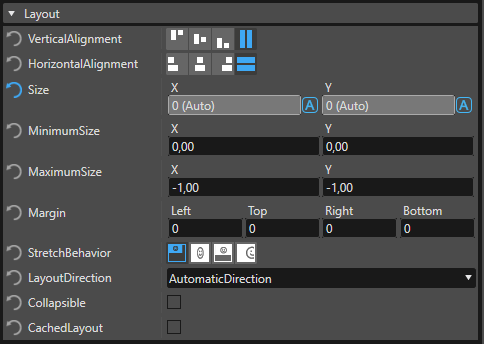
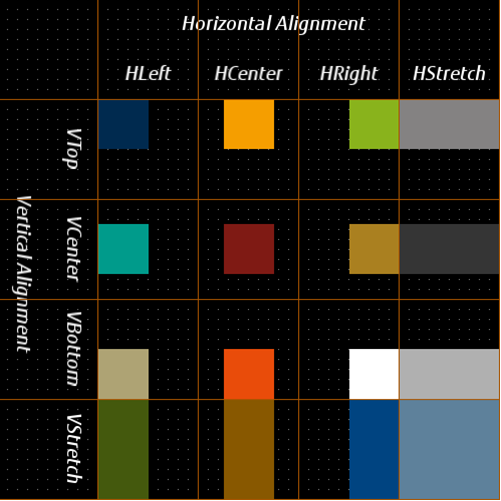
Vertical Alignment and Horizontal Alignment
Vertical and Horizontal Alignment define how the layouter should align the nodes within their child layout area. The size and position of the child layout area depends on the chosen layouter. But, the alignment within this area is defined by these two properties.
Open "Import" dialog to import an FBX file via menu or toolbar.
If nothing is specified for your use case, you should use the default values VStretch and HStretch, because these settings will delegate the child layout area to the child layouter. When choosing VStretch or HStretch please check the setting of the additional property Stretch Behavior.
Size
The Size property allows defining a fixed size for this child node. The value defined in the Size property overrules the value provided by the layout area. This means if a layouter only provides an area with a width of 10 (due to size setting on a parent node) a size of (20,-1) will force the layouter to provide a child layout area with a width of 20 for this child node. Use this property if you want a layouter to arrange its child elements freely within a defined range. The layouter has to use exactly this area (if not overruled by the Minimum Size or Maximum Size property).
The value -1 indicates that this value is not set for this node and has to be determined by other properties or the child layout area.
Minimum Size
The Minimum Size property defines the minimum size of the child node. This property overrules the Maximum Size property, the Size property and the layout area. So, if you define a Size or Maximum Size that is smaller than the Minimum Size then the Size is limited to the Minimum Size (if still not overruled, the layout area will still be applied). Use this property if you want a layouter to arrange its child elements freely within a limited range (e.g. if there is a specification for an area that has to consume a minimal size but is allowed to be bigger then use this specification as Minimum Size).
Maximum Size
The Maximum Size property defines the maximum size of the child node. This property overrules the Size property and the layout area. So, if you define a Size that is larger than the Maximum Size then the Size is limited to the Maximum Size (if still not overruled the layout area will still be applied). Use this property if you want a layouter to arrange its child elements freely within a limited range (e.g. if there is a specification for an area which everything has to fit into but should use minimum space then use this specification as Maximum Size).
Similar to the Size property -1 can be used to indicate that the value is not set.
Margin
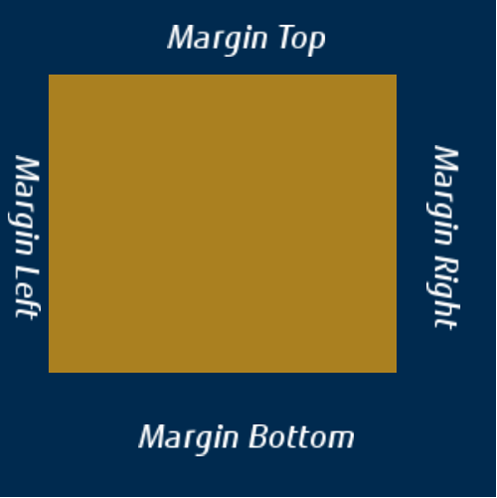
The Margin property is used to define the offset on the top, bottom, left and right that have to be considered by the layouter when arranging its child elements. You can implement relative positioning within the layout area after the alignment is applied. For example if you want to layout a node right and top aligned but position it 10 pixel down from top and 20 pixel more left than on the right border then you set the top Margin to 10 and the right Margin to 20.
-
Setting the position manually is impossible with layouters, because the configured position will be overwritten by the layouter.
The values for Margin can be set separately for left, top, right and bottom so the margin can be asymmetric (see image below).
Stretch Behavior
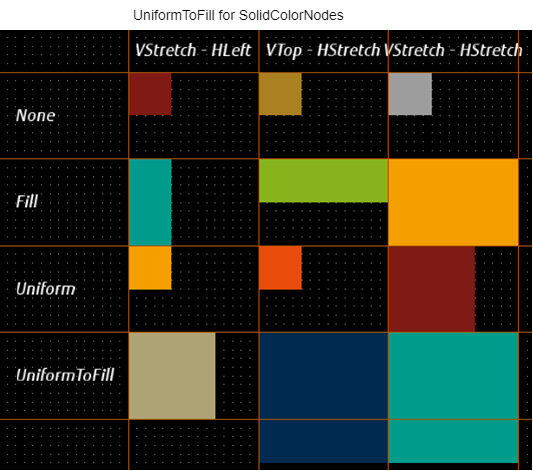
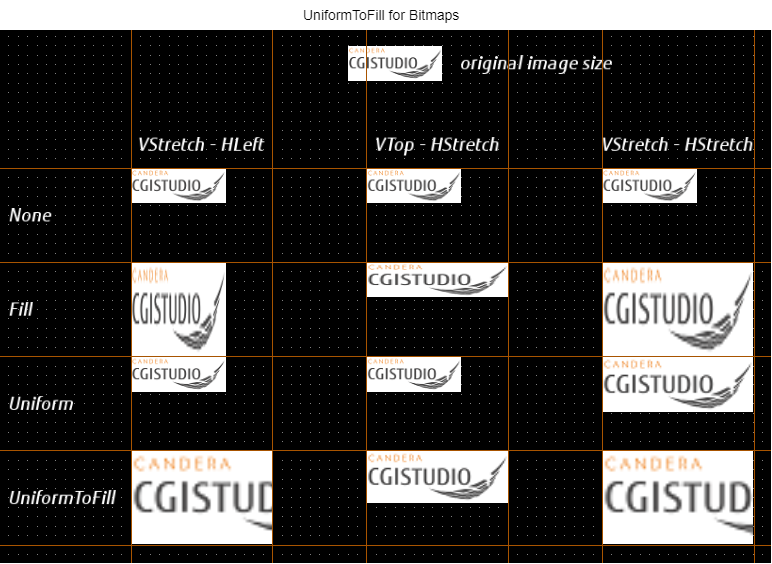
The Stretch Behavior property is only useful on RenderNodes because it defines how they have to be adjusted to the nodes’ Scale property to fit into the layout area. Use None if the node has to keep its normal size. Use Fill if you want to stretch it in the axis which is configured for stretching. Use Uniform to fit into the layout area but keep its original proportion. Use UniformToFill to fill the axis that is configured for stretching but keep its original proportion.
-
If a stretch behavior is set for a node, it will consume the area accordingly. So, if the size is not limited there may be no space left for other content. Therefore, it should be limited with one of the size properties either directly or indirectly by one of the node’s parents
Using the option UniformToFill the RenderNode can exceed its layout area (see image below).
Layout Direction
The Layout Direction property defines how the alignment is handled.
- LeftToRightDirection: The alignment is fixed to left-to-right
- Right-To-LeftDirection: The alignment is fixed to right-to-left
- AutomaticDirection: This is the default layout direction. The default interpretation of AutomaticDirection is to inherit the parent’s value (InheritDirection). If no value is set on any parent, and therefore nothing can be inherited, the culture layout direction is used (CultureDirection).
You can change the interpretation of the AutomaticDirection by callingLayouter::SetAutomaticDirectionBehavior()
- InheritDirection: Alignment is inherited from the parent layout direction. If no layout direction is set on any parent, the direction of the current culture is used.
- CultureDirection: The alignment depends on the culture and is independent of the parent layout direction.
- Right-to-left for Arabic and Hebrew
- Left-to-right for most languages (e.g. English, German...)
- Right-to-left for Arabic and Hebrew
Collapsible
A collapsible node won't be considered during the calculation of the layout if its rendering is disabled. Its rendering can be disabled by unchecking the property Enable Rendering. The property Collapsible will ignore calculations for position and size in the layout. It activates if effective rendering of the node is disabled and applies to all child nodes.