
Automatic Imports
If necessary, it is possible to configure monitored folders for automatic imports - both images and fbx files. To use this feature it is mandatory to enable it. This operation is possible in two different ways:
- By checking the "Enable automatic import" box in the "Automatic Imports Configuration" panel (see the image below). This window can be opened through the menu "Import" - "Configure Automatic Imports..."
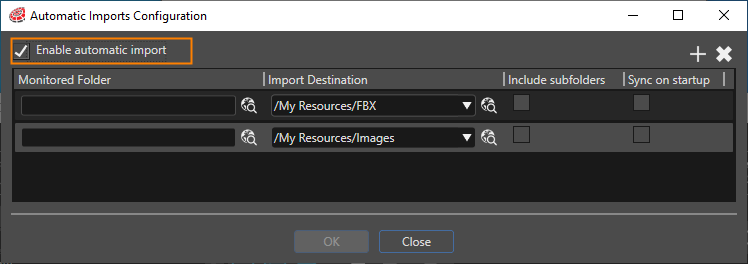
Each item in "Automatic Import Configuration" dialog allows you to set the details of automatic import.
Monitored Folder Set the folder for monitoring Import Destination Set the destination folder for import. Include subfolders Enable this option if you want to monitor files under the sub-folders of the folder you set as the Monitoring Folder. Sync on startup Enable this option allows you that [ Auto Import ] dialog box will appear when the solution is started and when this configuration is performed to synchronize the monitored folders.
The "configuration is performed" is the following two timming.
- Enable [ Sync on start ] on "Automatic Imports Configuration" dialog but if any synchronization hasn't been done at a solution startup.
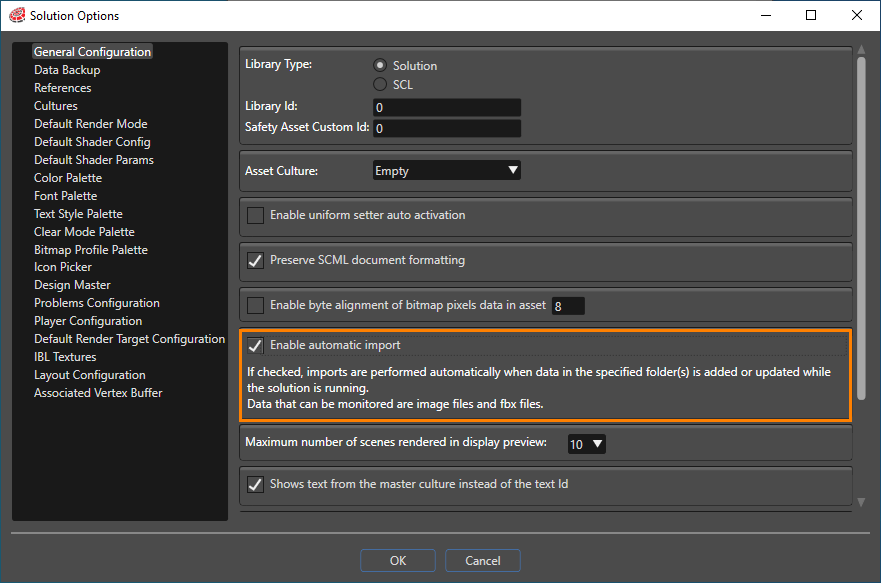
- If [ Sync on startup ] is changed from disabled to enabled. - By checking the "Enable automatic import" box in the General Configuration section of the "Solution Options" panel (see the image bellow):
When the content of a folder is modified, SceneComposer notifies that there are pending imports and the user can choose to import the new/modified files with "preview changes" or "without preview changes". "Without preview" means that the import cannot be stopped. With "Preview Changes" the usual import workflow is meant.
The configured paths are specific for each solution and are saved in
USER_DIR\ AppData\Roaming\SceneComposer\Solutions\
-
When a solution is converted to another version or is migrated to another platform, the configurations for automatic imports will be lost.
Best practice for using this feature is that the user should configure the folders that will be monitored in such a matter that they only contain image files or fbx files and the images needed by the fbx. If the modified files in the folder on disk contain a fbx file, only a FBX import will be done, so any images files modified that are not needed by the fbx will not be imported.