
Top Node
The Fusion node diagram in the Fusion panel always starts with the top node. The Top Node serves as root node in the Fusion diagram and is fixed, meaning it cannot be deleted from the Fusion Editor.
The Top Node corresponds to the node selected in the scene tree. If Fusion is launched from within the State Machine Editor, it represents the State Machine Element (such as a State or Transition) that was selected when starting Fusion.
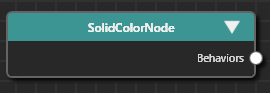
Top Node Connector
The Top Node has a single connector on its right side, which is used to create and connect other Fusion Nodes.
For details on connecting Fusion Nodes, see Basic Operations.
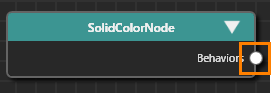
Selecting a Top Node
The following types of nodes can serve as the Top Node in a Fusion diagram:
- Predefined CGI Control Templates
- Custom User Controls and Instantiated controls with user defined properties
- Behavior Building Block Templates
- State Machine Elements (e.g. States, Transitions)
- 2D/3D Scene Nodes
- Behavior Groups
To select a Top Node:
- In the Scene Tree, click the desired node.
- The adjacent Extra Scene Tree lists the Behaviors and Effects of the node selected in the Scene Tree along with a [Fusion...] button.
- Click the [Fusion...] button to open the Fusion Editor.
- The Fusion Editor will display the selected node as the Top Node in the Fusion diagram.
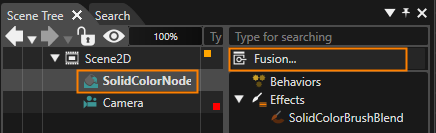
If the Fusion Editor is already open, selecting any node in the Scene Tree will automatically update the Fusion Editor to display the Fusion diagram for the corresponding node.
The choice of a Top Node depends on the specific use case. For example:
Essentially, the Top Node is the element that acts as the source or recipient of events or values to be processed.
Fusion Node Categories
The following type of behaviors can be connected connected to the top node in Fusion:
- Action Fusion Node
- Condition Fusion Node
- Behavior Fusion Node
- Behavior Group Fusion Node (BehaviorBuildingBlock)
In addition to these, reference Fusion nodes within Action, Condition, Behavior Fusion node can also be connected.
The color of each Fusion node category - including the Top Node - as displayed in the Fusion Editor can be customized in Preferences.