
Basic Operations
Diagram Display Operations
Refer to Fusion Editor UI for an overview of the basic operations associated with the diagrams displayed in Fusion.
Diagram Bird's Eye
The Diagram Bird's Eye panel is a separate panel that provides a comprehensive overview of the entire Fusion diagram. It also highlights the section currently visible in Fusion panel, making it particularly useful when working with large diagrams.
To open this panel from the menu, navigate to View > Fusion > Diagram Bird's Eye.
A complete documentation is available in Diagram Bird's Eye.
Adding a Fusion Node
New Fusion nodes can be added to any existing Fusion node that has a connector on its right side. All Fusion nodes are interconnected through links.
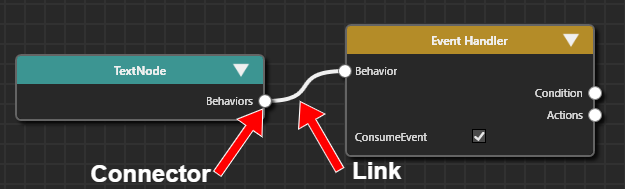
To add a new Fusion node, follow the steps below:
- Drag the Fusion node's connector to the right and hold the mouse button
- While dragging, a link will appear, following the mouse movement.
- Release the mouse button at any position.
- The Select Behavior dialog opens, displaying a list of available behaviors.
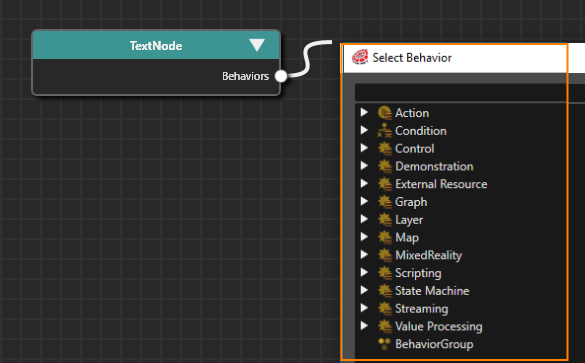
- The Select Behavior dialog opens, displaying a list of available behaviors.
- Click into the input field at the top of the dialog and start typing the name of the desired behavior.
- As you type, the list will be filtered to help you locate the behavior more easily.
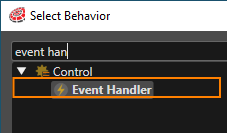
- As you type, the list will be filtered to help you locate the behavior more easily.
- When you find the desired behavior double-click it to select.
- A new Fusion node will be created and linked to the Fusion node whose connector you dragged in step 1.
Alternatively, you can browse through the list of behaviors without using the input field. The behaviors are organized in the same way as they appear in the toolbox.
Collapsing and Expanding a Fusion Node
Each Fusion Node has an expand/collapse button located in the upper-right corner. Clicking this button toggles the node between expanded and collapsed.
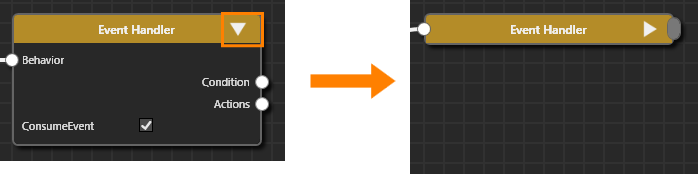
Reference Fusion Node
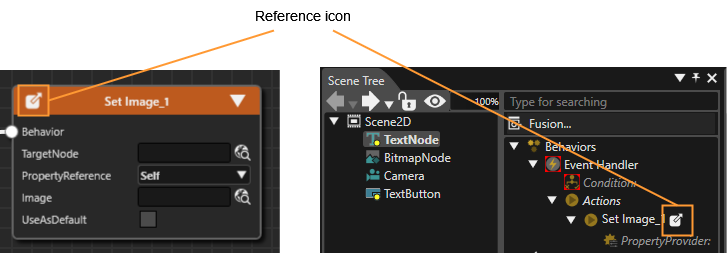
You can create a reference to behaviors available in the solution. For more information about this operation, see Behaviors: Deep Copy/Paste Operation. A reference icon appears in the top-left corner of the Fusion node that corresponding to that reference behavior. This icon is identical to the one displayed for the behavior in the Extra Scene tree. Click the reference icon to navigate directly to the referenced Fusion node.
Fusion Group (Behavior Group)
Fusion Nodes can be grouped together into a Fusion Group, providing an effective way to optimize and simplify the management and organization of Fusion diagrams. Groups can be renamed as desired or duplicated for reuse. Unlike a Behavior Building Block, creating a Fusion Group is faster and doesn't require template creation.
Creating a Fusion Group
- Select the target Fusion nodes
- Open the the context menu and choose [Create Group].
Navigating Fusion Groups
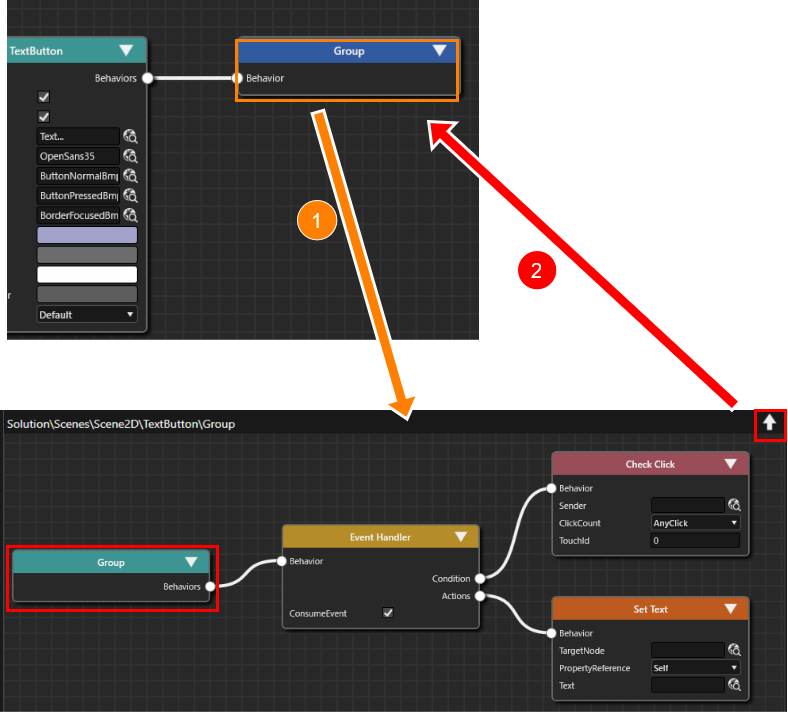
- Double-click the created Fusion Group to display a diagram of the grouped Fusion nodes.
- To return to the previous diagram level, either
- Click the arrow in the upper-right corner of the Fusion Group diagram or
- Double-click the top node in the group
Selecting Multiple Fusion Nodes
You can select multiple nodes using either of the following methods:
- Ctrl + Click each Fusion node to add it to the selection
- Rectangular Selection: Click and hold the left mouse button, then drag to draw a rectangle around the nodes you want to select.
Moving Fusion Nodes
To move a selection of Fusion nodes, drag them to the desired location within the Fusion panel. This applies to both a single node and multiple selected nodes.
Copy and Paste a Fusion Node
To copy and paste a selection of Fusion nodes, use the following keyboard shortcuts:
- Ctrl + C ... Copy the selected node(s)
- Ctrl + V ... Paste the copied node(s)
This works for both single nodes and multiple selected nodes.
Delete a Fusion Node
You can delete a Fusion node using one of the following methods:
- Select the target node and press the Delete key on your keyboard.
- Open the context menu and choose Delete.
The deletion process depends on whether the target Fusion node has references:
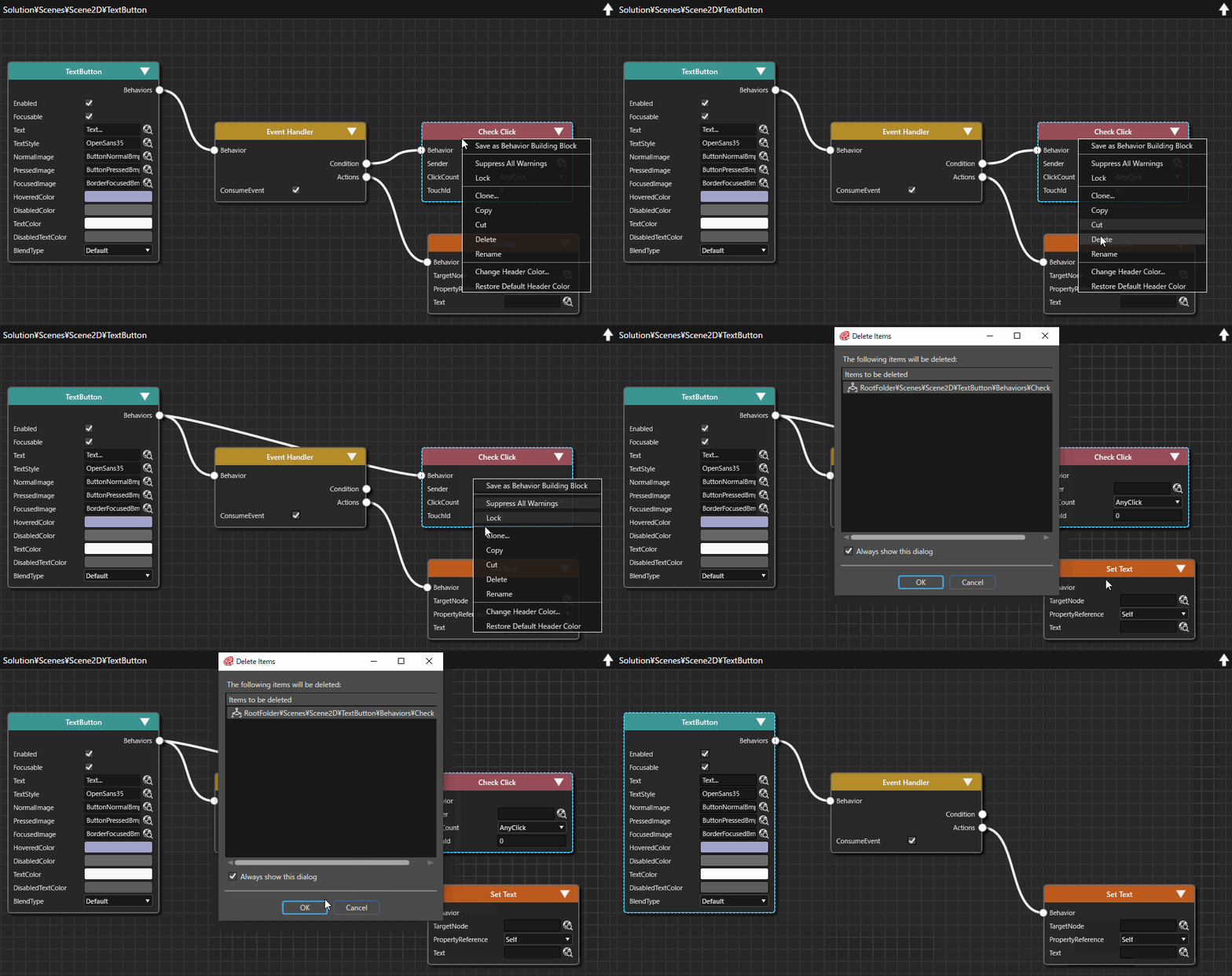
1. Target Fusion Node is a Leaf Node
- Delete the node using either the Delete key or the context menu option
- The Delete Item dialog will be opened.
- Review the contents and click OK to permanently delete the node.
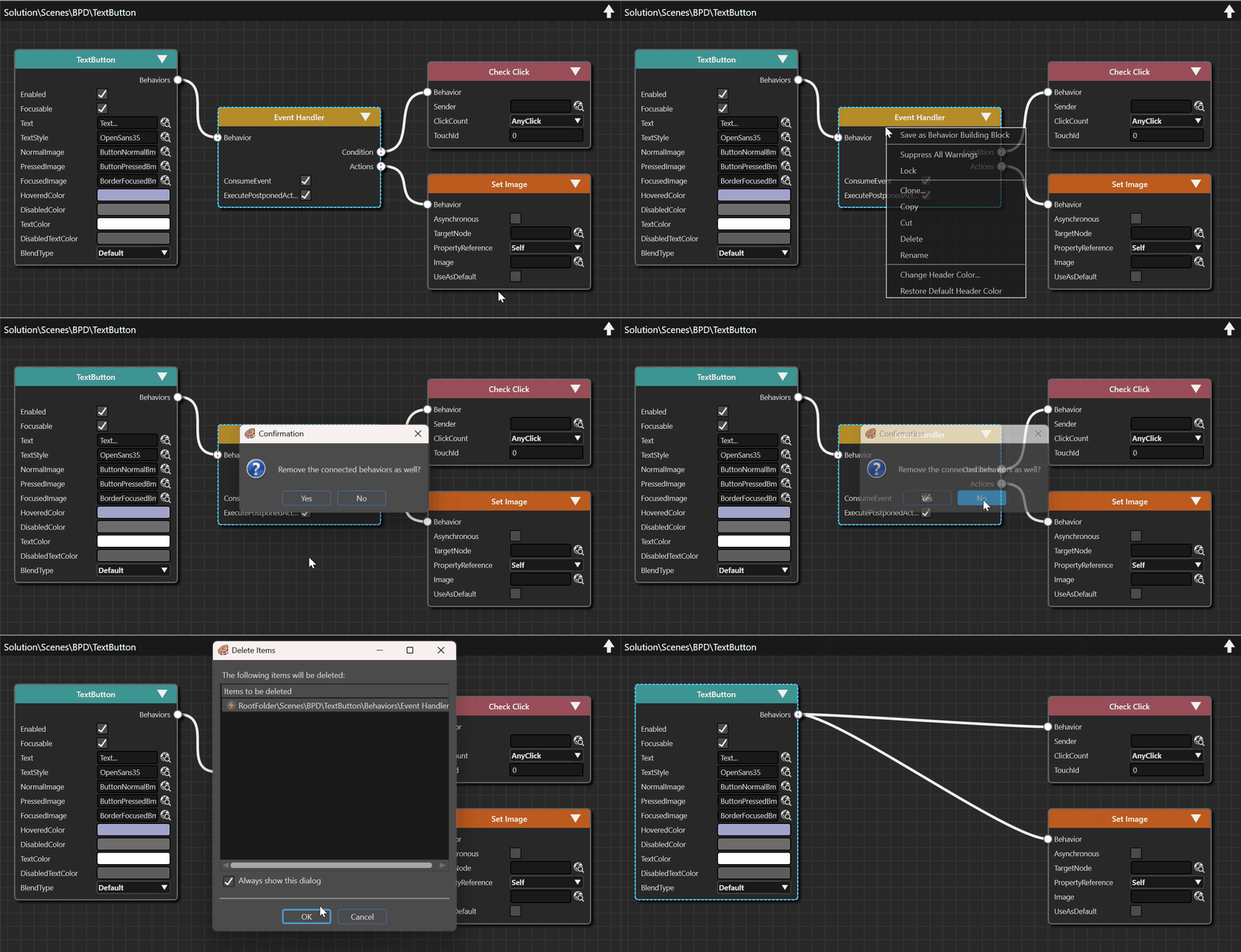
2. Target Fusion Node has Children
- Delete the node using either the Delete key or the context menu option.
- A prompt will appear asking if you want to delete the connected behaviors as well.
- Click No to delete only the node itself.
- The Delete Items dialog box will be opened.
- Review the contents and click OK to confirm deletion.
- Any child Fusion nodes connected to the target node will be automatically reconnected to the top node.
Re-Structuring the Nodes in a Fusion Diagram
The Top Node is the only node that can remain in a Fusion diagram without a link, provided he is the sole node in the diagram. All other Fusion nodes must be connected via a link. Deleting the link directly is not possible.
Re-Link a Connected Node to the Diagram's Top Node
Any Fusion node can be re-linked to the Fusion diagram's top node using one of the following methods:
- Right-click on the left connector of the node to link it to the top node.
- click and drag the connected link away from the left connector, then release the mouse button.
- Right-click on the right connector of the node, which your node is linked to (this allows re-linking multiple nodes with a single click)
Change the Node a Fusion Node is Linked To
To link an already connected node to another node click the right connector of the node you want to connect from and drag a link to the node that should be connected.
Undo/Redo operation
You can perform Undo and Redo actions in two ways:
- Toolbar Icons: Click the Undo or Redo icons in the toolbar.
- Keyboard Shortcuts:
- Ctrl + Z ... Undo the last action
- Ctrl + Y ... Redo the previous undone action.
Context Menu
After selecting a Fusion node, right-click to display the context menu with the following operations:
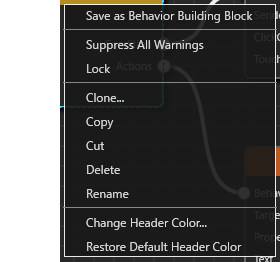
| Save as Behavior Building Block |
Saves the currently selected Fusion node as a Behavior Building Block. |
| Suppress All Warning |
Hides behavior-related warnings in Problems Browser panel. |
| Create Group |
Groups the currently selected nodes into a Fusion Group. This option appears when multiple Fusion nodes are selected. |
| Lock |
Locks the selected Fusion nodes, preventing any modification. The connector of a locked Fusion node will be grayed out and no additional Fusion node operations can be performed. Note that locking the top node will lock all connected Fusion nodes. |
| Unlock |
Unlocks the currently selected Fusion node. This option is displayed when the currently selected Fusion node is locked . If multiple Fusion nodes are selected, this option is displayed only when all selected Fusion nodes are locked. |
| Force Unlock |
Force all locks to be released. This option is displayed when Top node is locked and Fusion nodes connected to it are selected. |
|
Clone |
Creates an identical copy of the selected node. The cloned Fusion node will have the same name as the original, with an appended numerical suffix for differentiation. |
| Copy | Copies the selected Fusion node. This operation is the same as the keyboard shortcut Ctrl + C. |
| Cut |
Cuts the selected Fusion node. This operation is the same as the keyboard shortcut Ctrl + V. |
| Delete |
Performs a delete operation on a selected Fusion node. |
| Paste |
Pastes the copied/cut Fusion node to the specified location. This option appears after performing a Copy or Cut operation. |
| Rename |
Renames the selected Fusion node. Enter a new name in the provided input field. |
| Change Header Color | Changes the header color of the Fusion node to any color. Choose a color in the Color Palette dialog that will be opened. |
| Restore Default Header Color | Restores the default header color specified in [ Preferences > Fusion ]. |
Double Click operation
Double-clicking on a Fusion node changes the display as follows:
- State Machine Element
-> Opens the State Machine Editor screen for the selected element - Behavior Building Block Node
-> Displays the Fusion diagram of the target Behavior BuildingBlock's template. - Behavior Group
-> Shows the internal structure of the group