
Basic Operations
Displaying Fusion Editor
In the initial Scene Composer layout, Fusion appears next to the Scene Editor in the center of the window. If Fusion is not visible, go to View > Fusion > Fusion from the menu bar and check Fusion to display it.
Diagram Display Operations
SeeRefer to Fusion Editor UI for an overview of the basic operations relatedassociated towith the diagrams displayed withinin Fusion panel.Fusion.
Diagram Bird's Eye feature
The Diagram Bird's Eye panel canis bea displayedseparate bypanel selectingthat [provides a comprehensive overview of the entire Fusion diagram. It also highlights the section currently visible in Fusion panel, making it particularly useful when working with large diagrams.
To open this panel from the menu, navigate to View > Fusion > Diagram Bird's Eye.
A fromcomplete thedocumentation menuis bar.available This panel provides a bird's eye view of the entire Fusion diagram. For details on how to display the panel and basic operations, please refer toin Diagram Bird's Eye.
Adding a Fusion nodeNode
New fusionFusion nodes can be added to any fusionexisting Fusion node bythat thehas followinga operations.connector Theon addedits right side. All Fusion nodes are connectedinterconnected viathrough links from connectors.links.

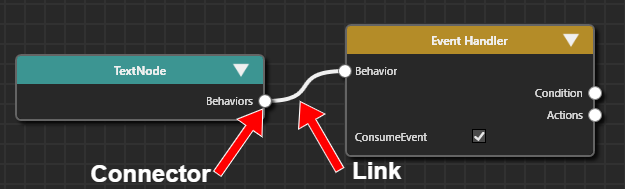
To
- Drag
athe Fusion node's connectoroftoanytheFusion noderight andmovehold the mouse button - While dragging, a
mouse.
"The SelectFusion Node"Behavior dialogboxopens,willdisplayingappear,asolistselectofFusionavailablenode you need to add.
behaviors.
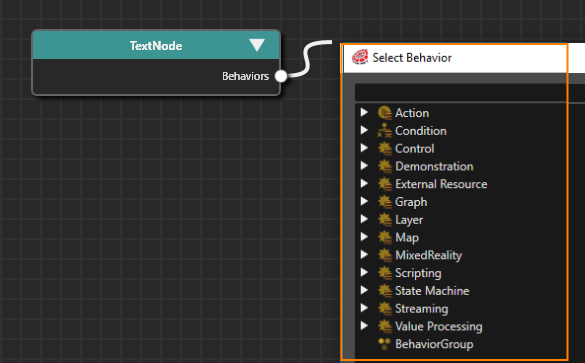
Entering
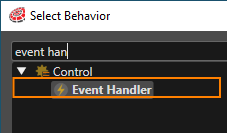
Alternatively, you can browse through the list of behaviors without using the input field. The behaviors are organized in the dialogsame box.way as they appear in the toolbox.

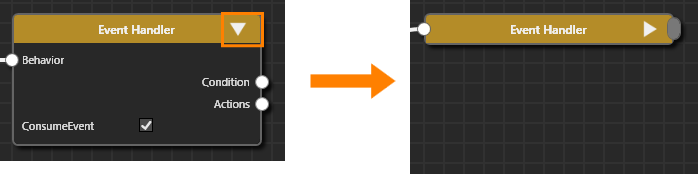
Collapsing and Expanding a Fusion Node collapsing and expanding
Each Fusion Node has an expand/collapse button atlocated in the upper upper-right corner. Clicking itthis willbutton toggletoggles the node between collapsingexpanded and expanding the Fusion node.collapsed.

Reference Fusion Node
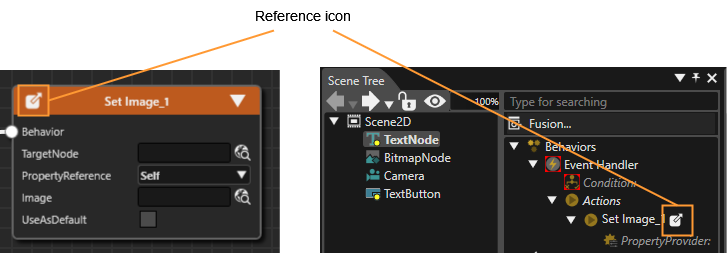
You can create a reference to behaviors available in the solution. For more information about this operation, see Behaviors: Deep Copy/Paste Operation. A reference icon appears in the upper top-left corner of the Fusion node that corresponding to that reference behavior. This icon is identical to the sameone icon that appearsdisplayed for the behavior in the Extra ScenesScene tree. Click thisthe reference icon to navigate directly to the referenced Fusion node.

Fusion Group (Behavior Group)
Fusion GroupNodes (behaviorcan group)be isgrouped together into a Fusion Group, providing an effective way to groupoptimize multipleand simplify the management and organization of Fusion nodesdiagrams. in a scene tree or Fusion diagram to make them easier to manage or to simplify diagram organization. Once created, the groupsGroups can be renamed to anythingas desired or duplicated for otherreuse. uses. It is easier and faster to use because it does not require the creation of templates likeUnlike a Behavior Building Block.
To createcreating a Fusion group,Group selectis faster and doesn't require template creation.
Creating a Fusion Group
Navigating Fusion Groups
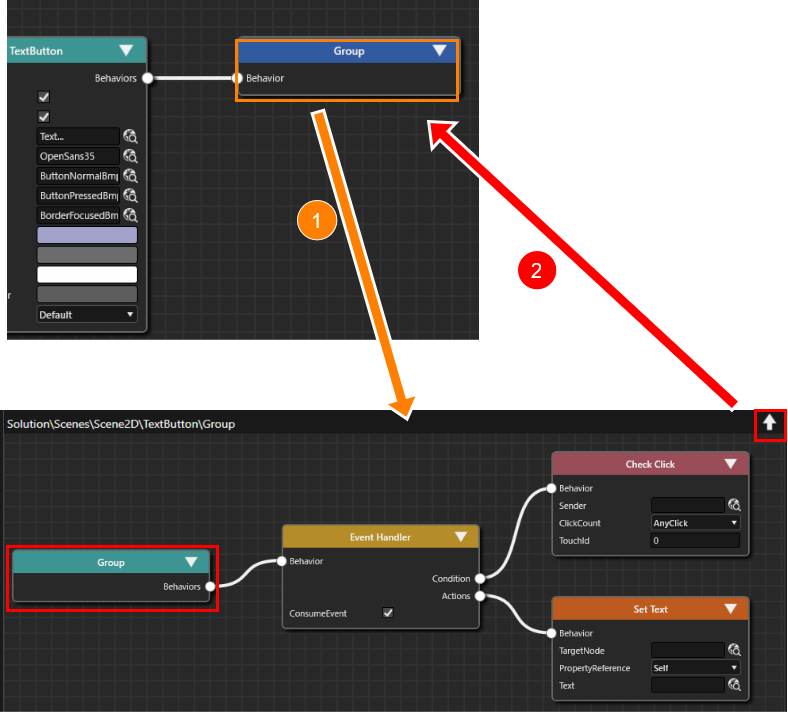
- Double-
clicking onclick the created FusiongroupGroupwillto display a diagram of the grouped Fusionnodesnodes.
- Click the arrow in the
upperupper-right corner of the Fusion Group diagram or

Moving Fusion nodesNodes
Drag a Fusion node to move it to any location in Fusion panel. If multiple fusion nodes are selected by either of the following operations, all Fusion nodes will be moved.
- Ctrl-click to select multiple fusion nodes.
- Select multiple Fusion nodes with a rectangular selection after dragging with a mouse left button.
Copy and Paste a Fusion nodeNode
A Selected Node can be copied by pressing Ctrl + C. A copied Node can be pasted by pressing Ctrl + V. If multiple fusion nodes are selected by either of the following operations, all Fusion nodes will be copied.
- Ctrl-click to select multiple fusion nodes.
- Select multiple Fusion nodes with a rectangular selection after dragging with a mouse left button.
Delete a Fusion nodeNode
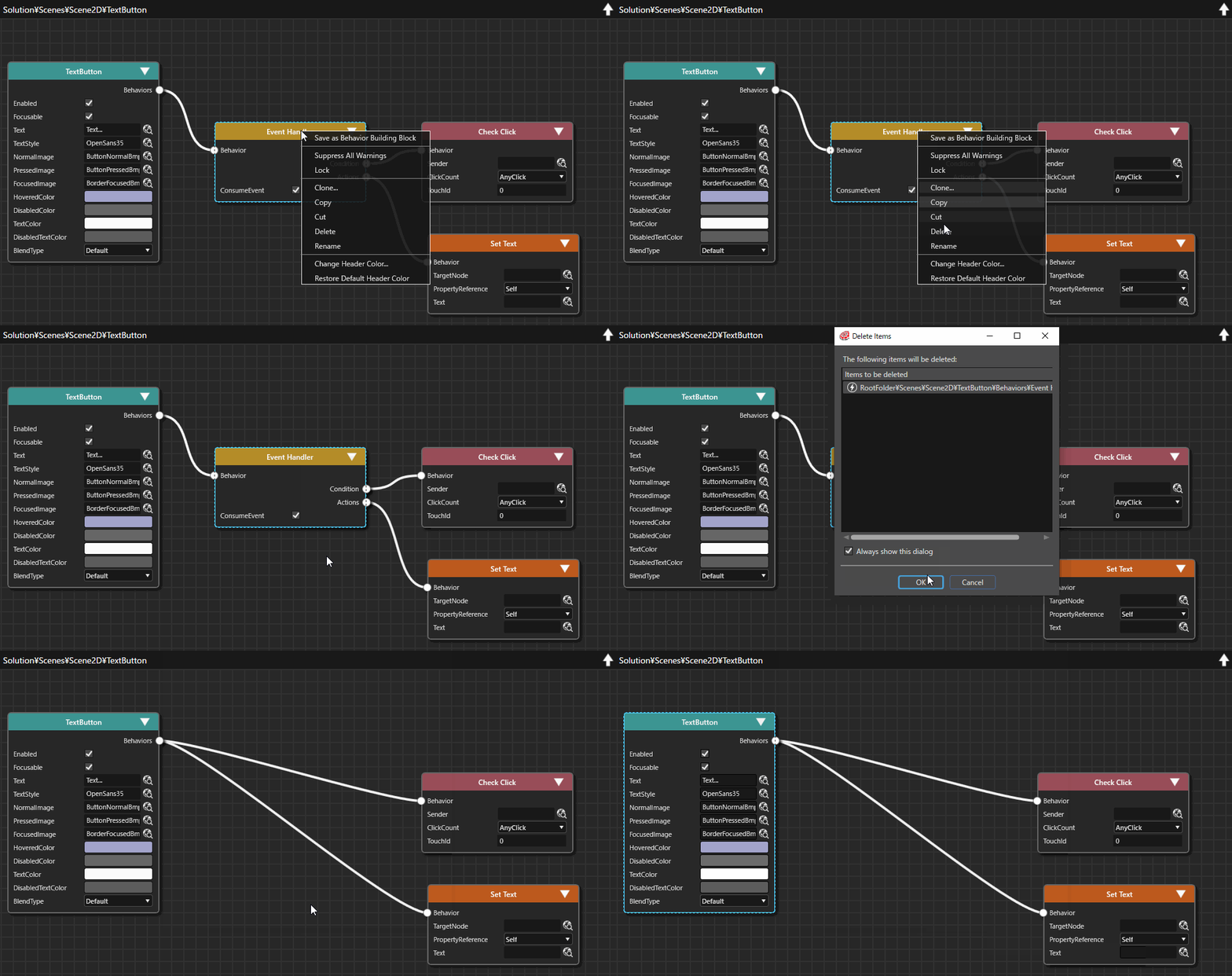
The delete operation can be executed by selecting the target Fusion node and pressing the Delete button on the keyboard or by selecting the context menu [ Delete ]. The deletion flow after the deletion operation is executed depends on the status of the target Fusion node.
- The target Fusion node has no reference
After performing the delete operation, the target Fusion node is connected to the top node. By performing the delete operation again, the [ Delete Items ] dialog box will appear. After confirming the contents, the target Fusion node is deleted by pressing the OK button.

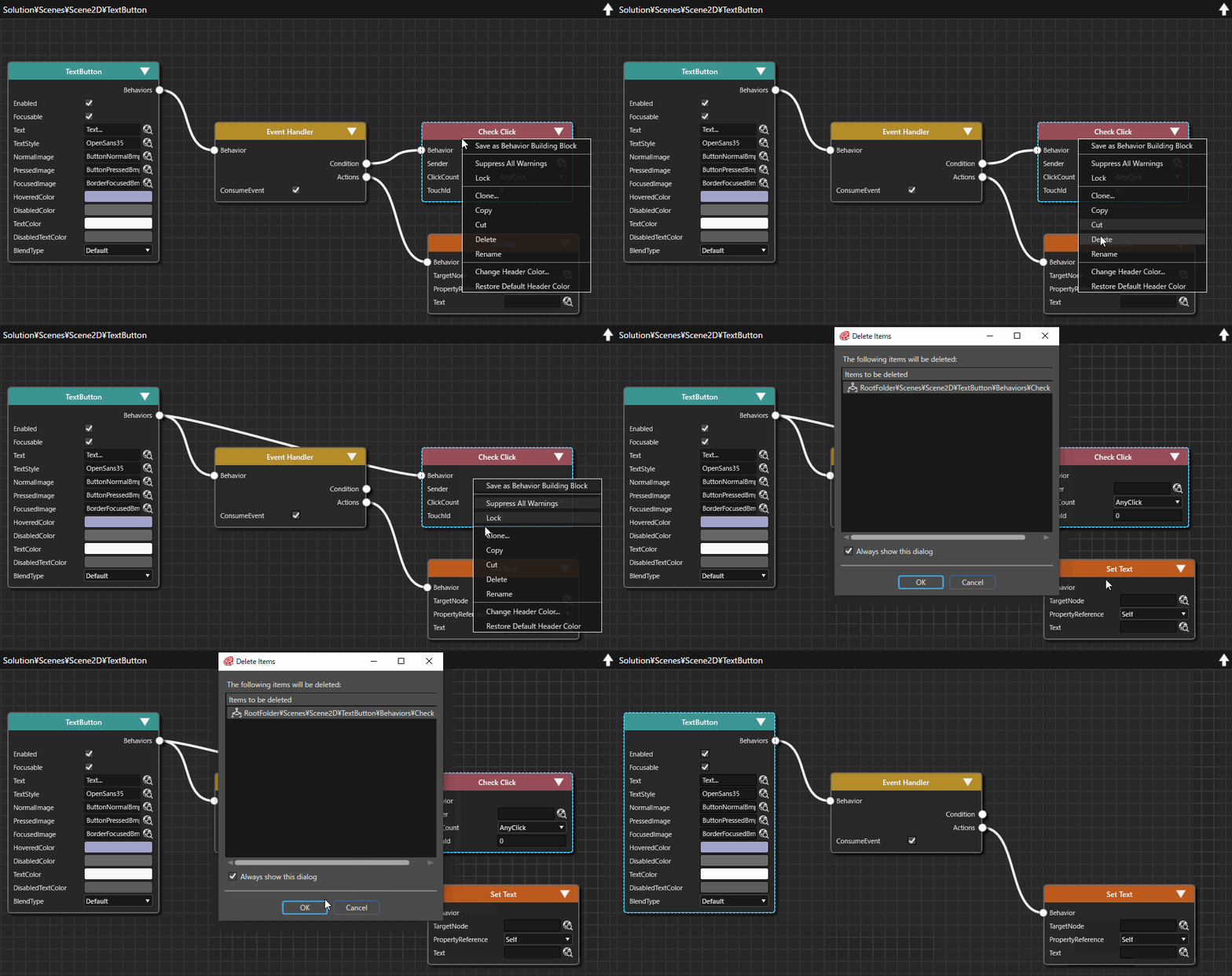
- The target Fusion node has reference
After performing the delete operation, the [ Delete Items ] dialog box appears. After confirming the contents, the target Fusion node is deleted by pressing the OK button. Fusion nodes (as reference) connected to the target Fusion node will be directly connected to the top node.

Connect via Link
If a connection between Fusion nodes are enabled, you can drag a connector to connect a link to another Fusion node.
Delete Link
By right-clicking on a connector of Fusion node, delete a link already connected (However, a link of Fusion nodes connected to the top node cannot be deleted.) If a connector is connected to multiple links, all links will be deleted. The Fusion node that deletes its link is then automatically linked to the top node.
Undo/Redo operation
Undo/Redo operations can be performed by using the Undo/Redo icon in the toolbar. And, keyboard shortcut keys of Undo/Redo is also supported.
Context Menu
After selecting any Fusion node, the following context menu is displayed by right-clicking the mouse.

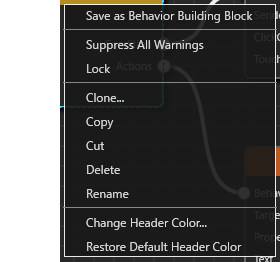
| Save as Behavior Building Block |
Save the currently selected Fusion node as a Behavior Building Block. |
| Suppress All Warning |
Hides behavior-related warnings in Problems Browser panel. |
| Create Group |
This menu is displayed when multiple Fusion nodes are selected. Groups the currently selected Fusion nodes. |
| Lock |
Performs an edit lock on the Fusion node. The connector of a locked Fusion node will be grayed out and no additional Fusion node operations can be performed. Note that locking the top node will lock all connected Fusion nodes. |
| Unlock |
This menu is displayed when the currently selected Fusion node is locked (When multiple Fusion nodes are selected, this option is displayed if all selected Fusion nodes are locked.) Unlock the currently selected Fusion node. |
| Force Unlock |
This menu is displayed when Top node is locked and Fusion nodes connected to it are selected. Force all locks to be released. |
|
Clone |
Fusion nodes can be cloned. The cloned Fusion node will have the same name as the selected Fusion node with a number. |
| Copy | Copy a Fusion node. This is the same as the key command operation, Ctrl+C. |
| Cut |
Cut the Fusion node. This is the same as the key command Ctrl+V. |
| Delete |
Performs a delete operation on a selected Fusion node. |
| Paste |
This menu is displayed after performing copy/cut operation. Paste the copied/cut Fusion node to the specified location. |
| Rename |
Rename a selected Fusion node. |
| Change Header Color | Change the header color of the Fusion node to any color. |
| Restore Default Header Color | Restore the default header color specified in [ Preferences > Fusion ]. |
Double Click operation
Double-clicking on a Fusion node switches the display screen.
- If the top node is a state machine element, display its State Machine Editor screen.
- If you click on Behavior BuildingBlock Fusion node, the Fusion diagram of the target Behavior BuildingBlock's template is displayed.
- If you double-click on a behavior group, its internal structure will be displayed.