CGI Studio HMI Rotation
It might occur that a hardware display that is designed for landscape mode (horizontal orientation) is installed into an environment where it is actually used in portrait mode (vertical orientation). This would mean, the designers and programmers would have to create the HMI rotated by 90° and arch their neck whenever they want to check if it looks fine.
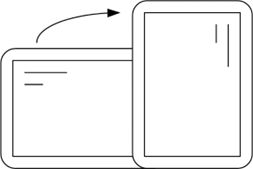
To support tricky usecases like that, CGI Studio Scene Composer offers a convenient HMI rotation feature that goes far beyond this particular case. The user can design and program his HMI the way it will finally be displayed. The necessary rotation will be added separately. You can configure to rotate the HMI by 0° (default), 90°, 180° or 270° clockwise.
Example and Configuration
In the following example configuration we will simulate the usecase from above: a display that is designed for landscape mode will be used in portrait mode.
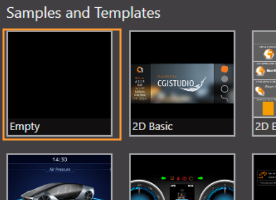
1. Create a Scene Composer solution with a 2D scene (you can e.g. use the empty solution provided on the Scene Composer's Start Up screen).
2. Configure the Display for landscape mode.
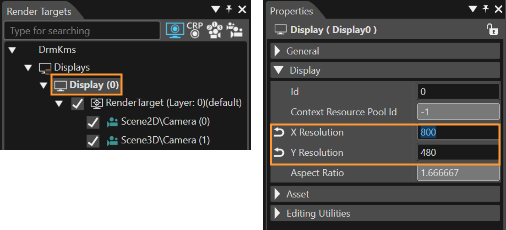
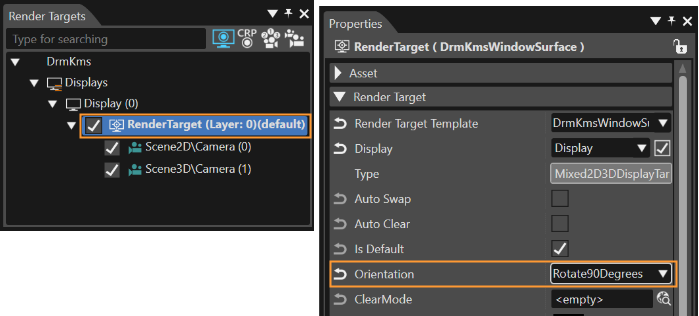
3. Configure the Render Target to be rotated by 90° clockwise.
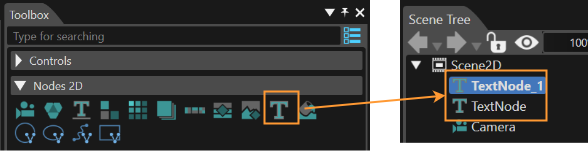
4. Add 2 TextNodes to the scene by dragging 2 them from the Toolbox to the Scene Editor or Scene Tree Panel.
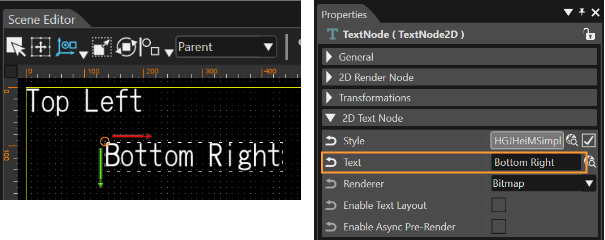
5. Move the TextNodes apart in the Scene Editor so that they are clearly visible. Then change their Text property in the Properties Panel to "Top Left" and "Bottom Right".
6. Open the Display preview through the menu "View - Display - Display (0)".
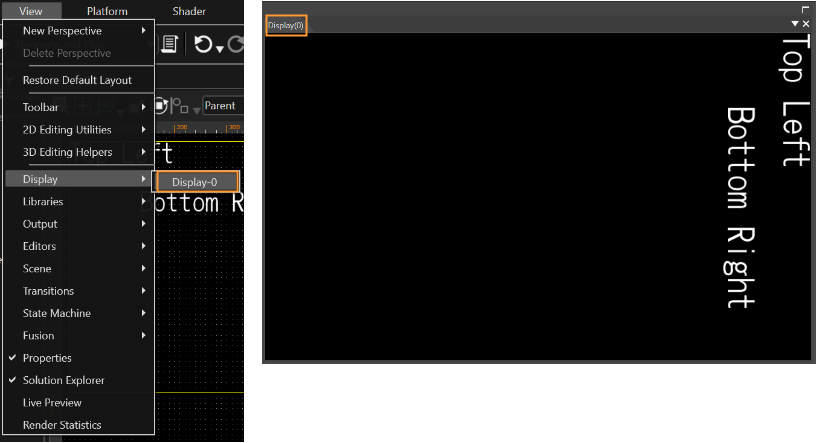
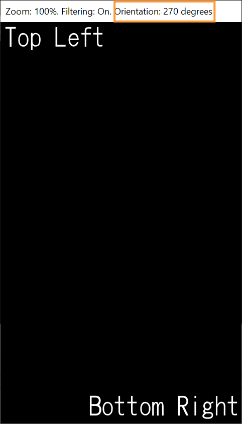
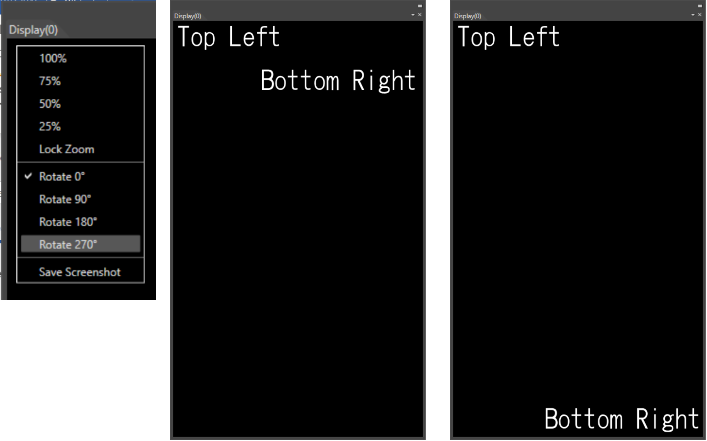
7. You can see that the Display's orientation is still landscape. We have to physically rotate the display by 270°. This is like rotating the physical hardware device that is in front of you. To do this, right click into the display window and choose "Rotate 270°".
The Display window will display your HMI as intended. You can now reposition the TextNode "Bottom Right" to the bottom right and the configuration example is done.
Rotation in Player
Save the solution configured in the steps above and start the player hitting the Play button of the "Generate and Play" option from the Toolbar.
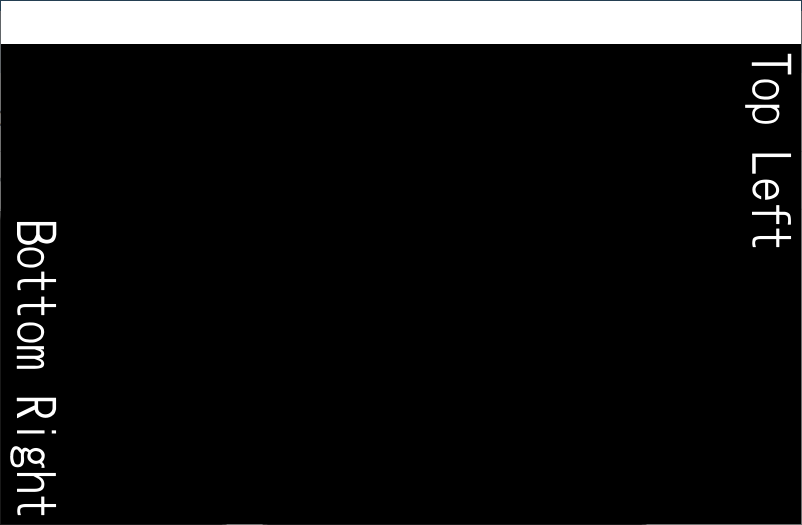
This will open the player and the Display will be in landscape mode.
The display of the Player can be rotated as well using the corresponding icons in the CGI Panel's toolbar.
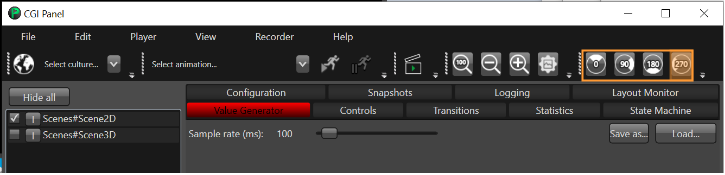
When configuring a display rotation of 270° clockwise for the Player (same as we did for the display in Scene Composer), the Display will be oriented correctly again. The current configuration of the display's rotation will be displayed in the Player's title bar.